Execute complex tasks with Junie
Junie is an integrated AI coding agent. It can generate code, explain and refactor complex logic, suggest and implement improvements — all within the context of your solution.
Capabilities
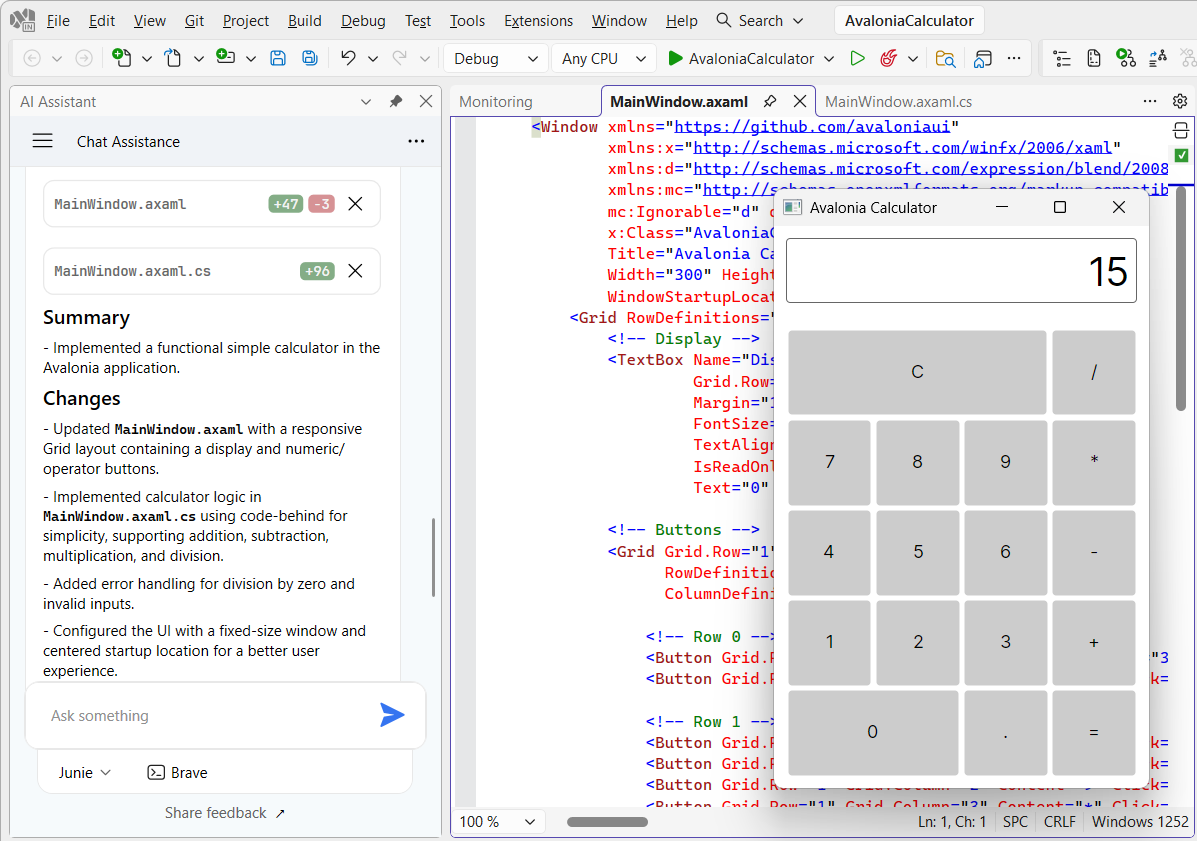
Write and edit code autonomously — Junie actively builds and modifies your application. You can ask it to write complex logic based on simple text prompts, or have it edit and update your existing codebase.
Execute advanced, autonomous refactorings — Junie doesn't just suggest changes; it applies them. You can task the agent with rewriting a massive, complex class into several cleanly separated logical modules, or have it hunt down and fix suboptimal code across your files.
Perform terminal and VCS operations — drive your workflow directly from the prompt. Junie can execute useful terminal commands to create or delete files, initialize Git repositories, stage and commit changes, write your commit messages, and manipulate branches without you ever needing to open a command line.
Explore, explain, and advise — Junie can answer project-specific questions, explain dense legacy algorithms, and suggest high-level architectural improvements.
現在の制限
Junie has general access to all files in the solution directory. Fine-grained manual context management is not yet available.
Deep integration with ReSharper's refactoring and analysis engines is not yet available.
Quota and trial
Interacting with AI models requires an AI quota:
If you have a JetBrains AI subscription, Junie consumes the AI quota from your plan.
If you do not have a subscription, you will be prompted to activate a free trial with a limited quota when you first open the AI Assistant tool window.
Actual quota usage depends on the selected LLM model and the complexity of your tasks.
入門
Enable Junie
Click Try Junie on the promotional page inside the IDE to open the AI Assistant tool window.
If you have a JetBrains AI subscription, you can start using the chat right away. Your first prompt will trigger a one-time download of Junie components.
If you do not have a subscription, a licensing dialog will appear. Click 体験版を開始, accept the Terms & Conditions, and provide bank card information for verification purposes.
You will see Junie is selected at the bottom of the AI Assistant tool window.
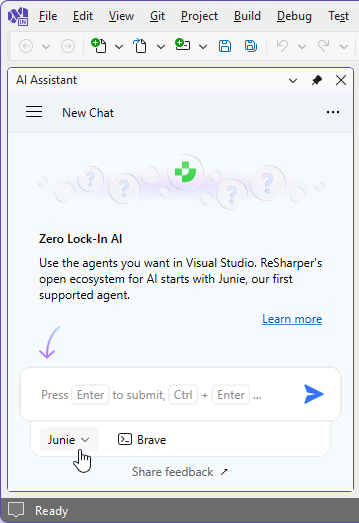
Junie is a multi-model agent and you can switch between models. Available models include Gemini 3 Flash (Default), GPT-5, GPT-5.1-codex-max, GPT-5.2, Claude Sonnet 4.5, Claude Opus 4.5 (Fast), Claude Opus 4.5, Gemini 3 Pro, Gemini 3 Flash, and Grok 4.1 Fast Reasoning. Each model varies in response quality, speed, and credit consumption relative to the default.
Switch models
メインメニューから を選択するか、 Alt+R O を押してから、左側の を選択します。
Select the desired model.
オプション ダイアログで 保存 をクリックして変更内容を適用し、ReSharper に保存場所を任せるか、 保存先 セレクターから特定のレイヤーを選択して変更を保存します。 詳細については、 resharper 設定の管理と共有 をご参照ください。
The selected LLM model will be activated and used by Junie.
Agentic capabilities and Brave mode
As a coding agent, Junie can perform a wide range of tasks, including editing files, generating code, refactoring, and more. By default, Junie executes non-sensitive tasks such as editing files within the solution directory or running simple console commands such as dotnet build autonomously. However, some tasks and terminal commands that may have a wider impact will require your approval before executing.
Brave mode allows Junie to execute all terminal commands without confirmation.
To enable Brave mode for the current session, click  Brave below the chat input field.
To make Brave mode the default for all sessions, select Allow Junie to execute terminal commands without confirmation on the page of ReSharper オプション Alt+R、O
If you want to disable all agentic capabilities, including the ability to edit files, select AI Chat instead of Junie at the bottom of the AI Assistant tool window.
トラブルシューティング
AI Assistant tool window does not open
Make sure AI Assistant is enabled in ReSharper. Go to and select the AI Assistant checkbox.
If there is no AI Assistant category in the options, run the dotUltimate Setup Wizard, make sure that インストール or Repair is selected next to AI Assistant in the list, and complete the wizard.
AI Assistant explains what to do instead of doing it
Make sure that Junie is selected instead of AI Chat at the bottom of the AI Assistant tool window.