Hibernate
Hibernate is an object-relational mapping framework that implements the Jakarta Persistence (JPA) specification.
IntelliJ IDEA provides the following:
Coding assistance specific to Hibernate.
A dedicated facet for managing the Hibernate configuration hibernate.cfg.xml.
Additions to the Persistence tool window for managing your Hibernate items, creating configuration files and persistent classes, navigating to related source code in the editor, opening diagrams and consoles, and more.
Entity-relationship (ER) diagrams that you can access from the Persistence tool window.
An ability to generate managed entity classes and object-relational mappings for them by importing a database schema or an EJB deployment descriptor file ejb-jar.xml.
The Hibernate console for writing and running HQL queries, and analyzing the query results.
Create a new Jakarta EE project with Hibernate
Open the New Project wizard:
If you are on the Welcome screen, click New Project.
If you are in the IDE, go to .
From the Generators list, select Jakarta EE.
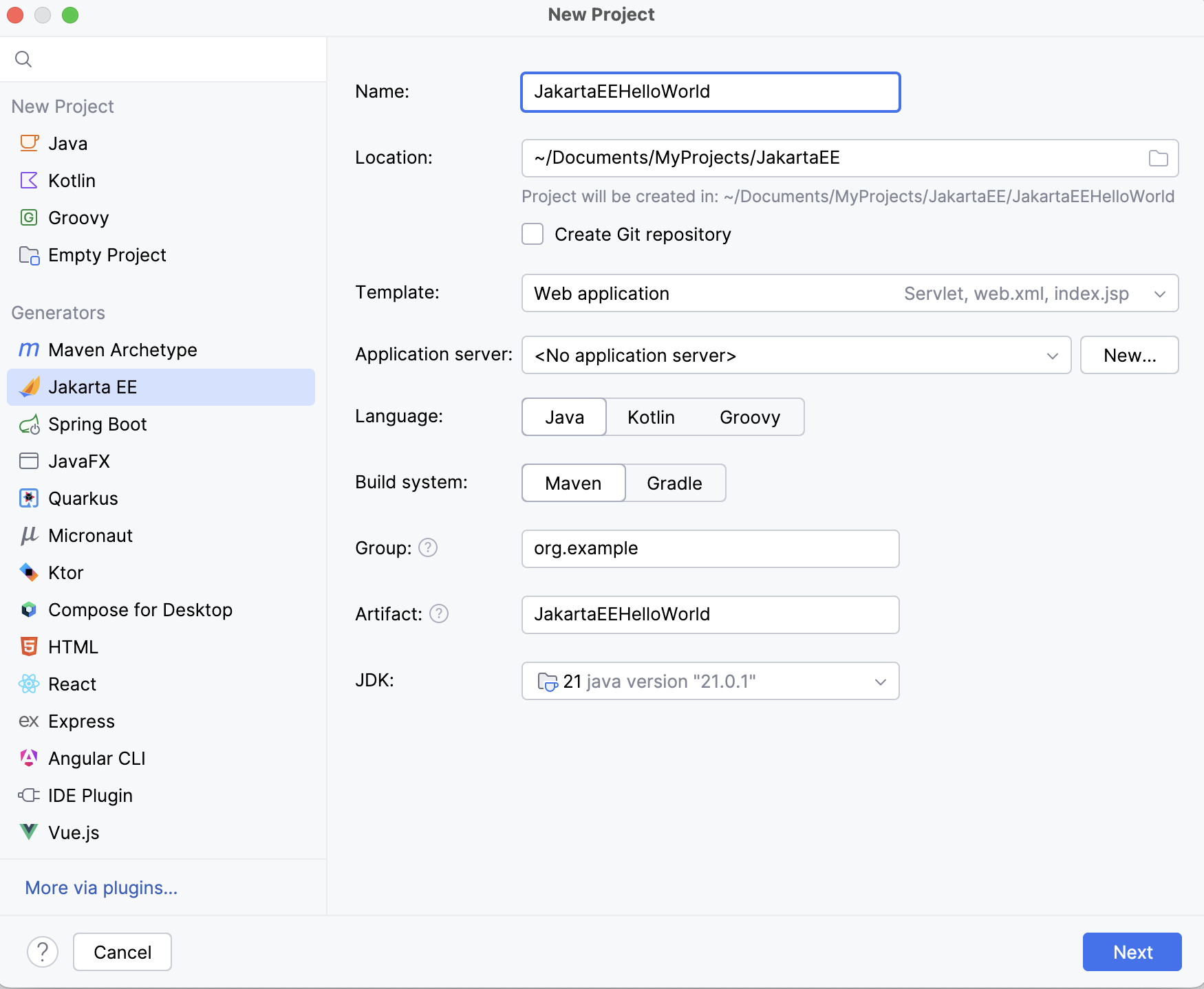
Set up the Jakarta EE project settings.
Go to the next step of the wizard. In the upper-left corner, select the Jakarta EE version you want to use.
From the Dependencies list, select the Persistence (JPA) specification and Hibernate as the implementation.
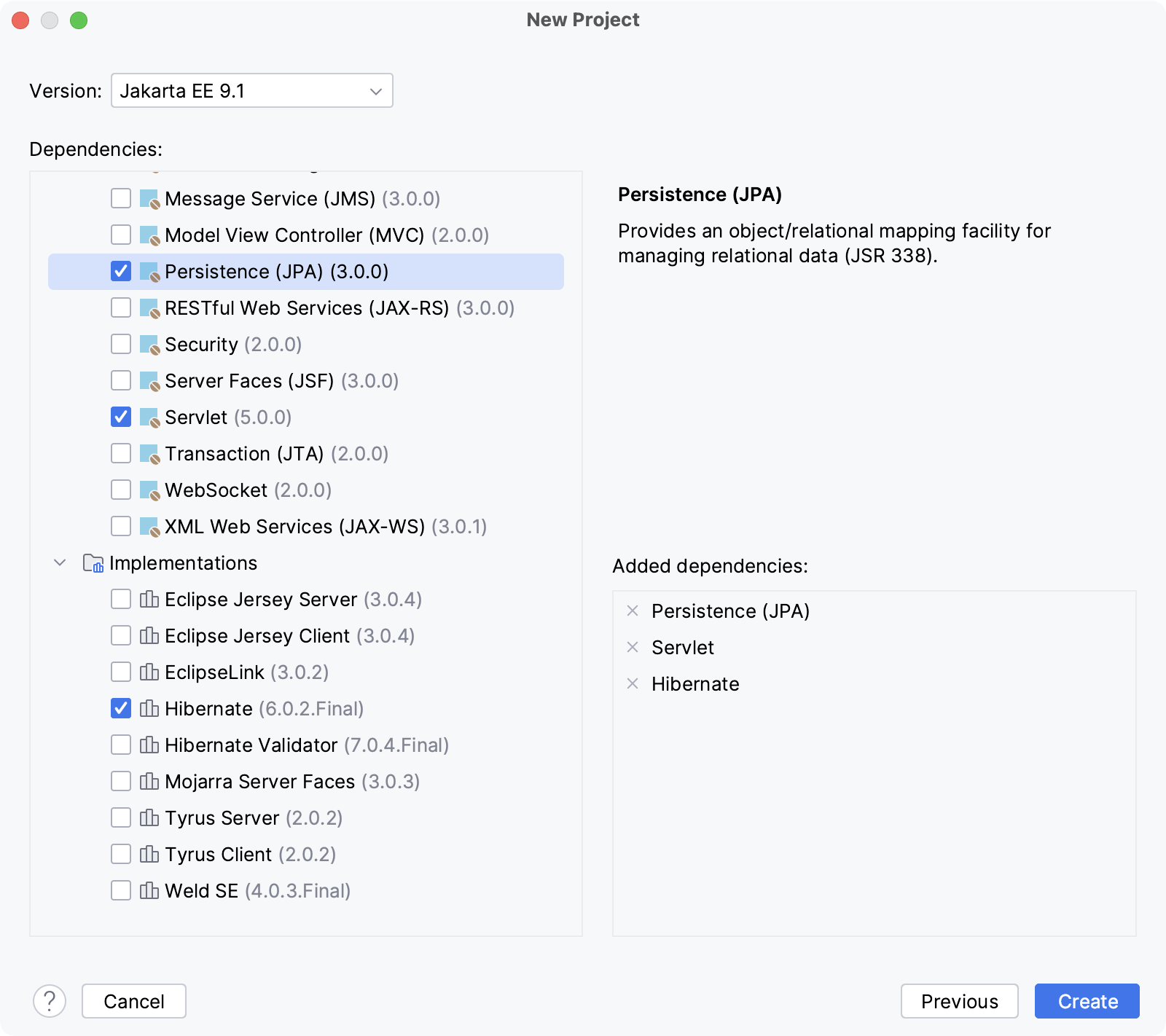
Click Create.
For more information about creating Jakarta EE projects, such as how to set up an application server, refer to Tutorial: Your first Jakarta EE application.
IntelliJ IDEA creates the default project structure with the JPA facet and all the necessary libraries as external dependencies, such as javax.persistence for the JPA specification and org.hibernate for the Hibernate framework. If you specified an application server, IntelliJ IDEA will also create a run configuration to start the server, build and deploy the artifact.
Add Hibernate to an existing project
Open the build file in the editor (pom.xml or build.gradle depending on the build tool used in your project).
Add the Hibernate library, and make sure its version matches the rest of your project:
<dependency> <groupId>org.hibernate.orm</groupId> <artifactId>hibernate-core</artifactId> <version>7.4.5.Final</version> </dependency>implementation 'org.hibernate.orm:hibernate-core:7.4.5.Final'implementation("org.hibernate.orm:hibernate-core:7.4.5.Final")Press Ctrl+Shift+O to import the changes.
For more information about working with build tools, refer to Maven or Gradle.