Navigation and search
With ReSharper's navigation features, it's easy to traverse your entire solution. Jump to any file, type, or member in your code base, or navigate from a specific symbol to its usages, base and derived symbols, or implementations.
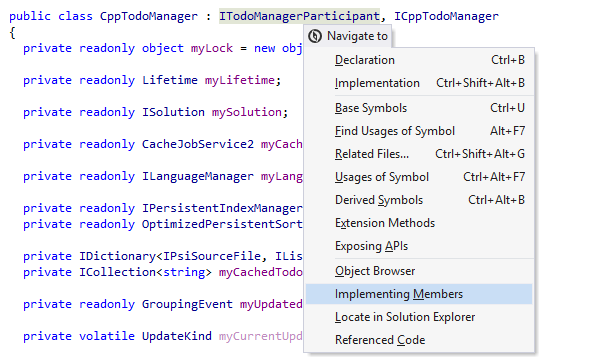
Navigate To
Navigate To is a single shortcut for all kinds of contextual navigation. Navigate To lists all destinations available at the current caret position. Press Alt+` for quick navigation links to the declaration, type declaration, base class, inheritor(s), or usage of the symbol under the caret; interface implementation for an interface; function exits for a function, and more.
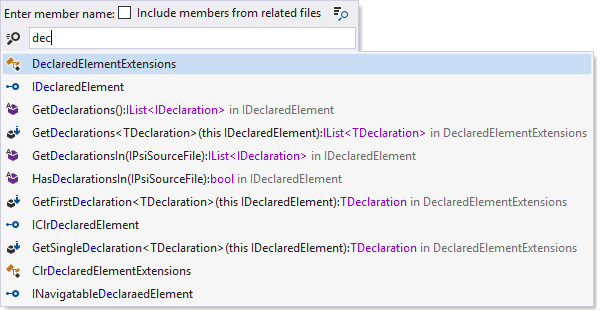
Go to File Member
To quickly navigate to a particular method or field in the current file, use the Go to File Member command that is available by pressing Alt+\. Same as with Go to Type, start typing the symbol name and then select from the list of matching members. This feature works with file members from all supported languages.
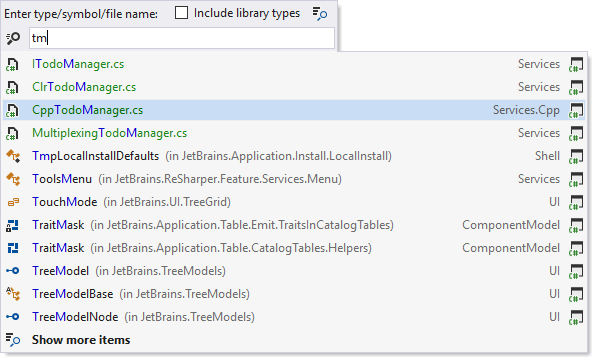
Go to Everything/Type
This command, available with Ctrl+T, combines two different features:
Go to Everything, which appears first,
provides quick navigation to all possible destinations (types, symbols or files).
The list of suggestions appears as soon as you invoke the command and initially includes
files and code locations you've recently navigated to.
As you type, the list is updated according to your input. You can use special inline
commands that start with / for advanced filtering of search results.
Go to Type, which appears when you press the shortcut again, allows you to navigate to any type within your solution.
These and other ‘Go to’ features also support wildcards:
* (asterisk) represents zero or more characters;
double quotes around the search query will execute an exact match
search;
? (question mark) in an exact match search represents a
single
character once;
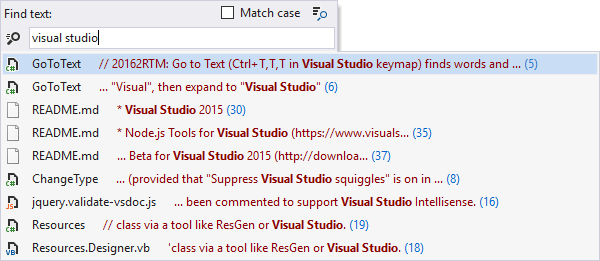
Go to Text for textual search
This navigation action, available with Ctrl+T,T,T,
lets you quickly find and navigate to any text in source and textual files that are
included
in your solution.
Similar to other navigation commands, if there are too many matching items, you can hit
+ on the numeric keypad to explore results in the Find Results
window. You can also use special inline commands to narrow down the search results:
/cp
to search in the current project, /ext: to search in files with a specific
extension, or /fm: for a specific file mask.
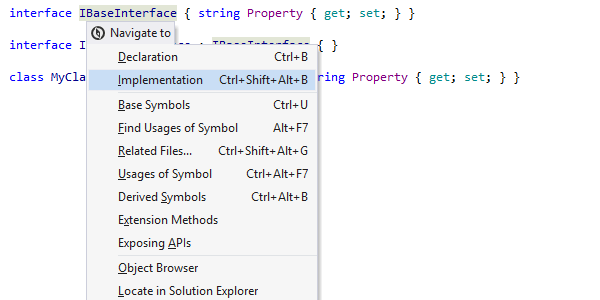
Go to Implementation
This navigation feature, available with Ctrl+F12 shortcut, lets you jump from a base type or member to any of its end implementations, bypassing intermediate steps in the inheritance chain.
It works similar to Go to Derived Symbols but saves you time when you need to bypass one or more levels in a type hierarchy. Watch the GIF to see the difference.
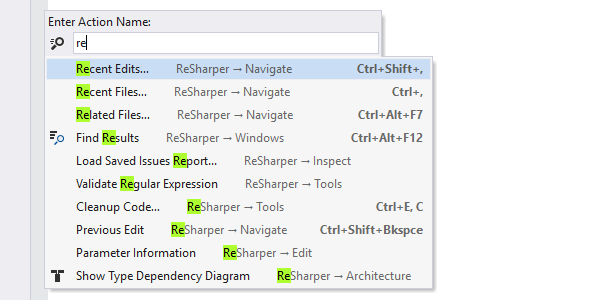
Go to Action
ReSharper helps you quickly find and apply any of its actions, without digging through its menu (by an action, we mean an executable command available for the current caret position or a command that opens a tool window). To find an action, just press Alt+Enter anywhere in the editor and start typing a command name or related words.
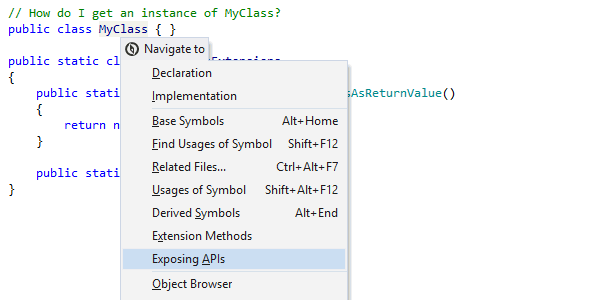
Go to Exposing APIs
This command, available with the Navigate To shortcut (Alt+`), navigates from a type to all locations in your solution where you can get an instance of this type: public fields and properties, method return values, out parameters, etc.
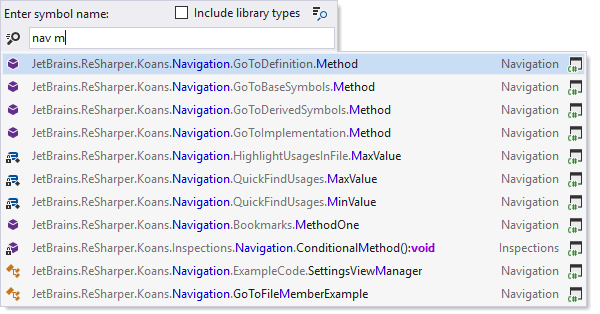
Go to Symbol
The Go to Symbol command searches for methods, fields and other file members by name, solution-wide. The command is available by pressing Shift+Alt+T. Note that all ReSharper's 'Go to' commands, including Go to Symbol, support case-insensitive CamelHumps. That is, you can find a member quicker by entering its initial character and any subsequent characters that its name contains — for example, you can find testFixedSizeBuffer by entering tfixs.
Go to Base
You can navigate up the hierarchy to base type or method by positioning the
caret on a
usage or declaration of a
type or method in the editor and pressing Alt+Home.
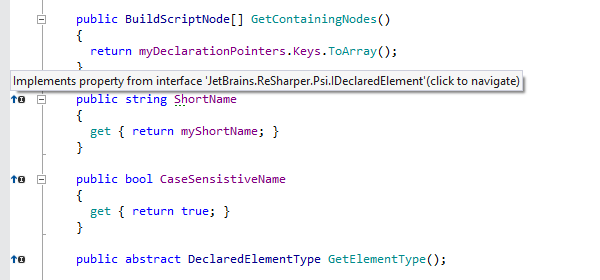
By the way, you can
also see when
a method overrides, implements, or hides another method by looking at special gutter
icons that appear to the left
from the method declaration. Click the icon to navigate up the methods hierarchy.
Go to Declaration
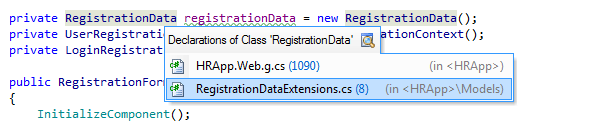
To navigate to the declaration of a symbol, position the caret at any symbol usage and press F12, or hold Ctrl and left-click the symbol. ReSharper will jump to the declaration of the corresponding type, method, field, or local variable in the relevant source file. For library symbols, the corresponding entity will be displayed in Visual Studio's Object Browser or in the editor as metadata view or decompiled code, depending on ReSharper settings.
Navigate Between Usages
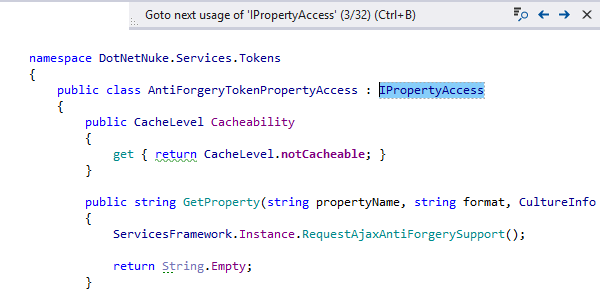
You can also invoke the Go to Declaration command when your caret is already at a symbol declaration. In case you have one declaration and one usage, you can simply switch between them using one shortcut. If you have multiple usage of a symbol, subsequent Go to Declaration hits will take you to further found usages of the symbol, one usage at a time. Navigation between usages is aided by a Find Usages-like pane that enumerates found usages, contains additional controls to mouse-click between usages, and helps you flush all found usages to the regular Find Results window if you like.
Go to Related Files
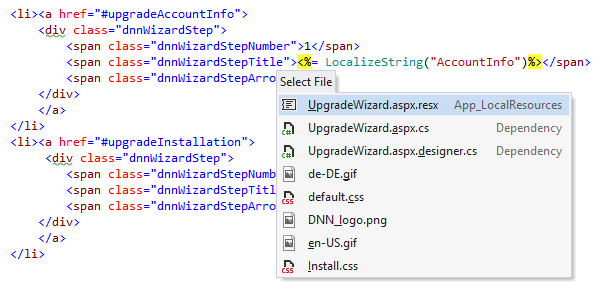
This feature, available by pressing Ctrl+Alt+F7, can take you to any file that is referenced from the current file in one way or another. This is most useful for web sites and applications: for example, it enables you to jump from a web form to its master page, user controls or referenced images. In ASP.NET MVC applications, this feature simplifies navigation from views to controllers and back.
To learn more about advanced navigation and other features that ReSharper makes available to web developers, see ASP.NET and ASP.NET MVC Tools.
Go to File Nearby
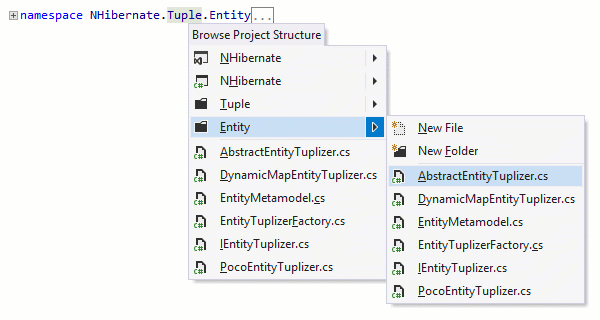
This feature, available with the Navigate To shortcut (Alt+`), helps you quickly navigate project structure around the current file. In the pop-up that opens, you can see the project where the current file belongs, folders and files at the same directory level, and you can easily jump to these files or create a new file or folder.
Navigation to Library Code
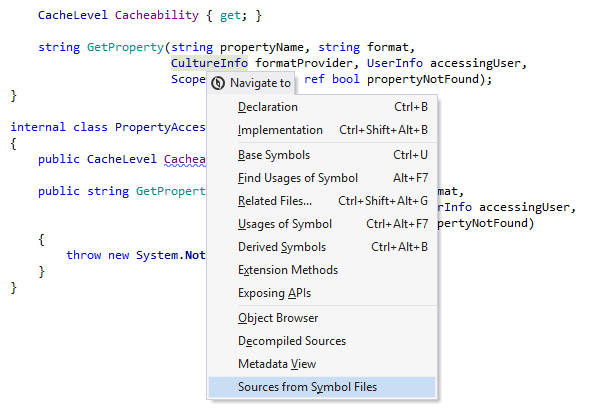
Any solution contains both its own source code and references to libraries. We thought it would be great if you were able to navigate to and within those libraries just like you do with the source code.
Some companies publish parts of their sources using the Source Server feature of debug information files (PDB). On the other hand, Microsoft uses this technology to provide access to the source code of the .NET Framework. If you have PDBs available and ReSharper installed, you can access sources stored that way as if they are a part of your solution. If you want to find out what a certain .NET Framework class contains, ReSharper will show it to you as well.
Even if the source server is not available, no worries: ReSharper is able to reconstruct the structure of library code from metadata.
Here's how it works when a source server is available:
- You click Alt+` on a library symbol to open Navigate To with the list of navigation options.
- You select an external navigation option for a library symbol.
- ReSharper downloads PDB files from a source server.
- ReSharper displays the selected library symbol declaration as if it is defined in your solution.
Find Usages
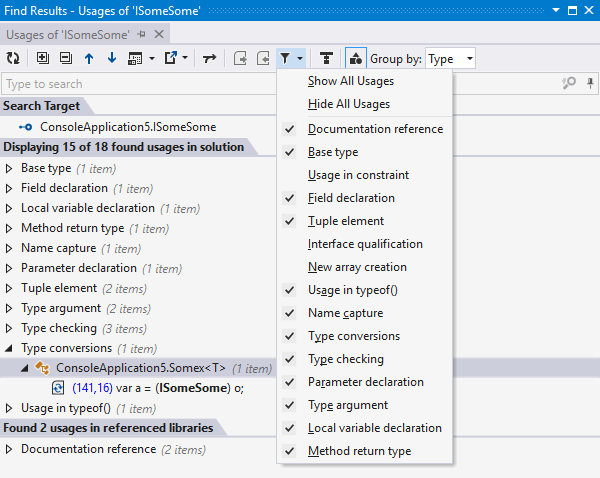
Find Usages quickly locates usages of any symbol (type, method, field, etc.) in your code. Just position the caret on the symbol for which you want to find usages and press Shift+F12. If you have a mixed-language project, usages can be found across multiple languages with ReSharper.
Search results are displayed in the Find Results window, and organized in a hierarchy. From this window you can directly navigate to any usage with either keyboard or mouse. Additional functionality of Find Results provides several ways to work with search results, including:
- source code preview
- highlighting of broken or unfinished usages
- filtering by read or write usages, invocation usages, attribute usages, usages in documentation, and more criteria
- grouping by type of usage and by categories
- tabs of recent usage searches, and more.
You can navigate between usages, when the Find Results window is open, by pressing Ctrl+Alt+PageUp/PageDown (even from the editor).
Find Usages Advanced
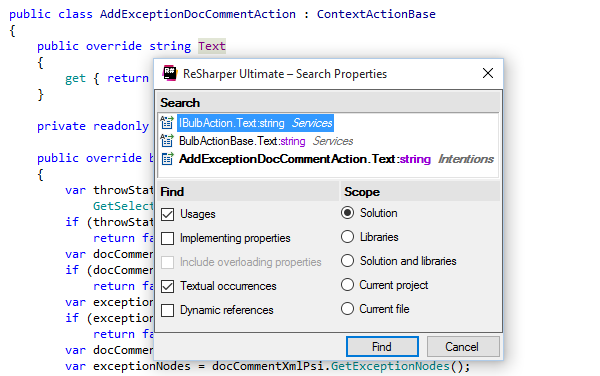
To specify the search scope and the type of usages to be found, use the Find Usages Advanced feature available by pressing Ctrl+Shift+Alt+F12.
Depending on the context, you will be able to specify exactly the scope of search in your solution; whether or not to search in referenced libraries; whether to look for textual occurrences, implementing properties or even dynamic references to the symbol you're looking at.
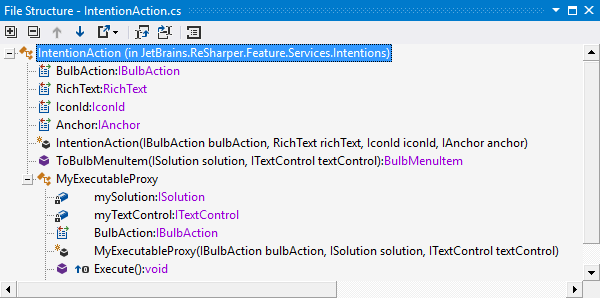
File Structure
File Structure window is available for all supported languages and file types, In C# or VB.NET files, you can see what methods, fields, classes, and regions they contain, as well as navigate directly to their declarations — just press Ctrl+Alt+F.
In ASP.NET, File Structure lets you examine tags, scriptlets, controls, and other structural elements of a currently opened file, and navigate directly to their declarations. See ASP.NET and ASP.NET MVC Tools for details on how this and other navigation features help web developers.
In build scripts, File Structure lets you see what properties and targets that the current script contains.
The window also lets you rearrange items within the file with a simple drag-and-drop, call navigation actions and refactorings, create and delete regions.
The File Structure window is fully synchronized with the editor. All changes made to a file are immediately reflected in the File Structure and vice-versa.
Structural navigation with Tab
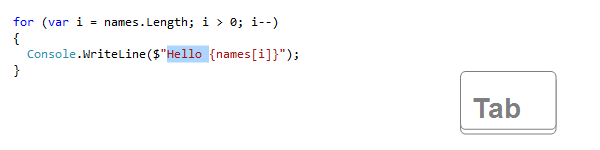
ReSharper allows using Tab and Shift+Tab keys to jump between logical pieces of your code, similar to how you navigate in your web browser.
For example, when editing a for statement, Tab
will select the initializer statement, then the terminating condition and then the
iterator
statement.
Shift+Tab will make these selections in reverse order.
When the cursor sits before the first non-whitespace character in a line, you can still use Tab for indentation.
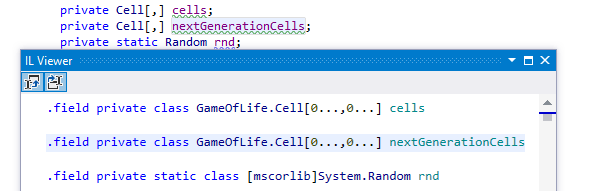
IL Viewer
With the Intermediate Language Viewer, you can both drill down third-party library code, and display IL that corresponds to your own source code (note you'd have to compile first).
To check out how IL Viewer works, choose ReSharper | Windows | IL Viewer from the menu.

Stack Trace Explorer
When you receive an external stack trace (for example, from a bug report), you can copy-paste it into the Stack Trace Explorer to navigate to where an exception originated. The lines within the stack trace will be represented as hyperlinks. To open Stack Trace Explorer, copy the stack traces to clipboard and press Ctrl+E, T.
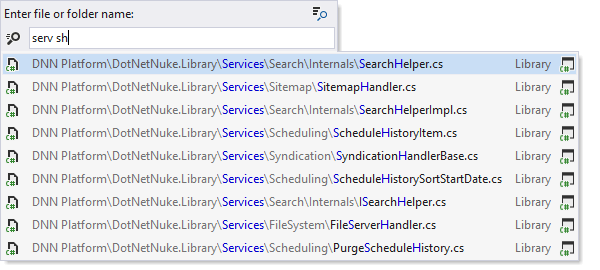
Go to File
Go to File navigates you to any file within your solution. The shortcut for this command is Ctrl+Shift+T, and it supports all the search techniques and wildcards that are used in other 'Go to' commands.
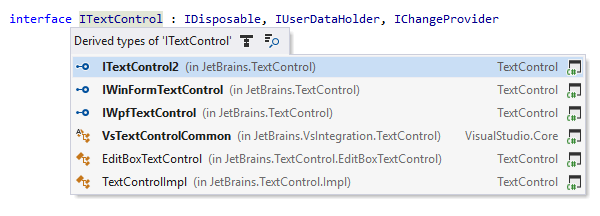
Go to Derived Symbols
This command lets you navigate down to a derived type or method by pressing Alt+End. Immediate inheritors are highlighted with bold.
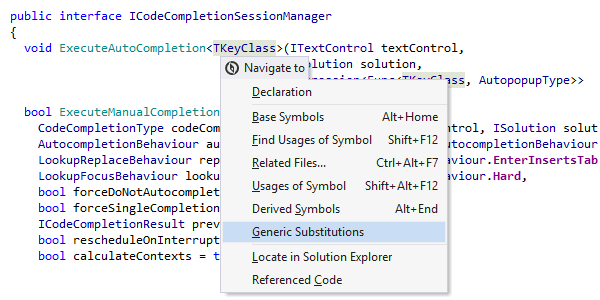
Go to Generic Substitutions
This command, available with the Navigate To shortcut, shows the list of all types that substitute a selected generic type parameter, as well as all code locations where each substitution is used.
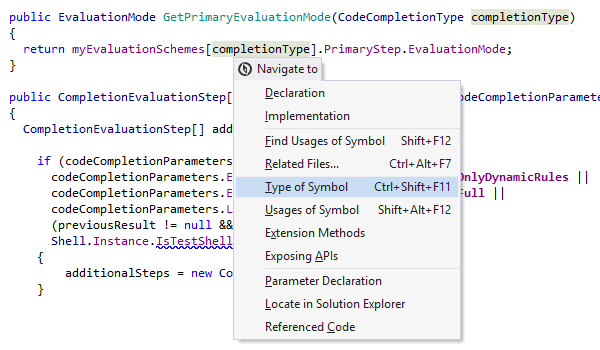
Go to Type Declaration
Press Ctrl+Shift+F11 to navigate to the declaration of a type that a variable, field, or parameter belongs to. ReSharper will switch to the declaration in source code or, for library types, display the corresponding symbol in the Object Browser or show decompiled code.
Go to Next Member/Tag
You can quickly go to next file member in C# or VB.NET code files, or to next tag in XML or XAML files, by pressing Alt+Up.
Go to Previous Member/Tag
Similar to Go to Next Member, this feature gets you to the previous member or tag — all you have to do is press Alt+Down.
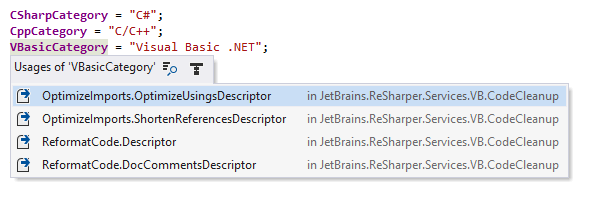
Go to Usage
You can quickly navigate to symbols with few usages (e.g. with a private field) by pressing Shift+Alt+F12. Instead of opening an entire tool window, it will display usages in a pop-up.
However, if it turns out that the pop-up with the list of symbol usages contains too many items, just click the magnifier icon in the top right corner of the pop-up to transfer the list of usages to the Find Results window.
Highlight Usages
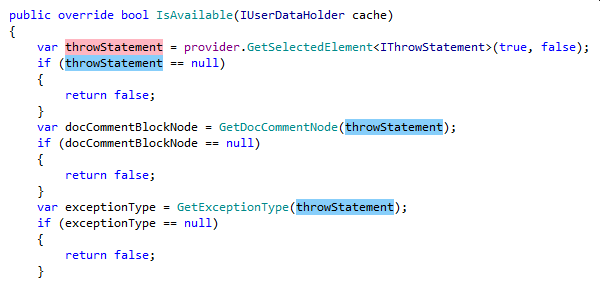
To highlight all the usages of a symbol within the current file, just position
the caret
on any symbol usage and
press Shift+Alt+F11. You can also highlight usages of namespace import
directives and even
expressions. In large files, you can use the marker bar on the right to navigate between
highlighted usages.
ReSharper quickly finds and highlights usages of symbols within XAML markup as well as
across
languages.
Structural search and replace
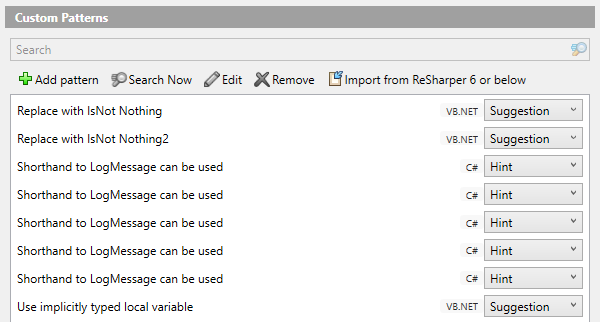
This feature lets you create patterns to search for code smells or legacy code that ReSharper doesn't detect out of the box, and replace them with good code. More than that, to make it easy to remove questionable code on a recurring basis, you can create custom code inspections and set up ReSharper to provide quick-fixes for them.
Building patterns and enforcing good practices has never been this easy. Corporate and team policies, custom frameworks, favorite open source libraries and tools — structured patterns are able to cover them all. As a bonus, you can import and export best patterns to share them with colleagues or move between ReSharper installations.
Type Hierarchy
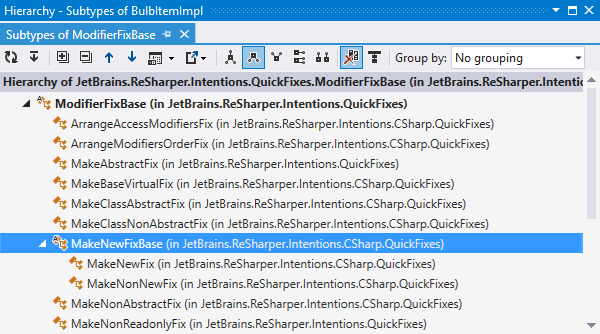
With ReSharper, you can view the inheritance hierarchy of a certain type in a
dedicated
window. The window shows
both base types and inheritors of the selected type and allows you to navigate to any of
them with a single
click. For any node in the hierarchy, you can view all or only polymorphic members in a
separate preview
pane.
To open the Type Hierarchy window for a type, position the caret at the type
name, and press Ctrl+Alt+H, or select .
Bookmarks
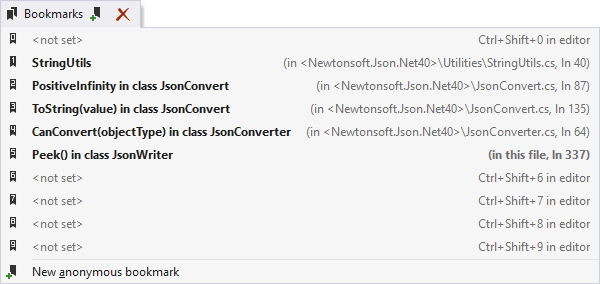
This is a simple yet powerful feature: you can drop a numbered marker with a single shortcut, and jump back at any time with another shortcut. You can create up to 10 numbered bookmarks, and unlimited unnumbered bookmarks. The full list of bookmarked locations is displayed in a single pop-up window to speed up navigation between code spots.
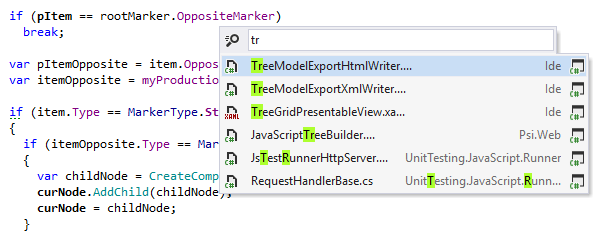
View Recent Files
Pressing Ctrl+, opens a pop-up window with the list of recently opened files, where you can select any item to navigate to.
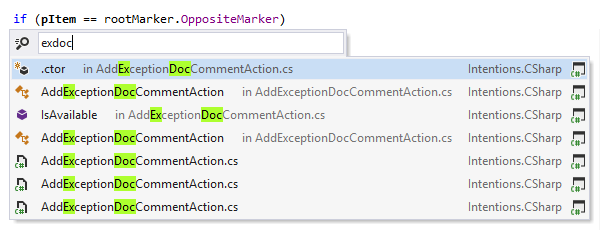
View Recent Edits (and Go to Last Edit Location)
Recent Edits works a lot like Recent Files, showing you a pop-up window with the list of files and symbols that you have recently modified. If your current editing session has started a while ago, narrow down the list by typing a name of the file you're looking to re-open.
Alternatively, use Go to Last Edit Location Ctrl+Shift+Backspace to quickly position the caret at the most recent location where you changed your code, without displaying a pop-up. Subsequent hits of this shortcut will lead you deeper into your editing history.
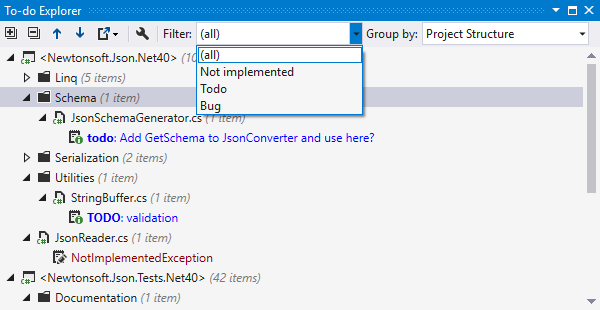
To-do Explorer
To-do Explorer helps you keep track of all your reminder items marked with
todo,
note
and/or bug tags, as well as code locations where
NotImplementedException are thrown. To-do Explorer
retrieves all such items from all files in your solution, and displays them in a single
tool window.
If you use your own markers to make notes in comments to your code, you can configure a custom pattern, and To-do Explorer will find it as well.
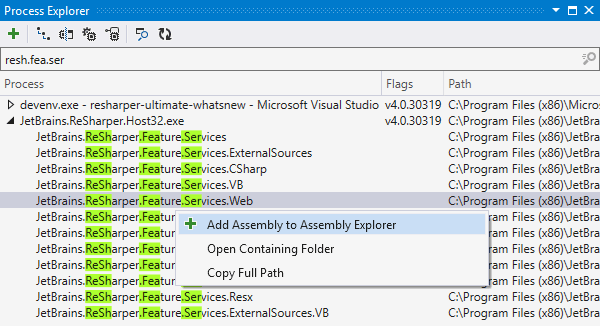
Process Explorer
The Process Explorer window displays all currently running processes, allows exploring their modules and decompiling those of them that are .NET assemblies.
You can choose to show or hide native processes and modules, or turn on process hierarchy view.
Filter the list to find a module or process that you're looking for, and then add its assemblies to Assembly Explorer for further investigation.
Note on shortcuts
All keyboard shortcuts provided in this page are available in ReSharper's default "Visual Studio" keymap. For details on ReSharper's two keymaps, see ReSharper Documentation.