XAML editing tools
With ReSharper, you get additional assistance editing XAML files whenever you work with Universal Windows Platform (UWP), WPF, Silverlight, or Windows Phone applications. This includes code quality analysis on-the-fly, refactorings, code generation and rearrangement, as well as quick solution-wide navigation.
Code quality analysis
ReSharper's code quality analysis features help you quickly locate and correct errors in your XAML files. Let's see how it works using a few examples.
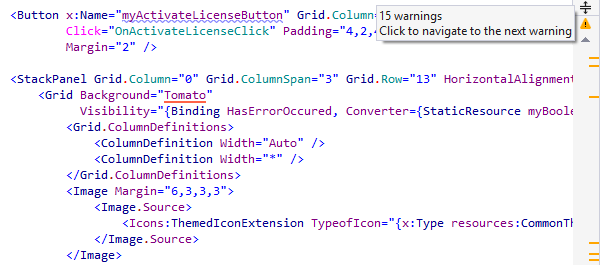
Example 1. XAML Language Level Errors
Say, you're working on a WPF project where only XAML 2006 is allowed. If ReSharper
encounters
a generic object from XAML 2009, it highlights the object as a language error.
Should you press Alt+Enter on the highlighting,
ReSharper displays a quick-fix suggesting to declare a type inherited from
System.Collections.Generic.List<string> instead.
When you apply the quick-fix, ReSharper:
- Creates a new .cs file where it declares a new wrapper type that inherits
from
List. - In the original XAML file, it deletes the
TypeArgumentsattribute, changes the type of the object to the new wrapper type, and inserts a new namespace directive if necessary.
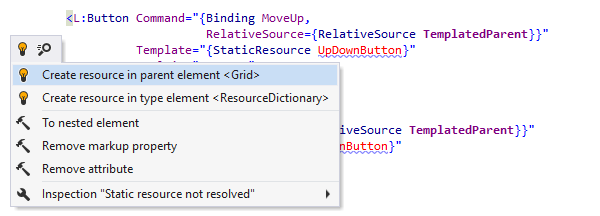
Example 2. Nonexistent Resources
If you're using a resource that is not yet declared, ReSharper error highlighting won't let you forget about that.
When you press Alt+Enter, ReSharper suggests several possible locations for creating the missing resource.
If the type of the generated resource is not yet declared, no problem: ReSharper will
offer
you the option to create either a CLR type or a XAML type (i.e., a
UserControl)
from usage. Choosing one of the two options creates a file with the default
implementation.
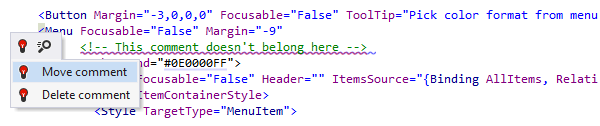
Example 3. Misplaced Comments
Accidentally placing a comment within an element will result in ReSharper highlighting it and offering options for resolving the error.
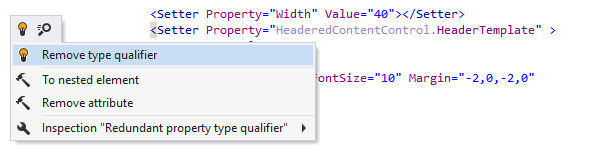
Example 4. Redundant Type Qualifiers
In the case where a TargetType is defined on a style setter,
ReSharper detects redundancies in type qualifiers and offers a fix.

Extended XAML IntelliSense
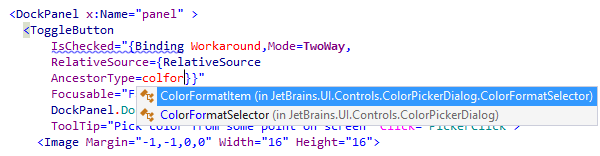
You can make use of ReSharper's code completion in XAML tags. Support for CamelHumps will help you quickly add attributes: simply enter a few symbols and press Ctrl+Space to show the list of relevant suggestions that ReSharper's Symbol Completion provides.
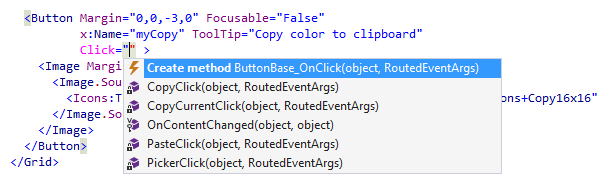
If you invoke Smart Completion by pressing Ctrl+Alt+Space, ReSharper will offer additional context-sensitive options depending where you are in code. For example, invoking smart completion in an event handler declaration will offer to generate the handler method.
By using Smart Completion inside an attribute, you can quickly create a new resource (static or dynamic), a binding or a reference to a static element.
Another exciting advantage of ReSharper code completion is that it displays colors for
brushes that are expected in attributes such as Background or
OpacityMask.
ReSharper also supports Import Symbol Completion in XAML. That means, you can complete types from assemblies that are referenced in your solution but don't have corresponding namespace import directives in the current file.
Of course, once you've used ReSharper code completion this way, the required namespace import directive will be inserted automatically.
Alternatively, if you have a type inside a XAML file that is not imported for some reason, ReSharper will offer you the option to quickly create the namespace directive.
Navigation and search
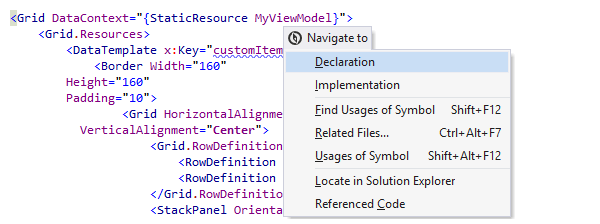
ReSharper's Navigate To menu works on XAML code elements in the same way as it does in C# code files. Pressing Alt+` on a symbol declaration or usage opens a menu with multiple possible navigation destinations.
Navigation via
Go
To
File Member
works in a XAML file the same as in a C# file,
helping navigate to an element with a particular type, name or key.
Once again, you don't have to type the whole name — support for lowercase
CamelHumps
lets you find WatchList by only typing wl.
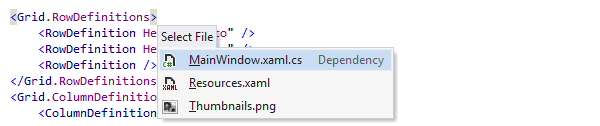
When you press Ctrl+Alt+F7 in a XAML file, you get a list of all related files: for example, the code-behind file, any resources referenced in the current XAML file, or images used in your controls.
Go to Declaration (F12) and Ctrl-click navigation also works the same way in a XAML file as it does in an ordinary C# code file. For example, while holding Ctrl, you can hover over the name of a particular class. ReSharper will underline the class name, and clicking the link will take you straight to the class definition.
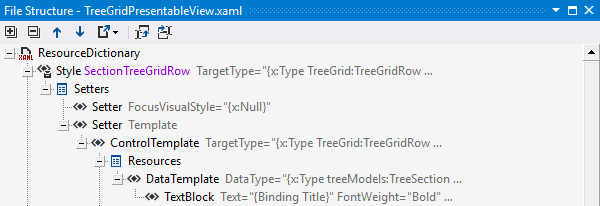
Also, just like with code files, the File Structure window displays the structure of the XAML file, letting you quickly navigate to the code element that you're looking for.
You can look for usages of a particular XAML element by pressing Shift+F12, which will invoke the Find Usages command. ReSharper will display all locations where the element is being used.
You can also press Shift+Alt+F11, which will highlight usages, giving you a quick overview of locations where a particular symbol is being used in the current file.
Generating dependency properties
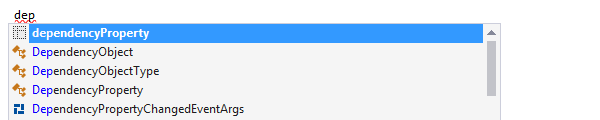
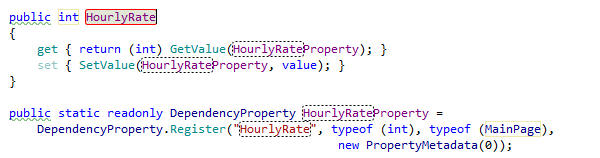
Creating dependency properties can be ridiculously boring. That's another problem that ReSharper can fix: its code template engine is powerful enough to let you create fine-grained snippets that deploy into dependency properties in a couple of keystrokes. You just type the name of a live template in the editor — and you get the pair of a property and the corresponding dependency property deployed, with intelligent code completion available in all placeholders that you need to fill.
Similarly, you can make ReSharper deploy attached properties, which are even more cumbersome than regular dependency properties. Upon deployment of the live template, you can pass through all its numerous variables and use ReSharper code completion where applicable.
Although live templates for dependency property and attached property are not currently included in ReSharper out of the box, you can download and import them.
XML and XAML editing helpers
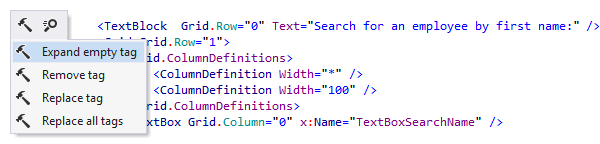
ReSharper supports various context actions which simplify working with XML syntax and can be used in XAML. To mention just a few, you can replace a tag name with a different name, convert an attribute to a nested element, or remove a tag and promote its children up a level.
There's also over a dozen XAML-specific context actions, letting you add or remove column or row definitions, create views and resources, switch between different types of resource references, extract property setters to styles, and more.

Refactoring XAML code
Since XAML elements are, essentially, equivalent to ordinary class members, some of the refactorings which work in C# also work in XAML. For example, you can rename or safely delete a resource just by opening the Refactor This menu.
When you navigate over a reference to a property or method in XAML, the range of refactorings presented in the Refactor This menu matches what you would expect if you opened that menu in C# or VB.NET code.
In addition to C# and VB.NET refactorings, there are some XAML-specific refactorings:
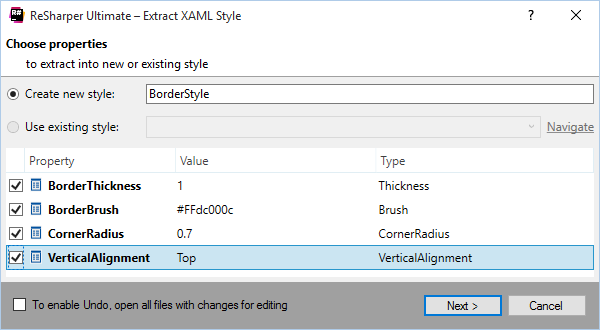
It's a common situation in XAML to define inline styles for several controls and then relocate them to a style definition. ReSharper makes this operation a breeze with the Extract Style refactoring.
The dialog box that appears for this refactoring helps you decide which resource to extract the properties into (you can choose an existing resource or create a new one), as well as what properties you want to extract.
Extract Resource and Inline Resource refactorings let you move virtually any property assignment (including those in markup extensions) to a resource and vice versa — take a definition out of a resource and splice it right into the element.

Code reordering
Using ReSharper's code reordering features, you can move around elements within a XAML file or even attributes within these elements. Both operations are performed by pressing Ctrl+Alt+Shift keys and arrow keys.
When working with attributes, these key combinations let you move the attributes around within the tag, so that the Left and Right arrow keys change the position of the attribute. If, however, you press the Up and Down keys, your actions will affect the entire tag.
The Up and Down keys move the whole tag in relation to other tags. If you extend a selection using Ctrl+Alt+Right to encompass the tag with everything in it, you can also use the Left and Right keys to the same extent, with the only difference that these combinations will also "demote" your current selection, putting it inside any tag that you come across.
Note on shortcuts
All keyboard shortcuts provided in this page are available in ReSharper's default "Visual Studio" keymap. For details on ReSharper's two keymaps, see ReSharper Documentation.