Connect to a postgreSQL database
Access a postgreSQL database from your JetBrains IDE and do the work in the same window.
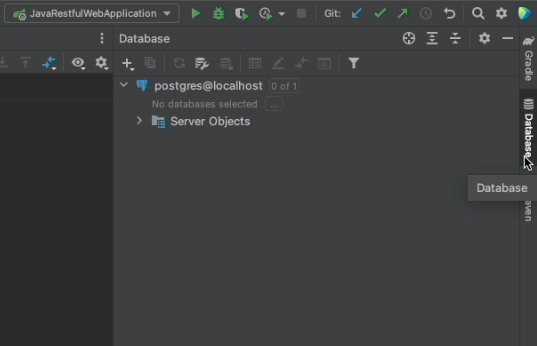
Use ⇧⇧ (macOS) / Shift+Shift (Windows/Linux), to bring up the Search Everywhere dialog. You can now search for Database to open the Database tool window which helps you to connect to multiple databases and DDL data sources.
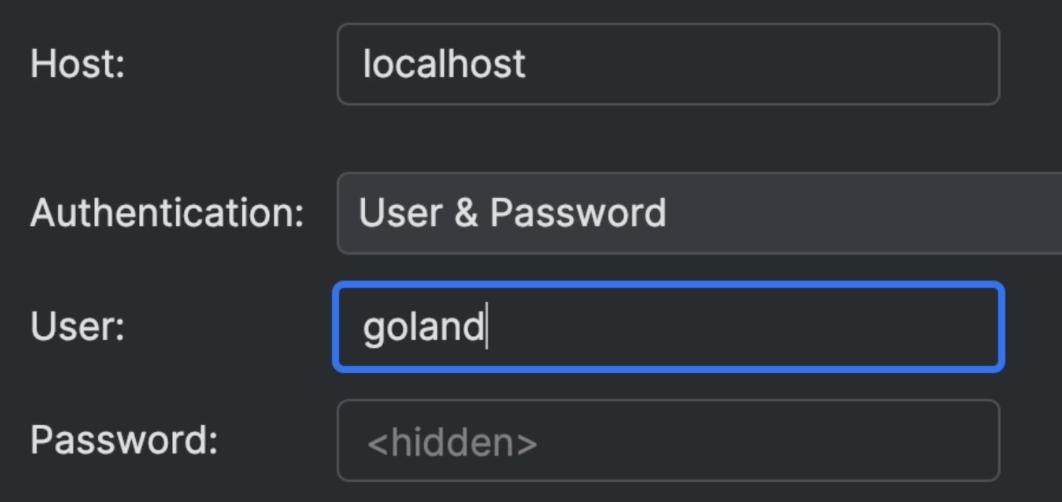
You click on the + (macOS) / New (Windows/Linux). Select Data Source then Postgres as the data source type. Customize the name of the data source, connection details, then click on the Test link to ensure everything is ok.
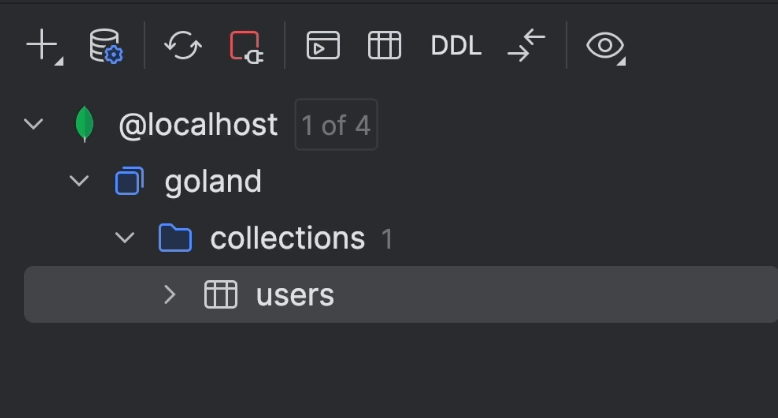
Once everything is done, a Console tab will appear, and you can now query the database from the IDE. You can also explore it from the Database tool window, and select which parts to hide or show from it.
Note: You may need to download a database driver for the IDE first. If you see a Download driver link, you'll need to click on that before you can connect to the database.
Alternately, you can open Database tool window from the Sidebar of the IDE: