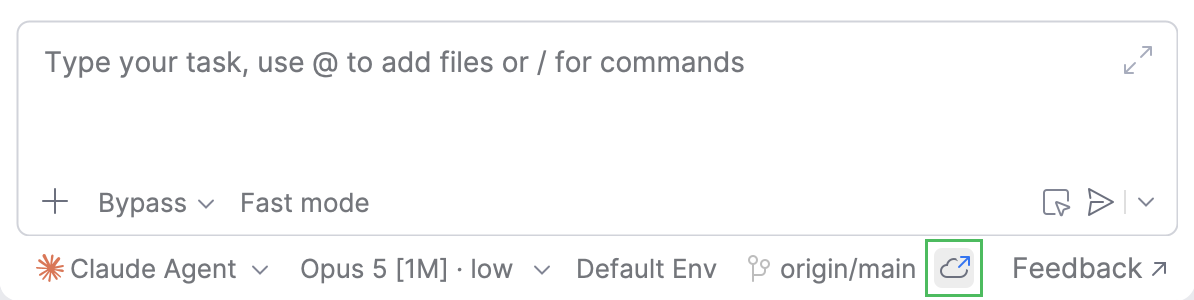
Cloud agents
Cloud agents are coding agents that run in an isolated cloud environment instead of on your machine. You can use them to offload long-running or resource-heavy work: the agent runs remotely while you keep working in your IDE, and it writes its results to a separate branch that you can review and merge.
How cloud agents work
JetBrains Air powers the cloud runtime and connects it to your GitHub or GitLab repository. A cloud task moves through the same stages regardless of the agent or repository host:
You start a task from AI Assistant, and Air provisions a temporary cloud environment and checks out the selected repository and branch into it.
The agent works inside that environment: it inspects the code, edits files, and runs commands, all separate from your local machine and working copy.
When the task finishes, Air commits the result to a separate task branch and pushes it to the remote repository.
You review the result and merge it. You can access and continue the same task from AI Assistant, Air web, or the Air desktop app.
When to use cloud agents
Use a cloud agent when the task is well-scoped and can run independently, especially when it is long-running, resource-intensive, or safer to perform away from your local machine. Common examples include the following:
Independent background work – fix a bug with clear reproduction steps, implement a self-contained feature, run a long test suite, or offload maintenance work while you continue with other tasks.
Stronger isolation – run the agent in a temporary cloud environment so its commands and file changes do not affect your local machine or working copy.
Consistent execution – use a reproducible, repository-specific environment instead of relying on each developer's local setup.
Cross-device continuity – start a task in AI Assistant, then continue it in Air web or the Air desktop app, including on another device.
You can run several cloud agents in parallel without setting up separate local worktrees or containers.
Run an agent in the cloud
To run an agent in the cloud:
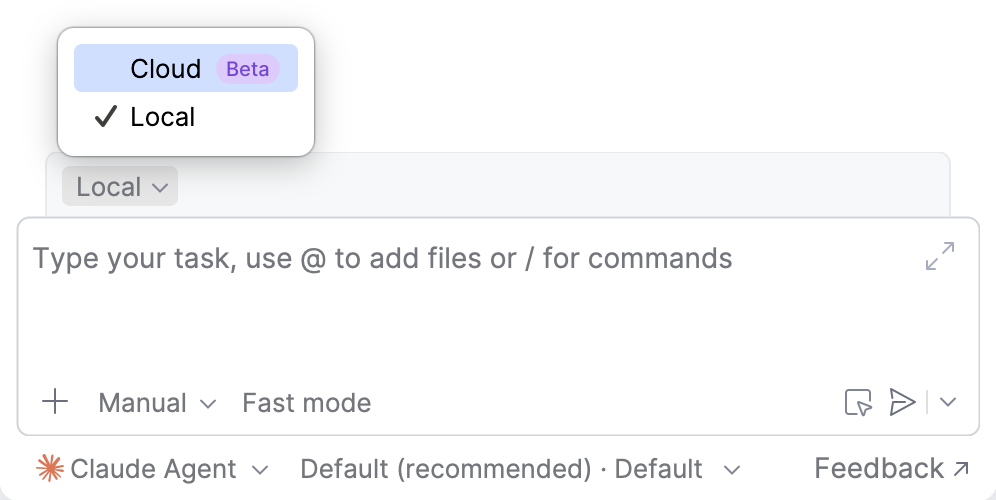
In AI Chat, open the agent selector and choose the agent you want to use.
If the agent supports remote runs, a panel with a switcher for running it in the cloud appears. Switch to Cloud mode.
The first time you run a cloud agent for a repository,AI Assistant prompts you to authorize the JetBrains Air app so the agent can access your repository. Click Authorize and complete the authorization procedure.
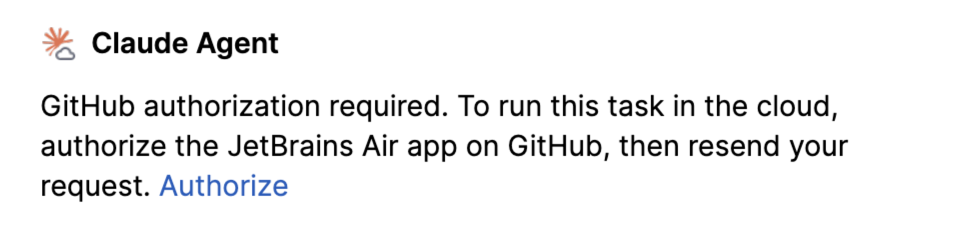
After authorization, return to AI Assistant.
Select the environment configuration for this session.
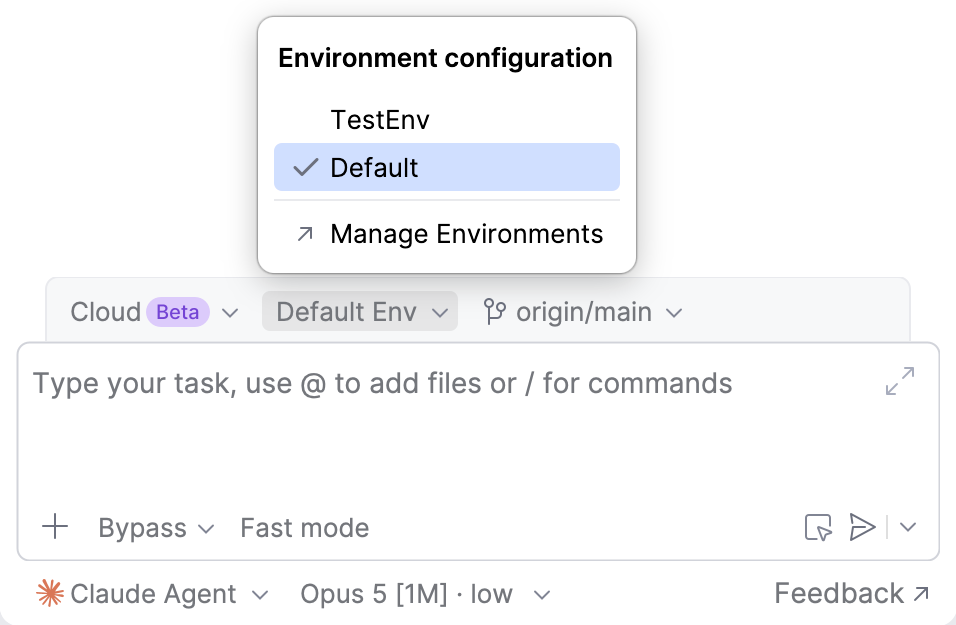
Click the branch selector and choose the remote branch the agent works on. Use the Search remote branch field to filter the list.
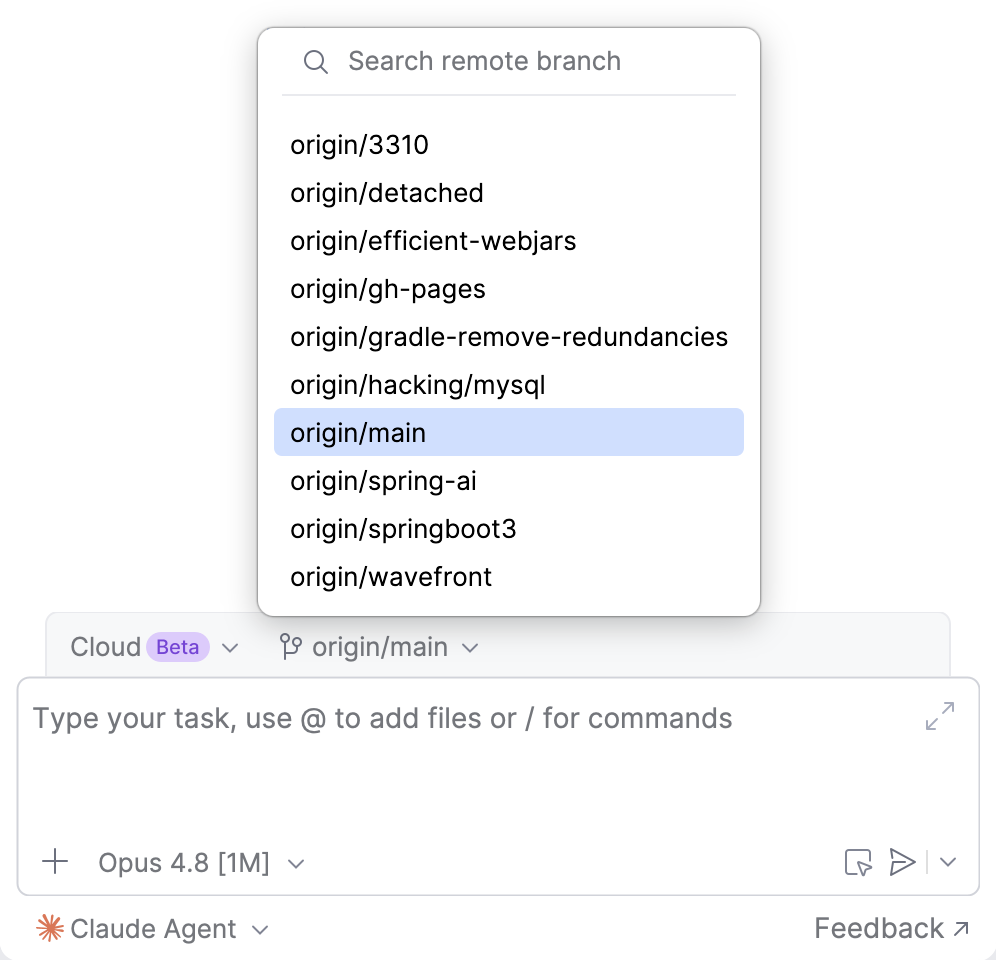
Configure the agent for the task: select an operation mode (if the agent supports them) and a processing model from the list.
Write a prompt describing the task and submit it.
The agent runs in the cloud and writes its changes to a separate branch. When it finishes, you can review results by clicking View Commits and merge the changes into your working branch by clicking Merge.
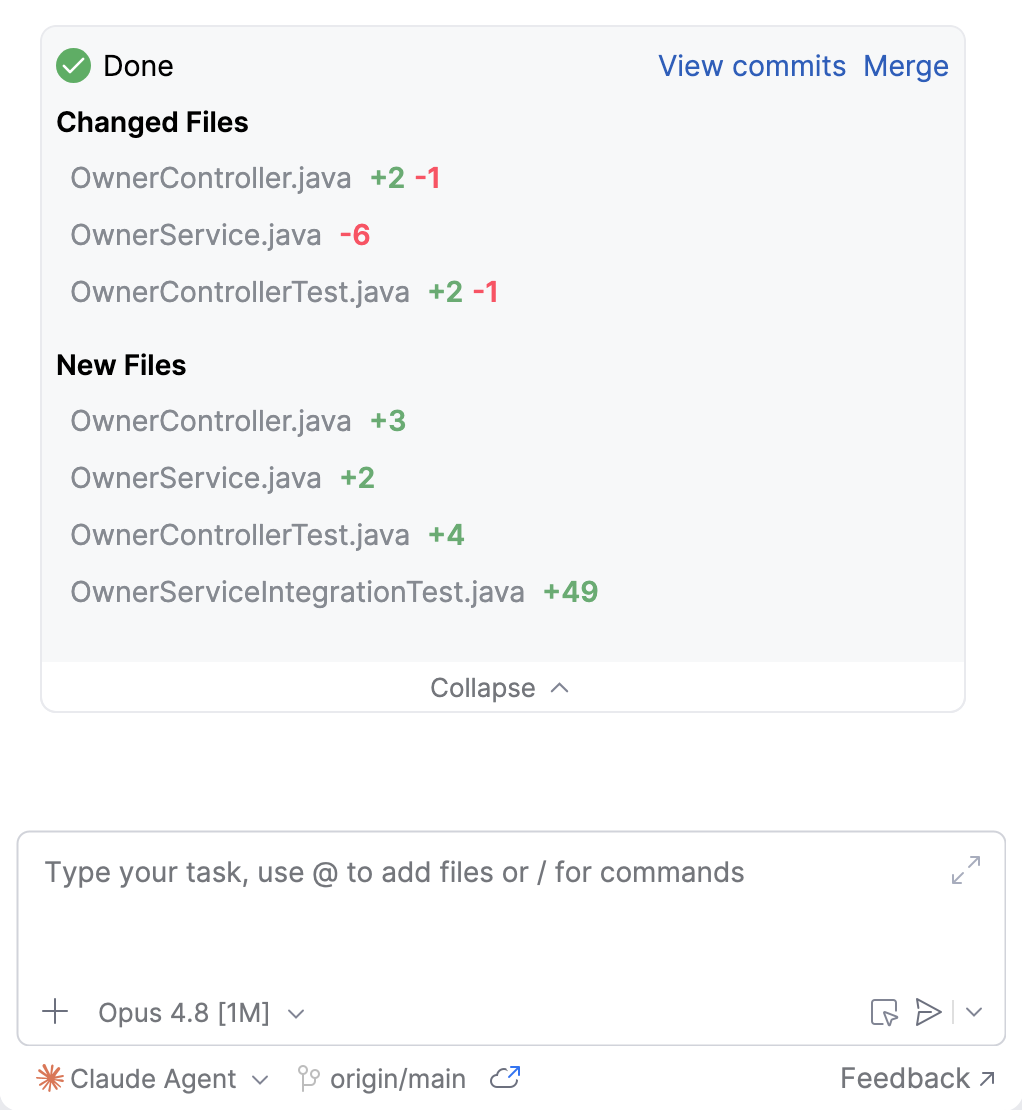
View a task in Air
You can also view a running or finished cloud task in JetBrains Air. Click the  Open in browser button to open the session on air.jetbrains.cloud, where you can continue working on the task.