uv 環境を構成する
uv(英語) ツールを使用すると、Python の開発が容易になり、新しいプロジェクトのセットアップタスクが削減され、既存のプロジェクトの管理が容易になります。
PyCharm で uv を使用するには、 マシンにインストールし、特定の Python 環境を作成する必要があります。
新しい Python プロジェクトの作成中に uv を選択すると、PyCharm が自動的に pyproject.tomlファイルを生成します。 このファイルには、必要なパッケージ、スクリプト、プラグイン、URL が指定されています。 ファイルの構造と形式の詳細については、 pyproject(英語) ガイドを参照してください。
uv 環境を作成する
次のいずれかを実行します:
Python インタープリターセレクターをクリックして 新しいインタープリターを追加 を選択します。
Ctrl+Alt+S を押して 設定 を開き、 に移動します。
Python インタープリターセレクターをクリックして インタープリターの設定 を選択します。 利用可能なインタープリターのリストの横にある インタープリターの追加 リンクをクリックします。
利用可能なインタープリターのリストの横にある インタープリターの追加 リンクをクリックし、 ローカルインタープリターを追加する を選択します。
次のアクションは、新しい仮想環境を生成するか、既存の仮想環境を使用するかによって異なります。
- 新しい uv 環境
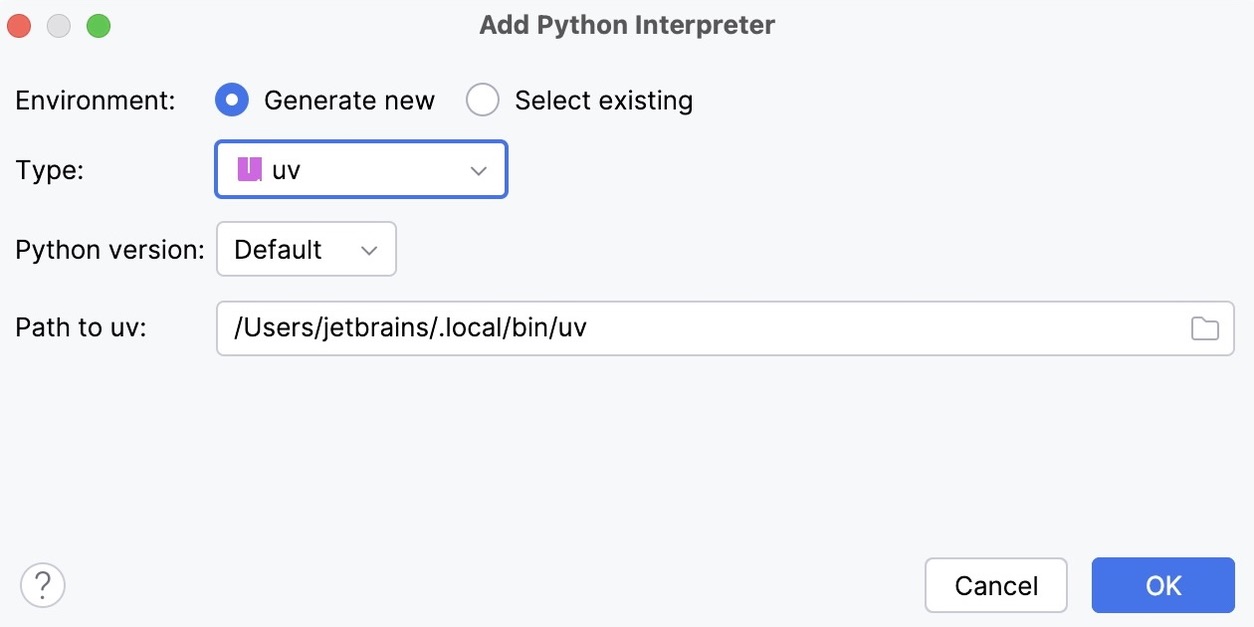
環境タイプのリストから uv を選択します。
リストから Python のバージョンを選択します。
PyCharm は uv のインストールを検出します。
PyCharm がインストールを自動的に検出しなかった場合は、uv 実行可能ファイルの場所を指定するか、
 をクリックして参照します。
- 既存の uv 環境
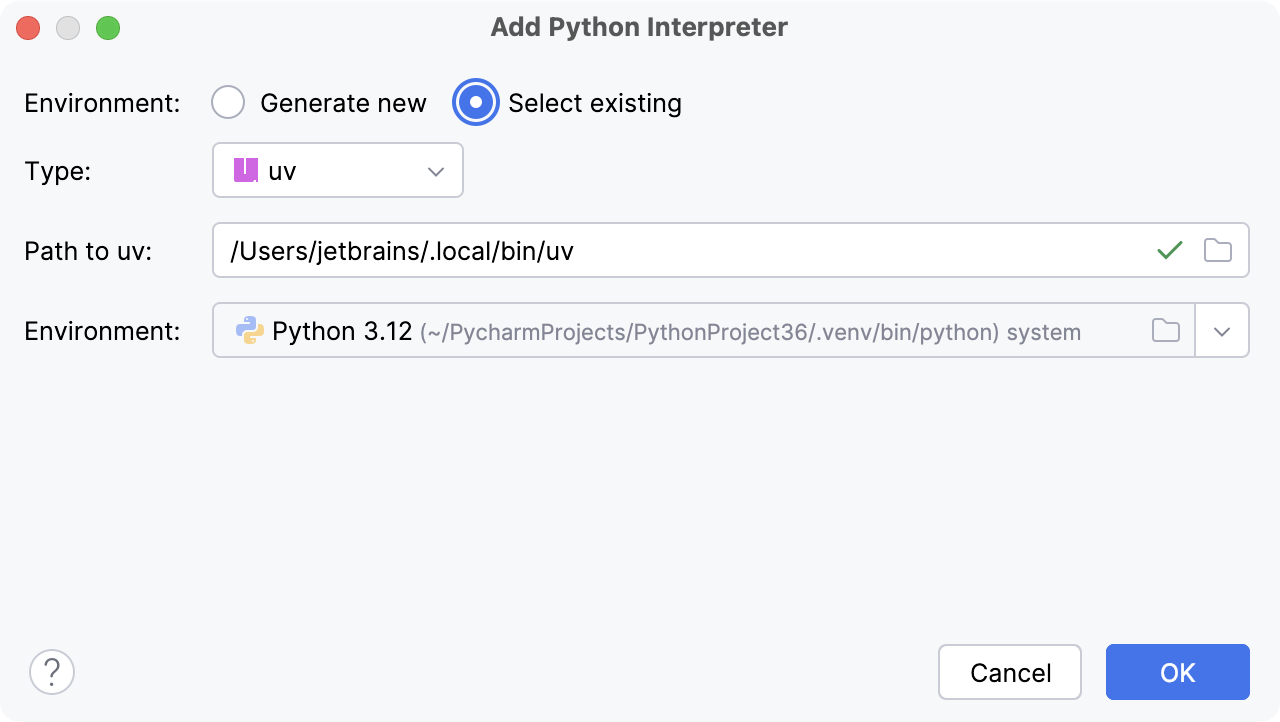
環境タイプのリストから uv を選択します。
PyCharm は uv のインストールを検出します。
PyCharm がインストールを自動的に検出しなかった場合は、uv 実行可能ファイルの場所を指定するか、
をクリックして参照します。リストから環境を選択します。
選択した uv 環境は、現在のプロジェクトで再利用されます。
タスクを完了するには、 OK をクリックしてください。
UV 環境を構成したら、ターミナルまたは uv 実行 / デバッグ構成を使用してプロジェクトを実行できます。
uv ワークスペースサポート
PyCharm は uv ワークスペース と uv パス依存関係に対応しています。 ワークスペースモード を有効にしてプロジェクトを開くと、PyCharm がワークスペースのメンバーとその依存関係を自動的に設定します。
uv ワークスペースはすべてのプロジェクトで共有する仮想環境を 1 つ使用しますが、uv パス依存関係では各プロジェクトごとに専用の仮想環境が用意されます。
ワークスペースメンバーで .py または pyproject.toml ファイルを開くと、PyCharm はこのワークスペース用の環境がシステムに既に存在するかどうかを確認します。 存在する場合は、その環境が自動的に SDK として設定されます。 存在しない場合は、ファイルレベルの通知で新しい uv 環境の作成とこのワークスペースメンバー用依存関係のインストールを提案します。
PyCharm は環境の整合性を確認し、 pyproject.toml で定義された依存関係が環境に存在しない場合は警告します。 不足している依存関係をインストールするためのクイックフィックスが用意されています。 パッケージがインポートされていてもワークスペースメンバーの pyproject.toml に記載されていない場合、クイックフィックスでパッケージの環境への追加と対応する .toml ファイルの更新を提案します。
ワークスペースメンバー間の依存関係は、 に読み取り専用として視覚的に表示されます。 変更するには、 pyproject.toml ファイルを手動で編集してください。
詳細については、 ワークスペースとモノレポ を参照してください。
構成された Python インタープリター (ただし Docker ベース) のいずれかに対して、次の操作を実行できます。