Code style
ReSharper helps you keep a consistent code style throughout your code base. Default style settings are based on widely accepted conventions and best practices; however, if your personal preferences or company standards are different, you can configure them globally or per solution, and share the settings across your team.
Your code style preferences are taken into account when ReSharper suggests symbol names in code completion, generates new members, applies code templates, and preforms refactorings.
Violations of code style are detected with code inspections and can be fixed with quick-fixes or code cleanup.
Code cleanup
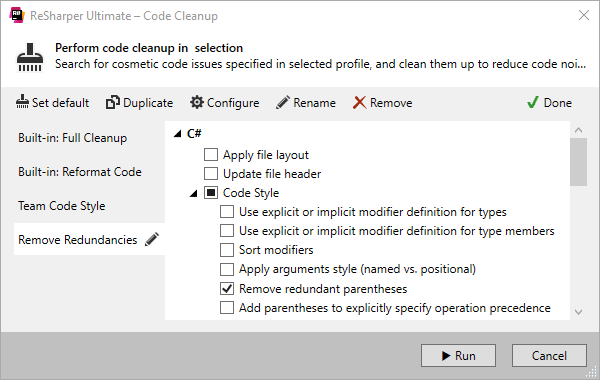
Code cleanup is a feature that helps you instantly eliminate code style violations in one or more files, a project or in the entire solution, all with a single shortcut: Ctrl+E, C.
Two default profiles — Full Cleanup (which applies all code style settings, except naming style) and Reformat Code (which only applies your formatting rules) — can be complemented by your custom task-specific profiles.
Code formatting
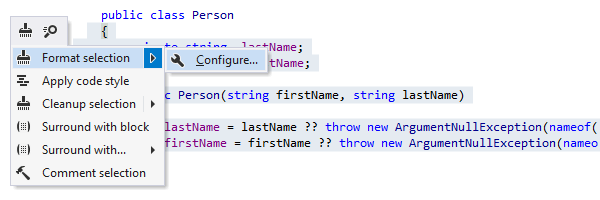
ReSharper can reformat an arbitrary selected block of code, all code in the current file, all files in a directory, or even in the entire project or solution, according to your preferences. ReSharper provides distinct formatting options for all supported languages. Reformatting affects braces layout, blank lines, line wrapping and line breaks, spaces in various contexts, indentation, aligning multiple constructs, and a lot more options that you can fine-tune in the ReSharper Options dialog box.
Contextual configuration of formatting rules is available by pressing Alt+Enter over the selected code that you need to reformat. Choose in the actions list to see all formatting rules that affect the code.
You can also use code cleanup to reformat the code.
Implicit/explicit typing
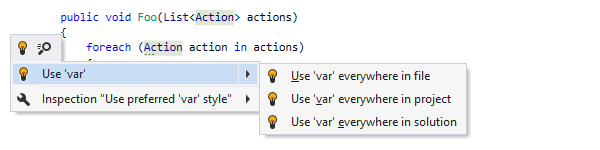
Using implicitly typed local variables (var keyword) introduced in C# 3.0
has become quite popular due to improved readability of the resulting code.
By default, ReSharper also encourages using of var keyword.
However, you can change your preferences and opt for using explicit types.
You can also use code cleanup to enforce your preferences for implicit/explicit typing.
Using auto-properties
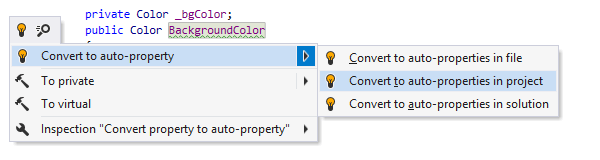
Auto-implemented properties (also known auto-properties) allow declaring type properties that do not have additional logic in a simpler way. By default, ReSharper encourages using of auto-properties when possible, but this behavior is configurable.
You can convert properties with backing fields to auto-properties with a quick-fix or with code cleanup.
Styles for C# modifiers
C# modifiers of types and type members can be written in any order. However, arranging them in a similar way throughout your code is a good practice, which improves code readability. ReSharper will help you define the desired order, find unsorted modifiers, and automatically sort them.
Besides, ReSharper will help you enforce your preference of using or not using
private and internal modifiers explicitly.
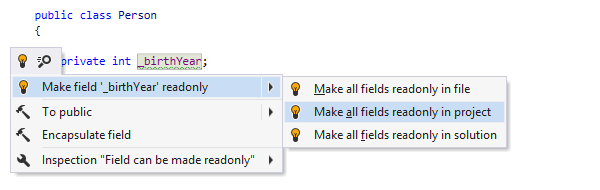
It is often reasonable to use the readonly modifier for fields that are
assigned in the declaration
or in a constructor and only have read usages. By default, ReSharper suggests you making
a
field readonly if the above conditions are met.
All preferences for modifiers are configurable and you can apply them with quick-fixes and code cleanup.
Removing code redundancies (C# only)
ReSharper provides dozens of code inspections for redundant code.
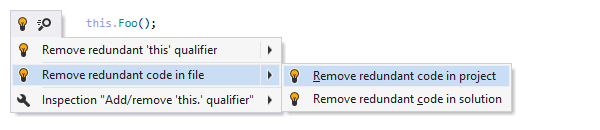
The majority of these redundancies can be cleaned up without user interaction, using either fix in scope or code cleanup.
When removing code redundancies, ReSharper takes into account all other code style settings. If specific code constructs are defined as non-redundant by code style settings, they are left intact.
Naming style
ReSharper lets you define custom naming style settings for different languages and symbols including types, namespaces, interfaces, parameters, method properties and events, static and instance fields etc.
For every kind of symbol, you can configure one of five casing options, prefixes and suffixes, variations for different access rights, abbreviations to preserve, and other options.
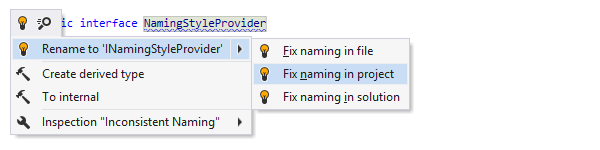
All violations of naming style are highlighted in the editor and can be easily fixed.
In addition, you can browse through (and quickly fix) all naming style violations in your whole solution (or in a narrower scope) in the Inspection Results window by using the Find Code Issues feature.
Namespace import style
To make your code more readable, you can remove redundant using directives and/or shorten
qualified references in your C# and VB.NET code files.
Moreover, there are different approaches to importing namespaces —
you can either add using/import directives or use fully
qualified
type names,
you can place the directives on top of the file or inside a namespace, etc.
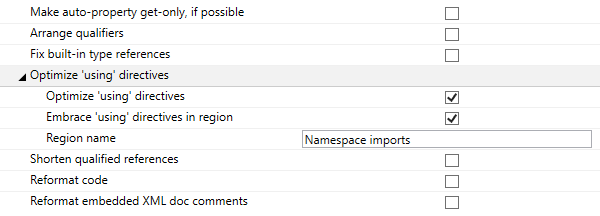
With ReSharper, you can quickly detect and remove redundant imports right in the editor or you can use code cleanup, that can additionally help you sort required directives alphabetically and wrap them ia a region.

Reference style for built-in C# types
The C# type keywords and .NET Framework (CLR) type names are interchangeable for built-in C# types. If you prefer to stick to one or another style for built-in type names, ReSharper can help you maintain your preference.
The preference is configurable and you can also enforce it with code cleanup.
Styles for C# attributes
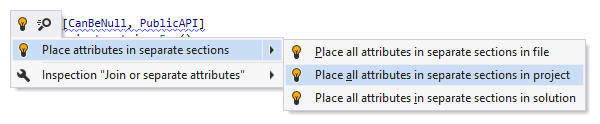
Multiple attributes in C# can be written in different ways: you can join several attributes in the same square brackets section or use several sections for different attributes. ReSharper allows you to specify the style for multiple attributes and enforce this style in the desired scope:
ReSharper also provides multiple formatting rules for attributes, and allows applying all style preferences for attributes in a batch mode with code cleanup.
Styles for optional member qualifiers
In C#, you can qualify instance members with
this keyword, while static members can be qualified with type name or a
base
type name.
These qualifiers help you disambiguate members hidden by local variables or method
parameters.
In all other cases, these modifiers are optional, and you can decide for yourself
whether to
use them or not.
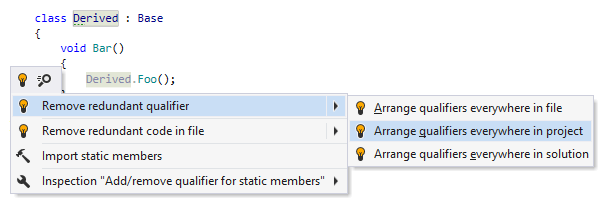
By default, ReSharper treats all optional member qualifiers as redundant and suggests
removing them.
If you prefer to use optional qualifiers, you can configure the corresponding code style settings. For example, you may prefer to qualify static methods with the type where they are declared.
Styles for optional parentheses
In many cases, parentheses in expressions are optional.
Sometimes they help you clarify precedence of operations — e.g.
if ((a & b) | c),
sometimes, however, they do not help at all and just add up to dead code — e.g.
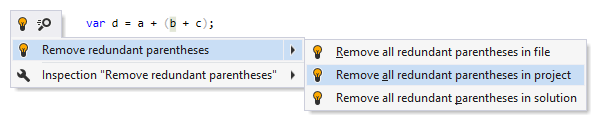
var d = a + (b + c);.
ReSharper will help you define where optional parentheses are helpful to you, and then
either clean up the redundant parenthesis,
or automatically add clarifying parentheses for non-obvious operation precedence.
File and type layout (C# only)
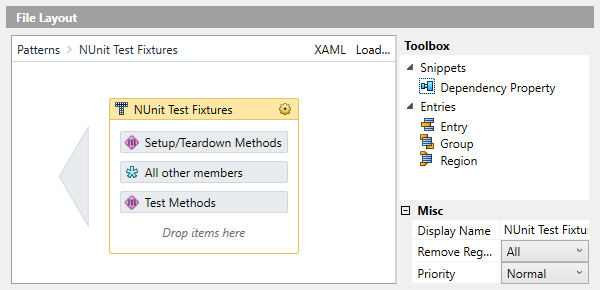
In C# code, ReSharper can automatically reorder file and type members in your code. The members will be sorted, grouped, wrapped to specified regions, etc. according to their kind and access modifiers. ReSharper provides two default layout patterns (sets of reordering rules) and a smart visual editor.
Note on shortcuts
All keyboard shortcuts provided in this page are available in ReSharper's default "Visual Studio" keymap. For details on ReSharper's two keymaps, see ReSharper Documentation.