JetBrains AI plans and usage
AI Assistant is a collection of specific features that become available to users through access to the JetBrains AI service. This service connects you, as a product user, to various large language models (LLMs) and enables AI-powered features in JetBrains products.
To access the JetBrains AI service, you usually need a JetBrains AI subscription. To start a free trial or activate a subscription, refer to Use JetBrains AI subscription. This article describes the available license tiers, their price, and usage volume for individual and organizational users.
Available license tiers
JetBrains AI offers several license tiers – AI Free[1], AI Pro, AI Ultimate[1], and AI Enterprise:
The AI Free, AI Pro, and AI Ultimate license tiers are available for both individual users and organizations.
The AI Enterprise license tier is available only to organizations as a part of JetBrains IDE services.
Each license provides a quota – a resource that regulates access to AI-powered features. It is represented by AI credits, which are consumed when you use AI features that rely on cloud models.
License tier | Price | AI credits | Ability to purchase more AI credits |
|---|---|---|---|
AI Trial | Free | 10 AI credits per trial period |
|
AI Free | Free | 3 AI credits per 30-days |
|
AI Pro | $10 USD | 10 AI credits per 30-days |
|
AI Ultimate | $30 USD | 35 AI credits per 30-days |
|


The number of AI credits included in your plan corresponds to its subscription price, with a small bonus for the AI Ultimate license tier. Each AI credit equals $1 USD charged in your local currency.
If you run out of AI credits included in your subscription, you can purchase more to continue using AI features. Purchased AI credits are valid for 12 months and remain available until they are used or expire.
License tier | Price | AI credits | Ability to purchase more AI credits |
|---|---|---|---|
AI Trial | Free | 20 AI credits per trial period |
|
AI Free | Free | 3 AI credits per 30-days |
|
AI Pro | $20 USD | 20 AI credits per 30-days |
|
AI Ultimate | $60 USD | 70 AI credits per 30-days |
|
AI Enterprise | $60 USD | On par with AI Ultimate quota, or higher[2] |
|
The number of AI credits included in your plan corresponds to its subscription price, with a small bonus for the AI Ultimate license tier. Each AI credit equals $1 USD charged in your local currency.
If you run out of AI credits included in your subscription, you can purchase more to continue using AI features. Purchased AI credits are valid for 12 months and remain available until they are used or expire.
Organizations are being migrated to JetBrains Central gradually. In an organization that uses the new model, AI access is managed separately from product licenses: an admin can grant or revoke AI access and set how many AI credits each user can spend per month by configuring a default limit for users and, if needed, individual per-user limits.
AI credits transferred from the organization's existing licenses that included AI resources are placed in a single shared pool rather than assigned to individual users. Recurring credits provided through eligible licenses are added to this pool monthly, and purchased AI credits are added to the same pool. Purchased AI credits expire 12 months after purchase, while AI credits transferred from a license expire on the last day of the calendar month in which the original license expires. This differs from the previous per-user model, in which each user's monthly allocation of AI credits expired when it renewed.
During migration, each eligible license that included AI resources contributes a credit allocation based on its former monthly AI credit allocation. These allocations correspond to former dedicated AI subscriptions and IDE subscriptions that bundled AI resources, such as All Products Pack and dotUltimate:
License | AI credits per month |
|---|---|
AI Ultimate | 70 |
AI Pro | 20 |
All Products Pack | 20 |
dotUltimate | 20 |
AI Free | 3 |
License tiers availability
Some license tiers may be unavailable in older versions of JetBrains IDEs. For example, the AI Free license tier is only available in IDEs starting from version 2025.1 or later. The AI Ultimate[4] license tier is available in IDEs starting from version 2024.2.1; earlier versions only support AI Pro and AI Enterprise license tiers:
AI Free | AI Pro | AI Ultimate | AI Enterprise | |
|---|---|---|---|---|
IDE versions 2025.1 and later |
|
|
|
|
IDE versions from 2024.2.1 up to 2025.1 |
|
|
|
|
IDE versions prior to 2024.2.1 |
|
|
|
|
In addition, these license tiers have other limitations:
The AI Free license tier is not available in Android Studio.
The AI Free license tier is not available in Community Editions of PyCharm and IntelliJ IDEA, as well as in PyCharm Unified when used for free.
The AI Free license tier is not automatically included in any IDE trial license.
The AI Pro license tier provided for free with the All Products Pack or dotUltimate subscription, as well as the AI Free license tier, cannot be activated if the IDE license is obtained through the License Server.
The AI Pro license tier is provided for free with DataSpell.
The AI Free and AI Ultimate license tiers are only available in the serviceable territories.
Manage a license
This section provides instructions on how to manage a JetBrains AI license.
Manage multiple licenses
If you have multiple JetBrains AI licenses, you can manage them in the  AI Chat tool window.
In the AI Chat tool window, click the
 Options button.
Select the Manage License option from the list.
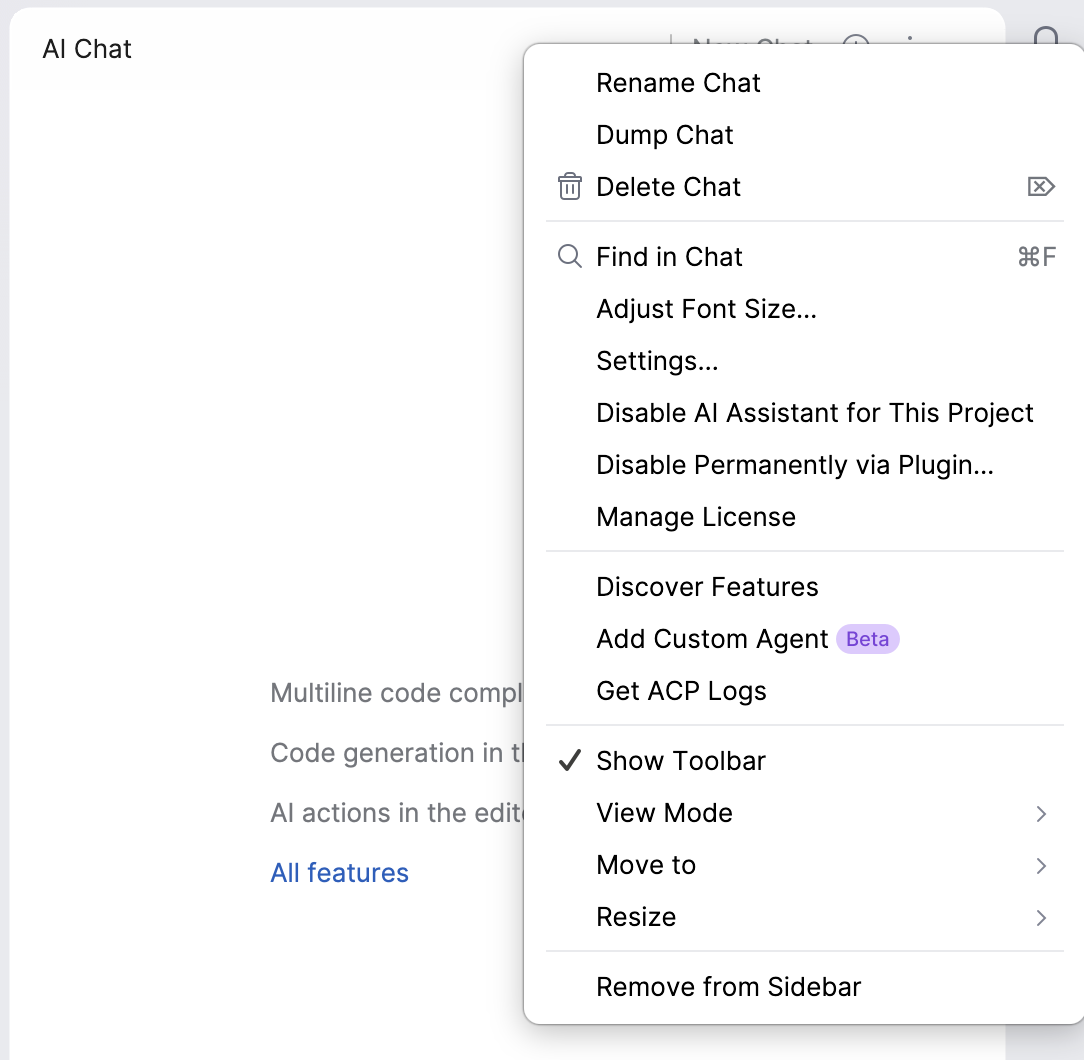
This opens a License pane where you can review the license details:
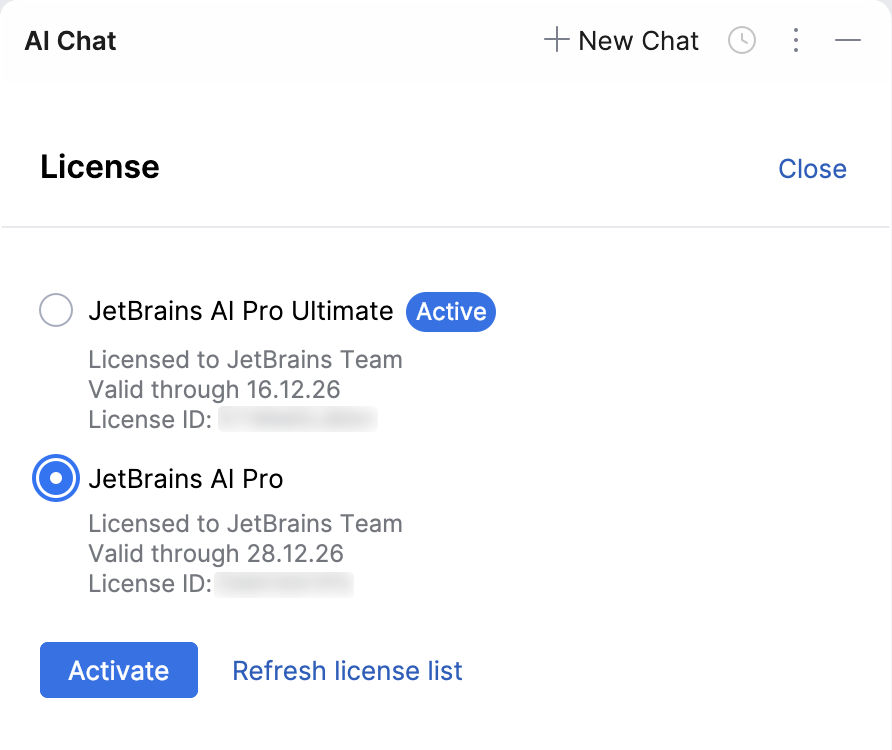
If you have multiple licenses, you can choose the one you want to use by selecting it from the list and clicking Activate.
To refresh the list of licenses, click Refresh license list.
Log out of JetBrains AI
If you need to log out of JetBrains AI, you can do so in the settings.
Navigate to .
In the JetBrains AI section, click Log out.
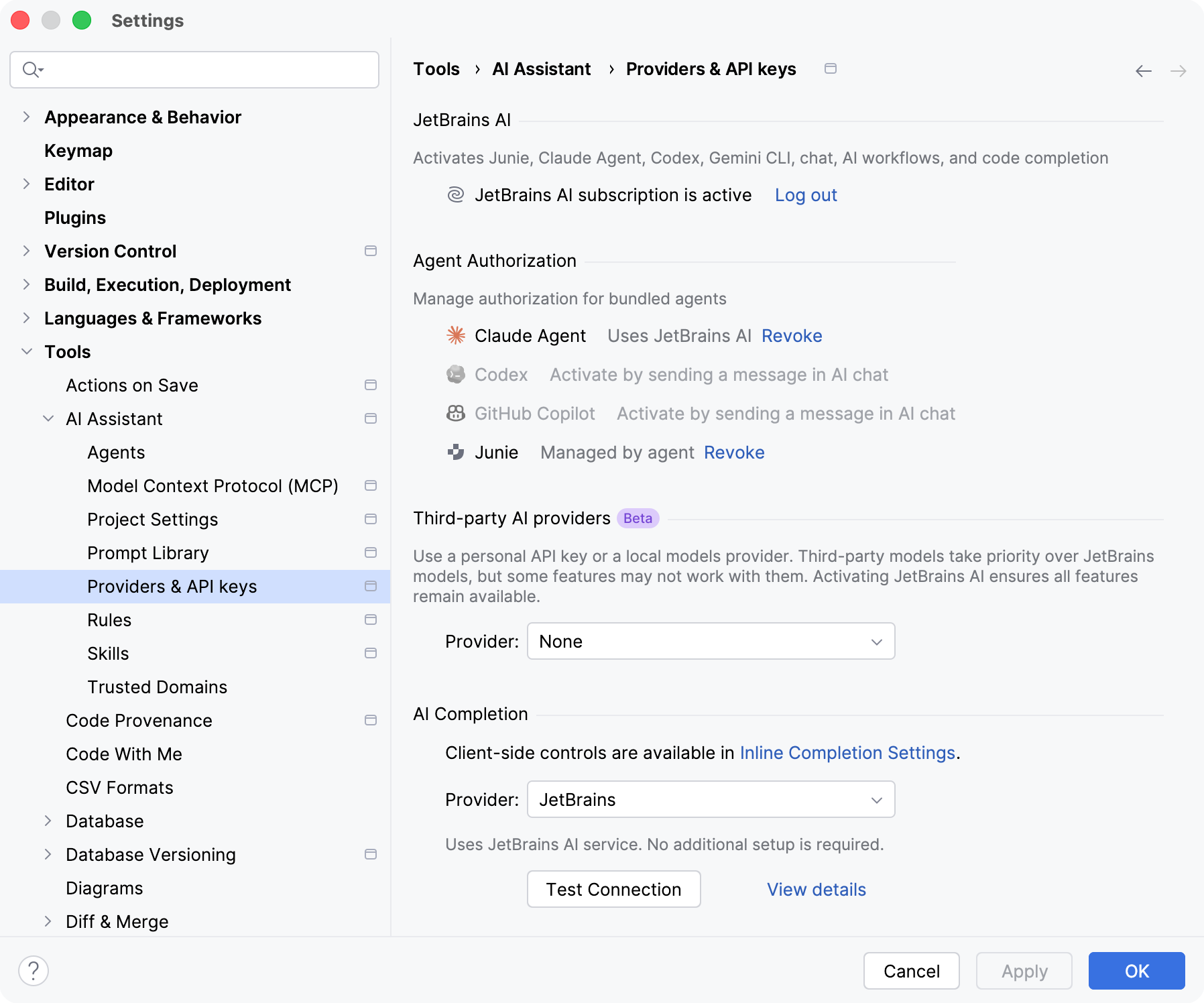
After that, you can configure other authentication options to keep using AI Assistant.
If you want to log in again using your JetBrains AI service subscription, refer to the Enable JetBrains AI alongside custom models section.
Add and manage AI credits
You can purchase additional AI credits to continue using AI features after the quota included in your license tier is exhausted. Once purchased, these credits are automatically added to your balance and consumed the same way as your regular quota. You can purchase and manage them through the  JetBrains AI widget in your IDE or in JetBrains Account settings.
Using the JetBrains AI widget
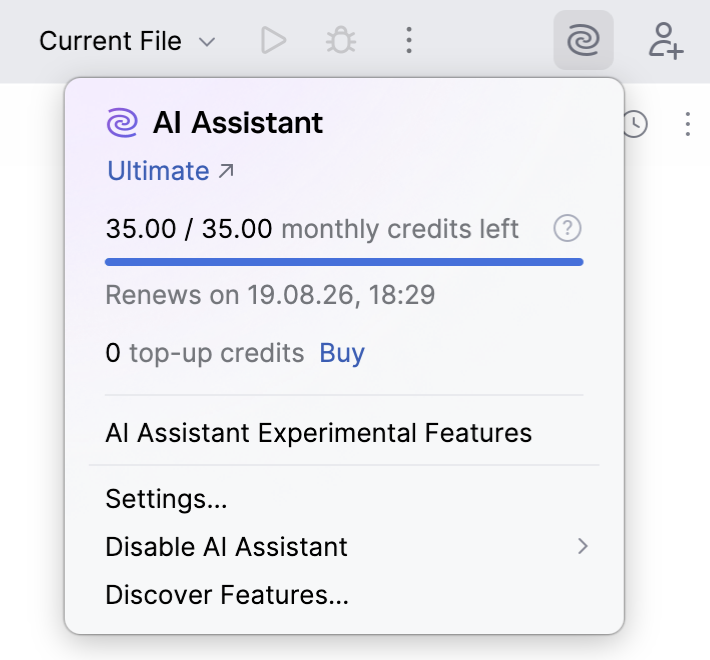
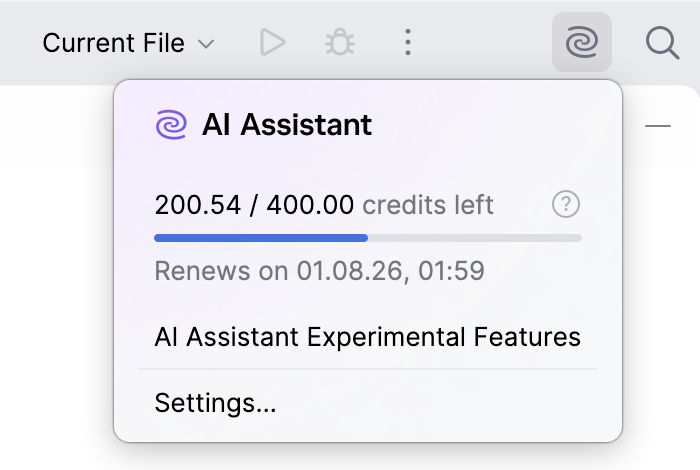
The JetBrains AI widget located in the window header toolbar lets you purchase additional AI credits and track your usage.
Add AI credits
Click Buy near the credits counter.
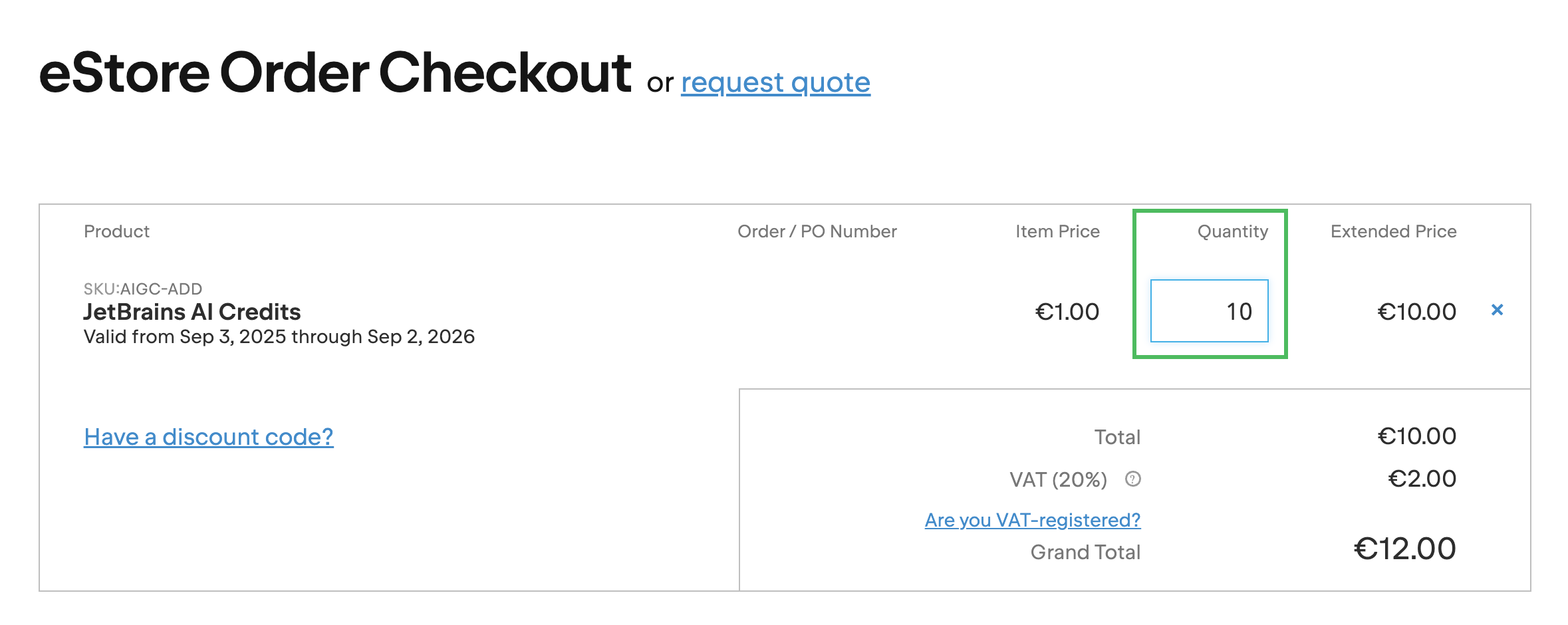
On the eStore Order Checkout page, specify the number of AI credits you want to purchase.
Provide any other required information and submit your order.
Track AI credits usage
The top-up credits counter shows how many purchased AI credits you currently have, with an option to add more, if needed.
Using JetBrains Account
You can purchase AI credits and view usage information in your JetBrains Account settings.
Add AI credits
Log in to your JetBrains Account.
Navigate to the JetBrains AI Settings section.
In the Top-up AI Credits for personal use card, click the Add AI Credits button.
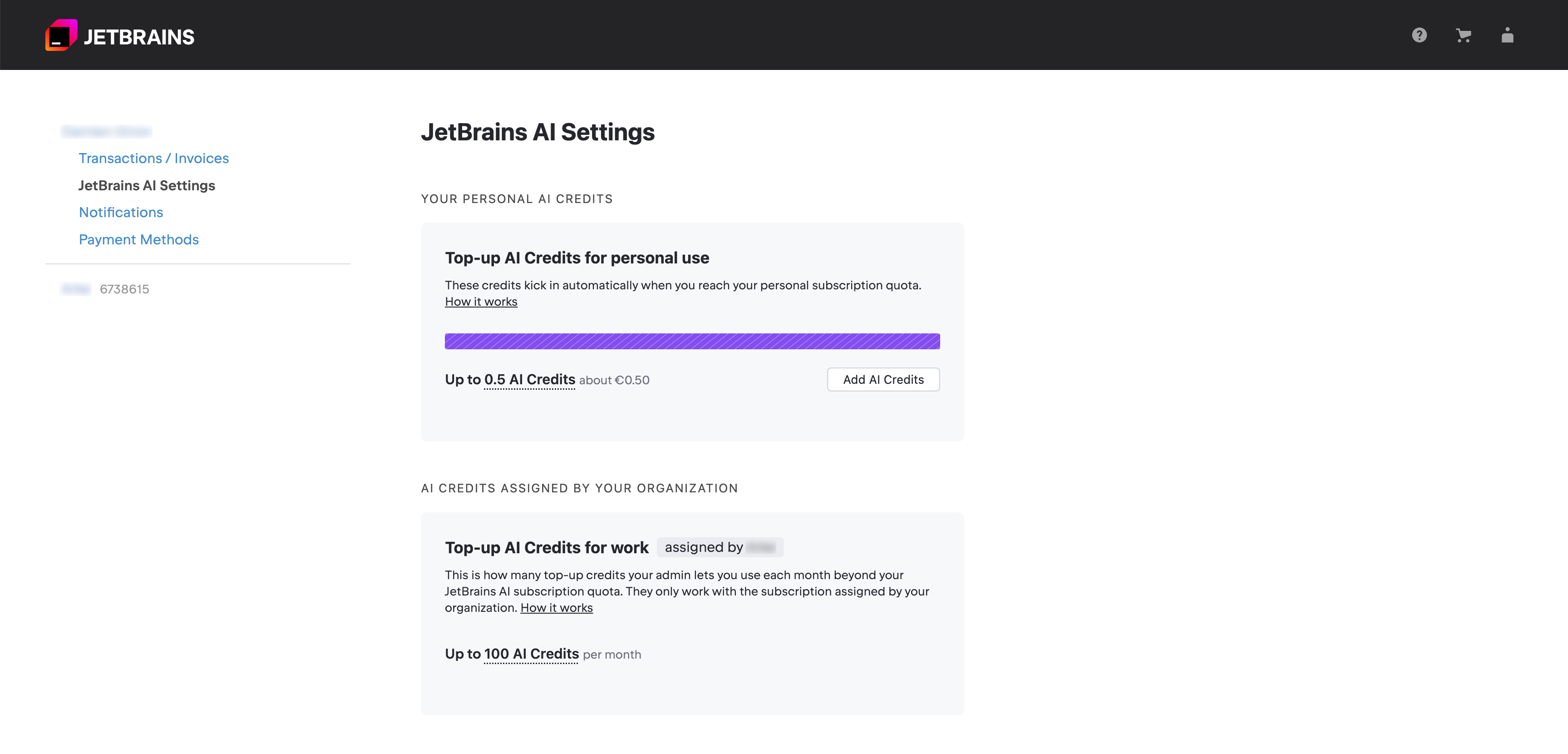
Pass eStore Identification and proceed to checkout.
On the eStore Order Checkout page, specify the number of AI credits you want to purchase.
Provide any other required information and submit your order.
Track AI credits usage
Log in to your JetBrains Account.
Navigate to the JetBrains AI Settings section.
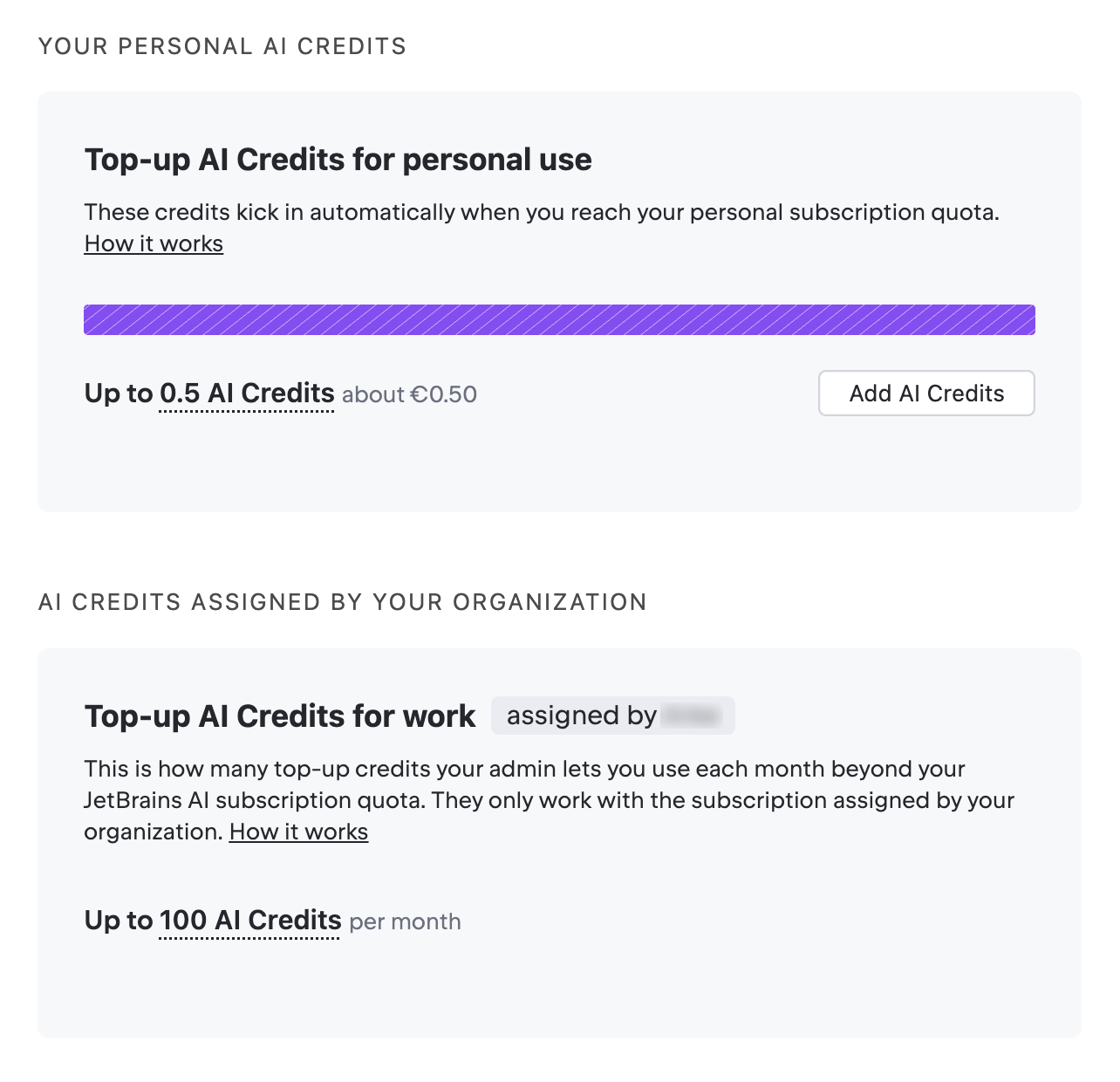
Review the cards. The upper card displays your personal AI credits, while the lower one displays AI credits assigned to you by your organization.
Add AI credits
Log in to your JetBrains Account.
Switch to your organization.
Navigate to the JetBrains AI Settings section.
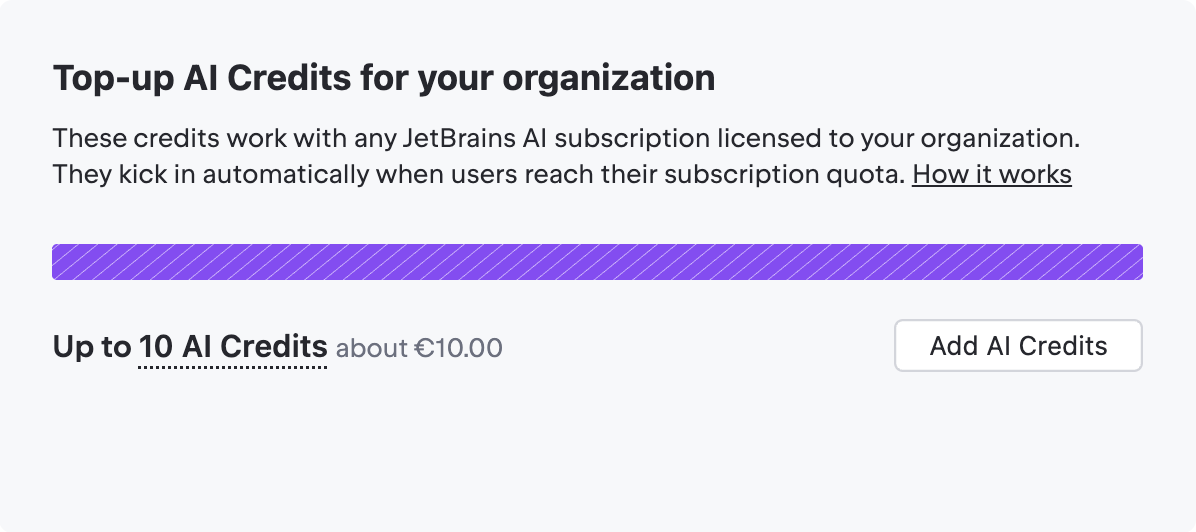
In the Top-up AI Credits for your organization card, click the Add AI Credits button.
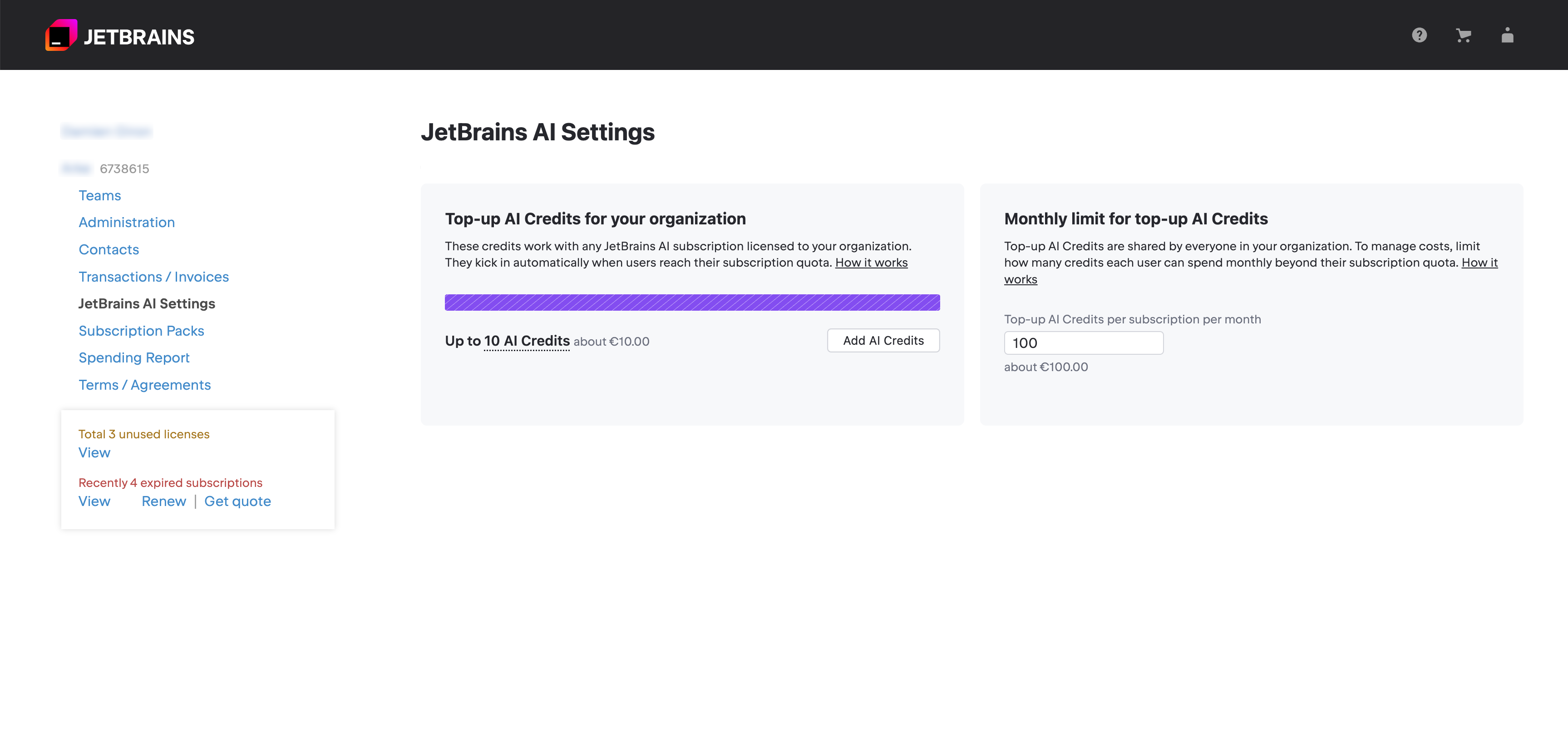
Pass eStore Identification and proceed to checkout.
On the eStore Order Checkout page, specify the number of AI credits you want to purchase.
Provide any other required information and submit your order.
Limit monthly use of AI credits
Log in to your JetBrains Account.
Switch to your organization.
Navigate to the JetBrains AI Settings section.
In the Monthly limit for top-up AI Credits card, specify how many AI credits can be used in a month per subscription.
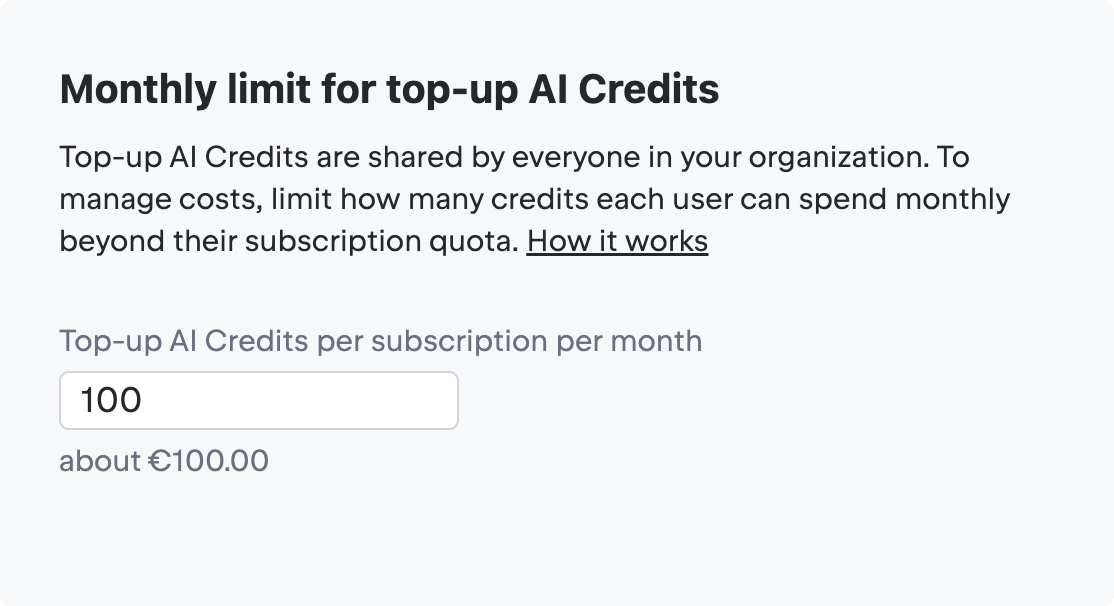
Click Save to apply the changes.
Track AI credits usage
Log in to your JetBrains Account.
Switch to your organization.
Navigate to the JetBrains AI Settings section.
Review the Top-up AI Credits for your organization card. It displays the number of AI credits available to your organization.
Using JetBrains Central Console
Organizations that have been migrated to the shared credit pool model manage AI credits in JetBrains Central Console.
For instructions, refer to the JetBrains Central Console documentation:
Manage AI access – grant or revoke AI access to users.
Manage AI credits – add AI credits, set limits, and configure an auto-purchase schedule for your organization.
Monitor AI credits usage – track how AI credits are consumed across your organization.
Review AI credits usage report
At the beginning of each month, you receive a report with details of your AI credits usage for the previous month. The report is sent to the email address associated with your JetBrains Account.
The report provides various details, but the following fields are the most important for interpreting your AI credits usage:
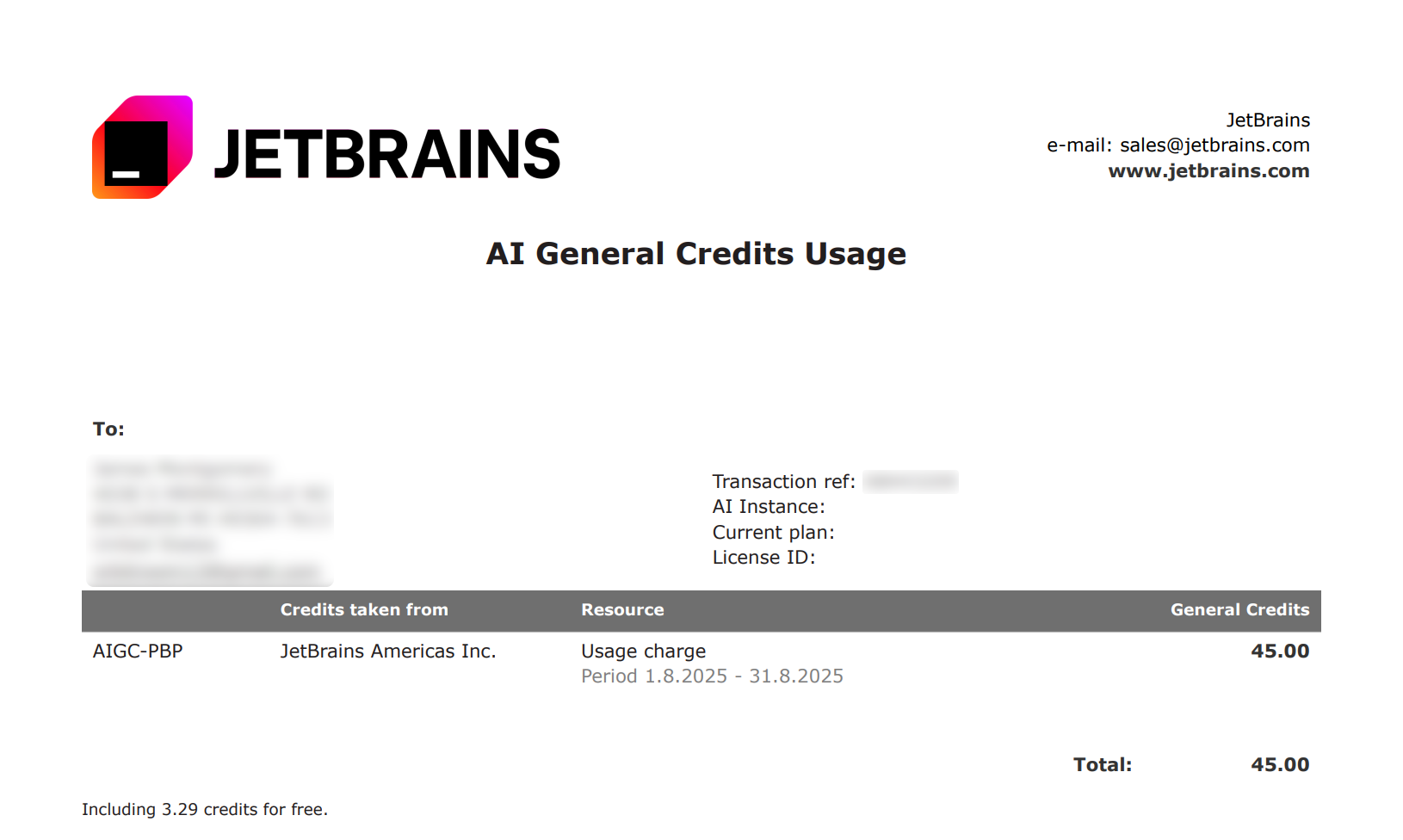
Period – the date range covered by the report.
Total – the total number of AI credits spent during the specified period. Only purchased AI credits are counted.
Including credits for free – the number of AI credits spent that were obtained at no cost through discounts or promotional offers.
Quota and AI credits FAQ
This section provides answers to common questions about quota and AI credits.
- What is quota and what are AI credits?
Quota is a monthly resource measured in AI credits, which are consumed when you use AI-powered features.
The number of AI credits available to you matches the price of your subscription. Each AI credit corresponds to $1 USD charged in your local currency.
- How much usage do I get from one AI credit?
One AI credit gives you about:
- When does my quota renew?
The quota reset occurs every 30 days from the date when you first used your JetBrains AI license.
- How is quota usage calculated?
Quota usage is calculated dynamically for each interaction based on several factors, primarily the number of tokens used — units of text from both your input and the AI’s response. Since token usage can vary depending on the length, complexity, and context of a request, the quota cost may differ from one interaction to another.
- How can I track my quota usage?
Quota usage can be tracked in the
JetBrains AI widget located in the toolbar in the window header:The monthly credits left counter shows how many AI credits you have left out of your subscription quota. The progress bar reflects overall usage and decreases as you use cloud-based features. The date under the progress bar indicates when the monthly quota resets.
- What to do if the quota usage limit is reached?
Once the quota for the current period is exhausted, you have the following options:
Wait for the next 30-day cycle when the quota resets.
(Trial, AI Pro, AI Ultimate) Purchase AI credits to continue using AI features beyond your monthly quota.
Use a different license if you have multiple JetBrains AI licenses.
Upgrade to a higher tier to renew the quota. This also increases the total number of AI credits available per 30-day period.
Configure AI Assistant to use models from third-party providers or set up agents.
- What can lead to high quota usage?
Several factors can increase quota consumption:
Long chat threads: Using a single chat instance for multiple topics causes context to grow exponentially, increasing token consumption and quickly using up your quota.
Expensive models: Models with higher token costs (marked with the
 icon) consume quota faster.
Use of agents: Extensive use of agents leads to higher quota consumption.
How to reduce quota usage:
Start a new chat for each unrelated topic or task.
Switch to more cost-effective models.
For heavy agentic workloads, consider upgrading to the AI Ultimate license tier, which has a larger monthly quota.
- Can I buy more AI credits?
Yes, you can purchase additional AI credits to continue using AI features after the dedicated quota included in your license tier is exhausted.
You can add AI credits to your balance in the settings of your JetBrains Account.
- How are purchased AI credits spent?
AI Assistant starts using your purchased AI credits only after your monthly quota is fully used. They remain in use until the monthly quota is renewed. Once the new monthly quota becomes available, AI Assistant switches back to using it. Any remaining purchased AI credits stay in your balance and will be used again only after the next monthly quota runs out.
- Where can I track the usage of purchased AI credits?
Purchased AI credits can be tracked in the
JetBrains AI widget located in the toolbar in the window header:As an alternative, you can also track purchased AI credits in the settings of your JetBrains Account.
In addition, a report with details of your purchased AI credits usage for the previous month is sent at the beginning of each month.
- Do purchased AI credits expire?
Purchased AI credits stay valid for 12 months from the date they were added, unless specified or agreed differently. They remain available to you until they are used or expire.
- Can I use purchased AI credits in other licenses?
Purchased AI credits can be used across all JetBrains AI licenses purchased under the same customer account. This means that any AI credits you purchased yourself can be used only for licenses you personally bought.
Likewise, AI credits provided by your organization can be used only for licenses assigned to you by the organization.
- How are purchased AI credits used in an organization?
Purchased AI credits are shared among all JetBrains AI licenses purchased by your organization. Administrators can set the limit on how many AI credits can be used per subscription in the settings of your organization account.
- Are there any regional limitations on using purchased AI credits?
Purchased AI credits are not available for use in China.
Contact support
If you need any help regarding your license, you can contact our support team.