Activate agents
AI Assistant provides a set of integrated agents (such as Junie, Claude Agent, and Codex), as well as supports adding external or custom ACP-compatible agents.
Integrated agents can be activated using different authentication methods, depending on the agent and your configuration.
Activating an agent lets you use it in AI Chat. Other AI Assistant features may be unavailable depending on the selected activation method.
Integrated agents
You can activate integrated agents using one of the following authentication methods:
JetBrains AI subscription
API key (BYOK)
Provider account (OAuth)
Provider-specific methods (such as Anthropic Console)
Not all authentication methods are supported by every agent:
Agent | JetBrains AI | Provider account (OAuth) | API key (BYOK) | Provider-specific |
|---|---|---|---|---|
|
|
|
|
|
|
|
|
| Anthropic Console |
|
|
|
|
|
|
|
|
|
|


The selected authentication method is used for both request processing and billing. You can check which method is currently active in , in the Agent Authorization section.
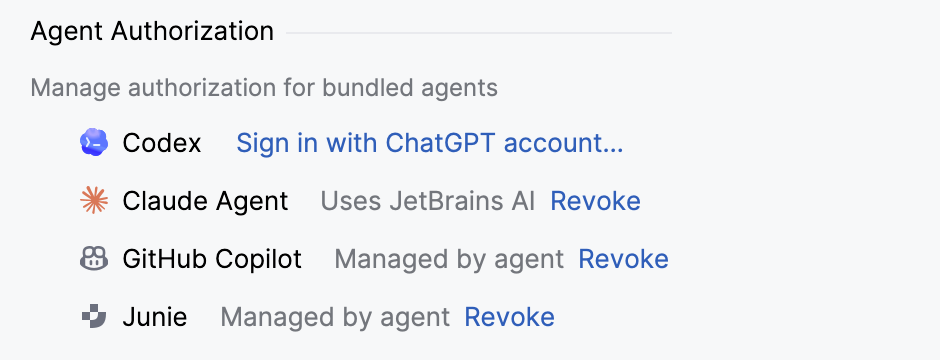
If you want to change the authentication method, you can revoke the current one and select a different option. To apply the changes, you will need to create a new chat.
Activate agents using a JetBrains AI subscription
Junie, Claude Agent, and Codex can be used with the JetBrains AI subscription. To activate these agents:
Open the
 AI Chat tool window.
Select Log in with JetBrains AI subscription.
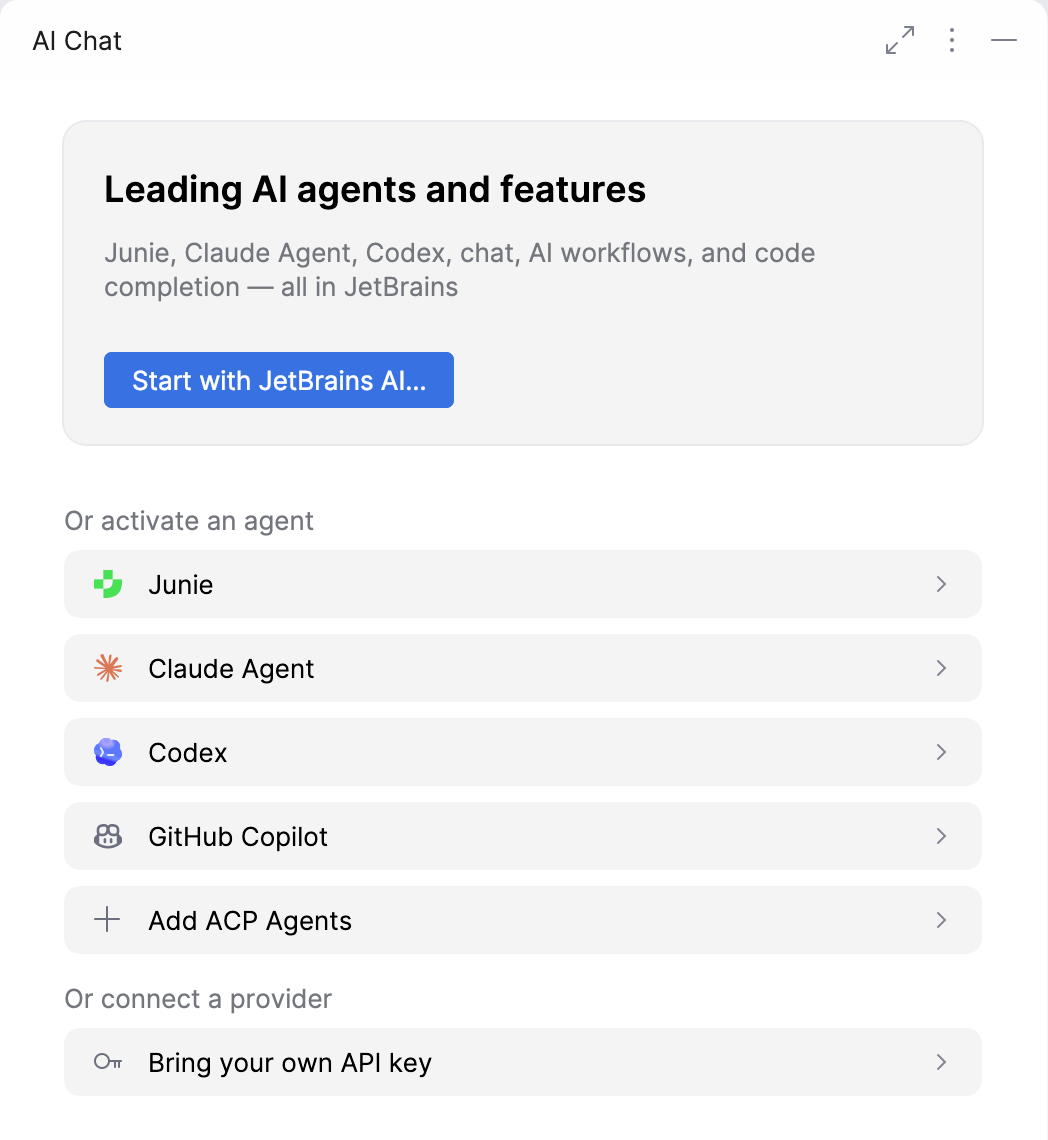
Complete sign-in with your JetBrains Account if required.
Navigate back to AI Chat and select the agent that you want to use.
If you selected Junie, it performs the activation automatically, and you do not need to do anything – the agent is ready for use. If you selected Claude Agent or Codex, you need to send a message to trigger the activation flow.
Send a message to trigger the activation.
Click Install and Continue to accept the terms of service and install the agent.
In the Choose authentication method prompt, select the JetBrains AI option. Depending on how you get access to JetBrains AI, the prompt shows one of the following options:
JetBrains – uses your personal JetBrains AI subscription.
Organization – uses JetBrains AI access provided by your organization. This option is available if your organization has assigned you a JetBrains AI license and enabled JetBrains AI, or if your organization uses JetBrains Central and an administrator has granted you AI access.
To verify that your JetBrains AI subscription is used, navigate to . The currently active authentication method is displayed in the Agent Authorization section.
Activate an agent using an API key (BYOK)
Junie, Claude Agent, and Codex support activation using an API key (BYOK):
Open the
AI Chat tool window.Select Junie by JetBrains.
This action opens the AI Chat with Junie selected for interaction. Junie starts an activation flow automatically as soon as you select it in the list.
In the Choose authentication method prompt, select API Key.
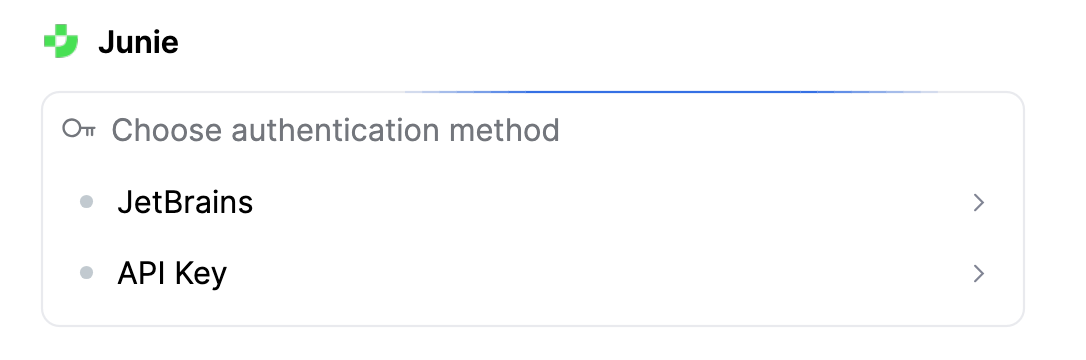
The settings page opens.
In the Third-party AI providers section, select OpenAI or Anthropic as the Provider.
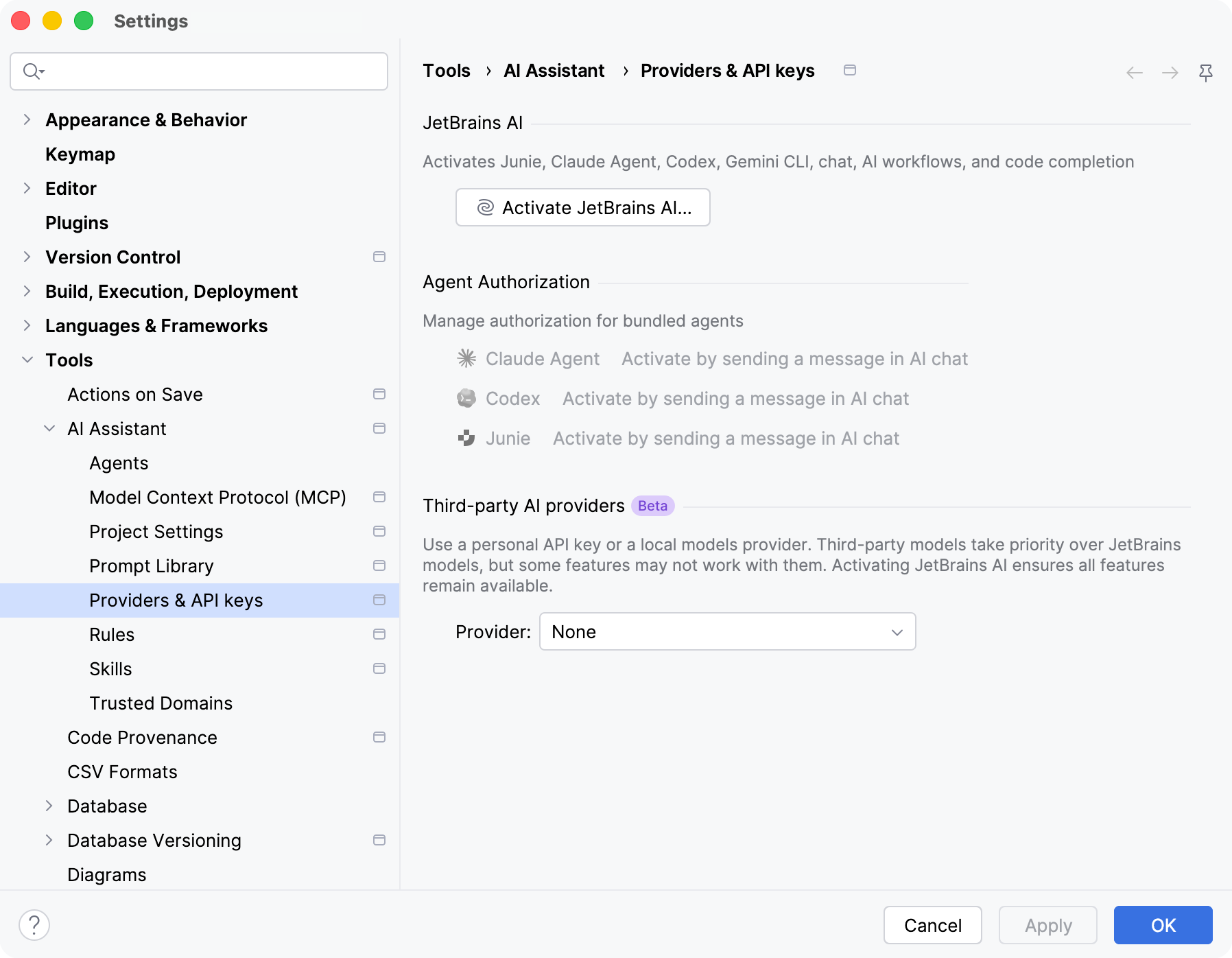
Enter your API key in the API Key field and click Test Connection to verify that the connection is established.
Click OK to apply changes.
Models from the configured provider become available in the Junie model selector. If JetBrains AI is also active, the list includes models from both sources.
Open the
AI Chat tool window.Select Claude Agent.
This action opens the AI Chat with Claude Agent selected for interaction.
Send a message to trigger the activation.
Click Install and Continue to accept the terms of service and install the agent.
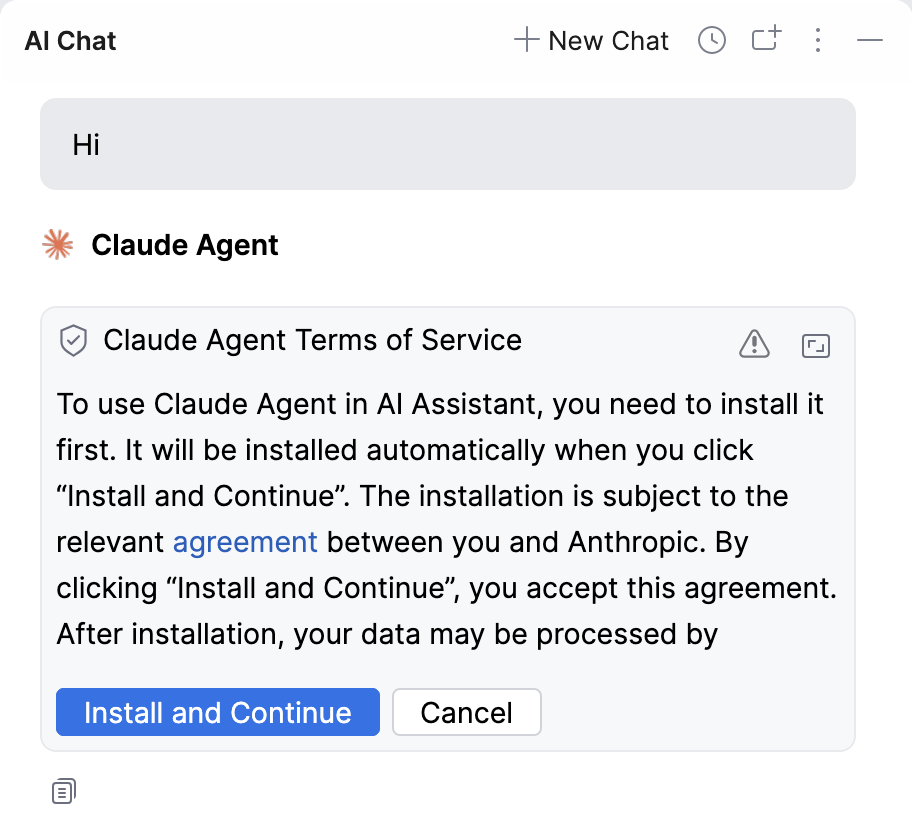
After the installation, you will be prompted to select the authentication method.
In the prompt, select API Key.
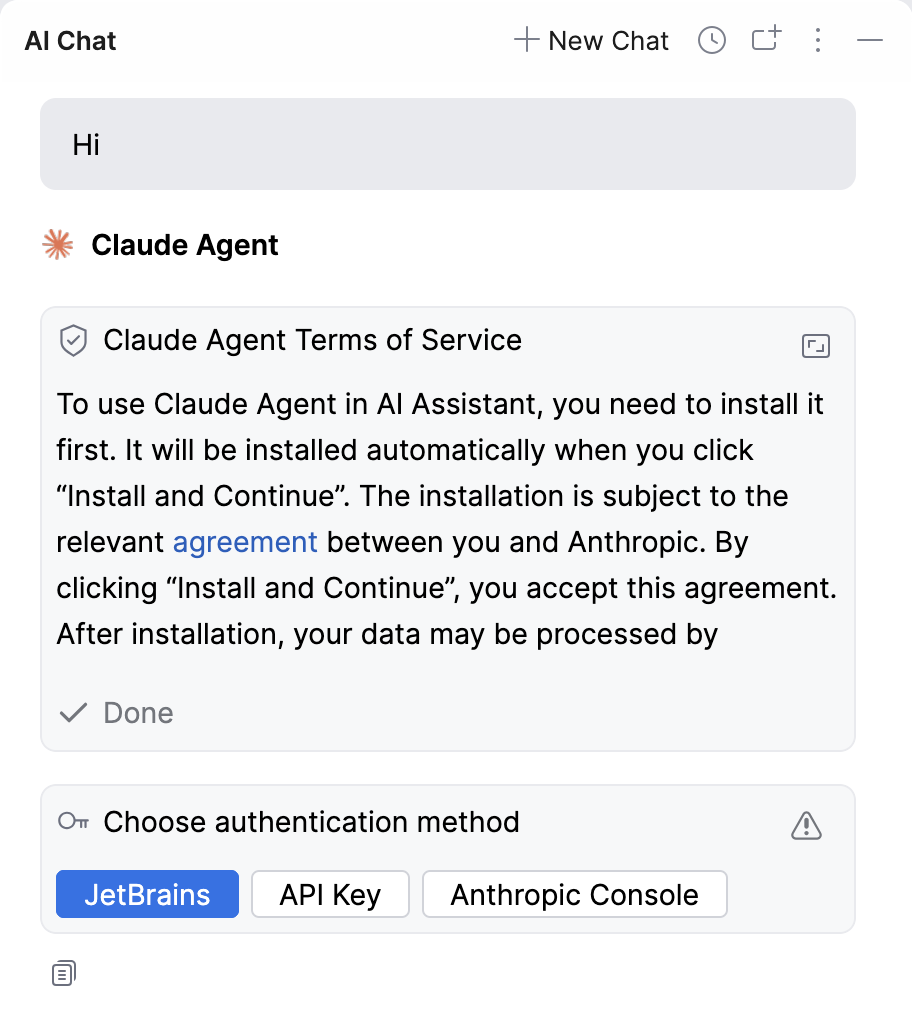
The settings page opens.
In the Third-party AI providers section, select Anthropic as the Provider.
Enter your API key in the API Key field and click Test Connection to verify that the connection is established.
Click OK to apply changes.
Open the
AI Chat tool window.Select Codex.
This action opens the AI Chat with Codex selected for interaction.
Send a message to trigger the activation.
Click Install and Continue to accept the terms of service and install the agent.
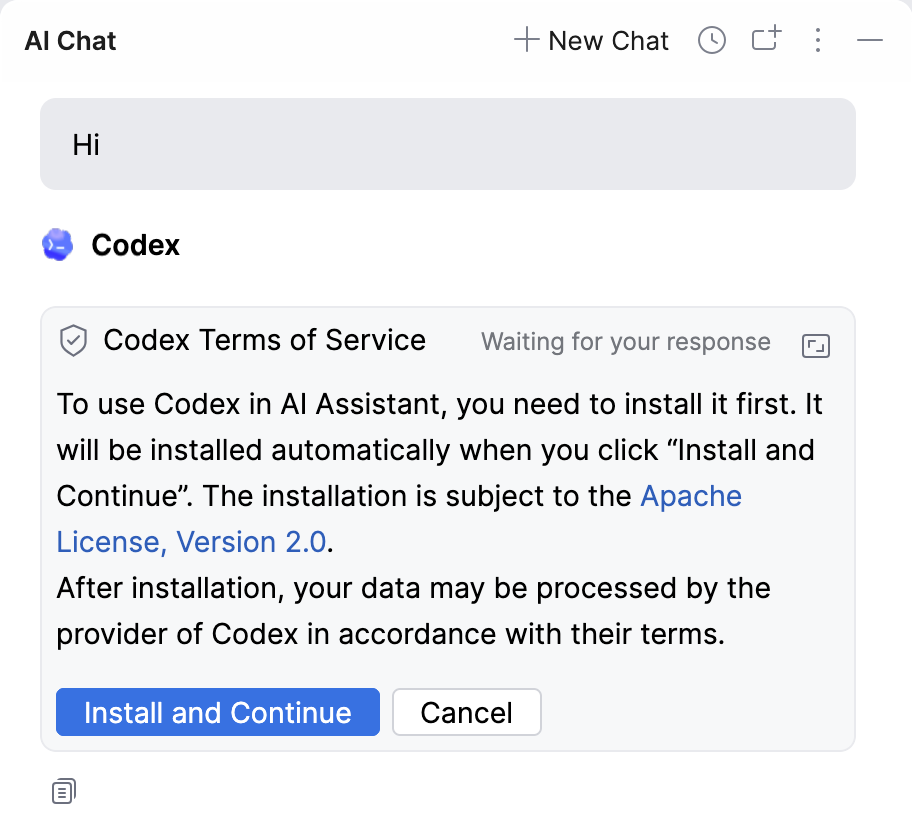
After the installation, you will be prompted to select the authentication method.
In the prompt, select API Key.
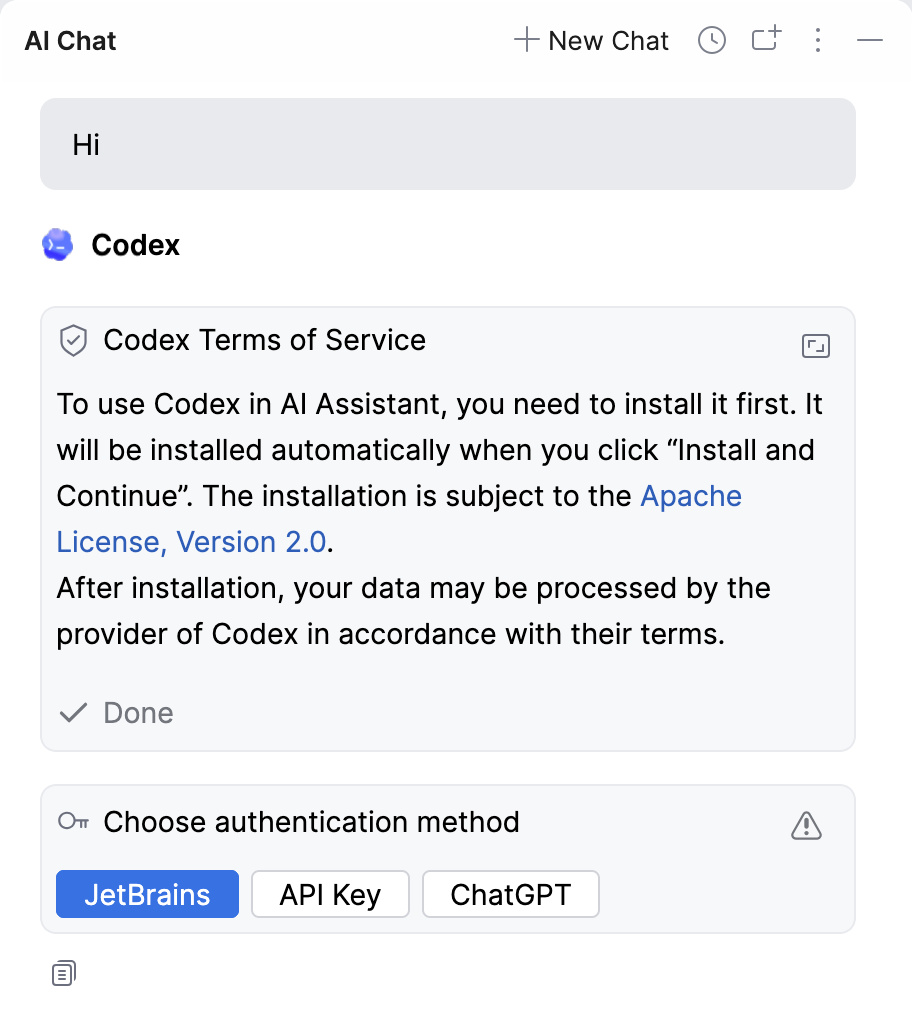
The settings page opens.
In the Third-party AI providers section, select OpenAI as the Provider.
Enter your API key in the API Key field and click Test Connection to verify that the connection is established.
Click OK to apply changes.
After completing these steps, you can start using the agent.
To verify that the third-party provider API key is used, navigate to . The currently active authentication method is displayed in the Agent Authorization section.
Activate an agent using a provider account (OAuth)
Codex and GitHub Copilot support activation using a provider account:
Open the
AI Chat tool window.Select Codex.
This action opens the AI Chat with Codex selected for interaction.
Send a message to trigger the activation.
Click Install and Continue to accept the terms of service and install the agent.
After the installation, you will be prompted to select the authentication method.
In the prompt, select ChatGPT or ChatGPT (device code) depending on which login mechanism you prefer to use.
Complete the authorization.
Open the
AI Chat tool window.Select GitHub Copilot.
This action opens the AI Chat with GitHub Copilot selected for interaction.
Send a message to trigger the activation.
Click Install and Continue to accept the terms of service and install the agent.
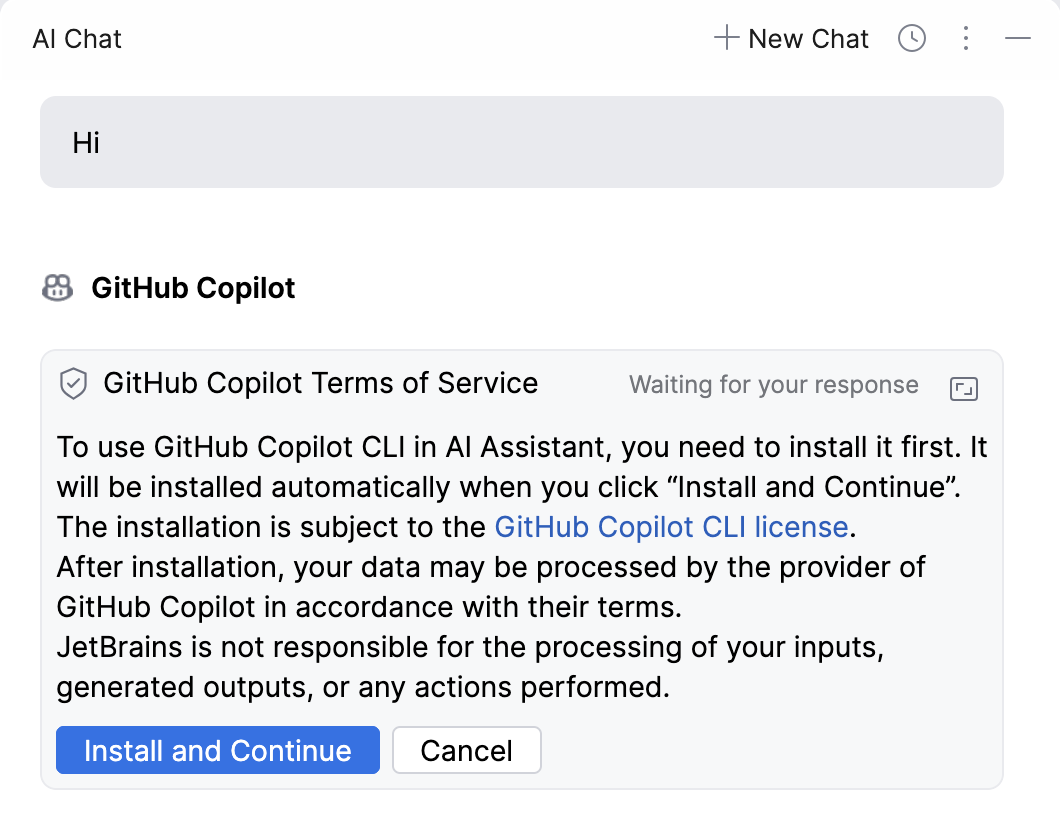
After the installation, you will be prompted to select the authentication method.
In the prompt, select Sign in with GitHub.
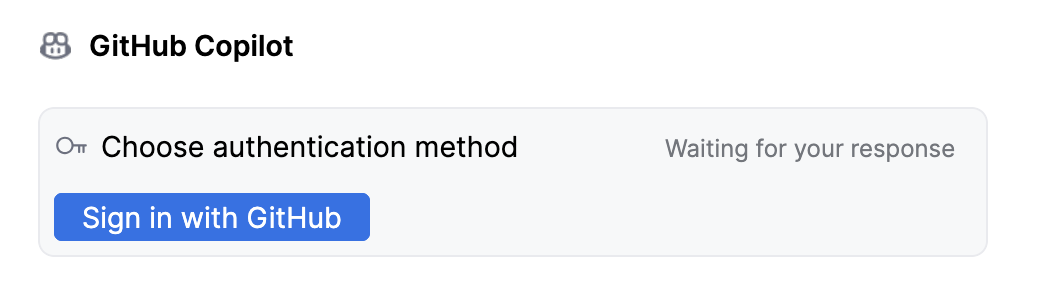
The GitHub sign-in page opens.
Log in to your GitHub account to authorize the agent.
After completing these steps, you can start using the agent.
To verify that the provider account is used, navigate to . The currently active authentication method is displayed in the Agent Authorization section.
Activate an agent using a provider-specific method
Some agents support provider-specific activation methods. For example, Claude Agent can be activated using Anthropic Console.
To activate Claude Agent using Anthropic Console:
Open the
AI Chat tool window.Select Claude Agent.
This action opens the AI Chat with Claude Agent selected for interaction.
Send a message to trigger the activation.
Click Install and Continue to accept the terms of service and install the agent.
After the installation, you will be prompted to select the authentication method.
In the prompt, Anthropic Console.
Log in to your Anthropic account to authorize the agent.
After completing these steps, you can start using the agent.
To verify that your Anthropic account is used, navigate to . The currently active authentication method is displayed in the Agent Authorization section.
Add ACP agents
AI Assistant supports the Agent Client Protocol (ACP), allowing you to connect external AI agents. You can install an ACP-compatible agent and use it in the AI Chat without the JetBrains AI service subscription.
Open the
AI Chat tool window.Click More Agents.
On the Agents page, select the agent that you want to install and click Install.
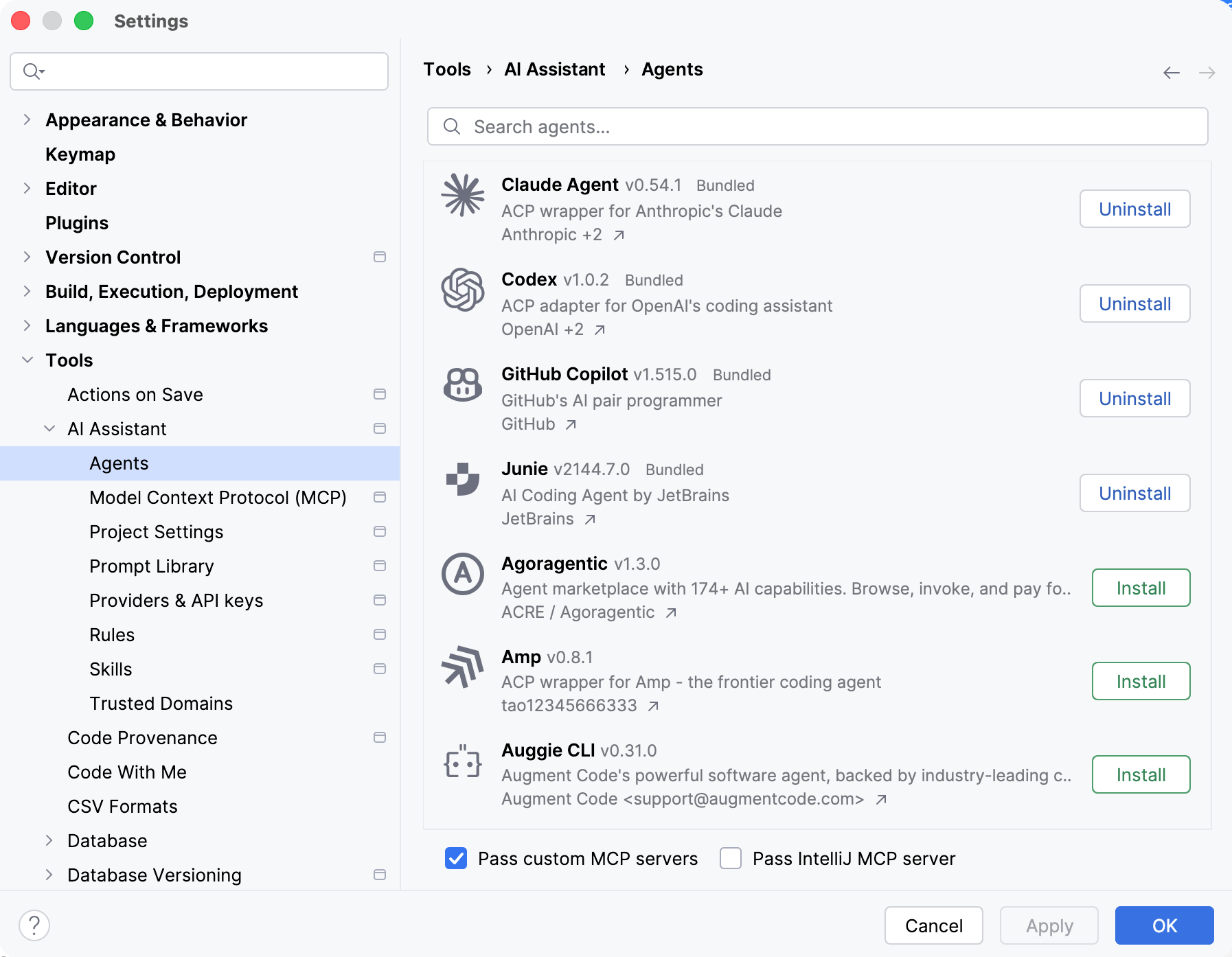
During installation, the IDE automatically:
Downloads the required agent files.
Downloads and manages a Node.js or Python runtime if required. If a compatible runtime is already available, the IDE reuses it instead.
Prepares the agent for use.
Configure Pass custom MCP servers and Pass IntelliJ MCP server settings if you want the agent to access tools from configured MCP servers or the bundled MCP server.
Click OK to apply changes.
As a result, the selected agent is installed and becomes available for use in AI Chat. To use it, send a message to trigger the activation and complete the authentication if required.
Alternatively, you can manually add custom ACP-compatible agents:
Open the
AI Chat tool window.Click the
 button in the upper-right corner of the AI Chat tool window and select Add Custom Agent.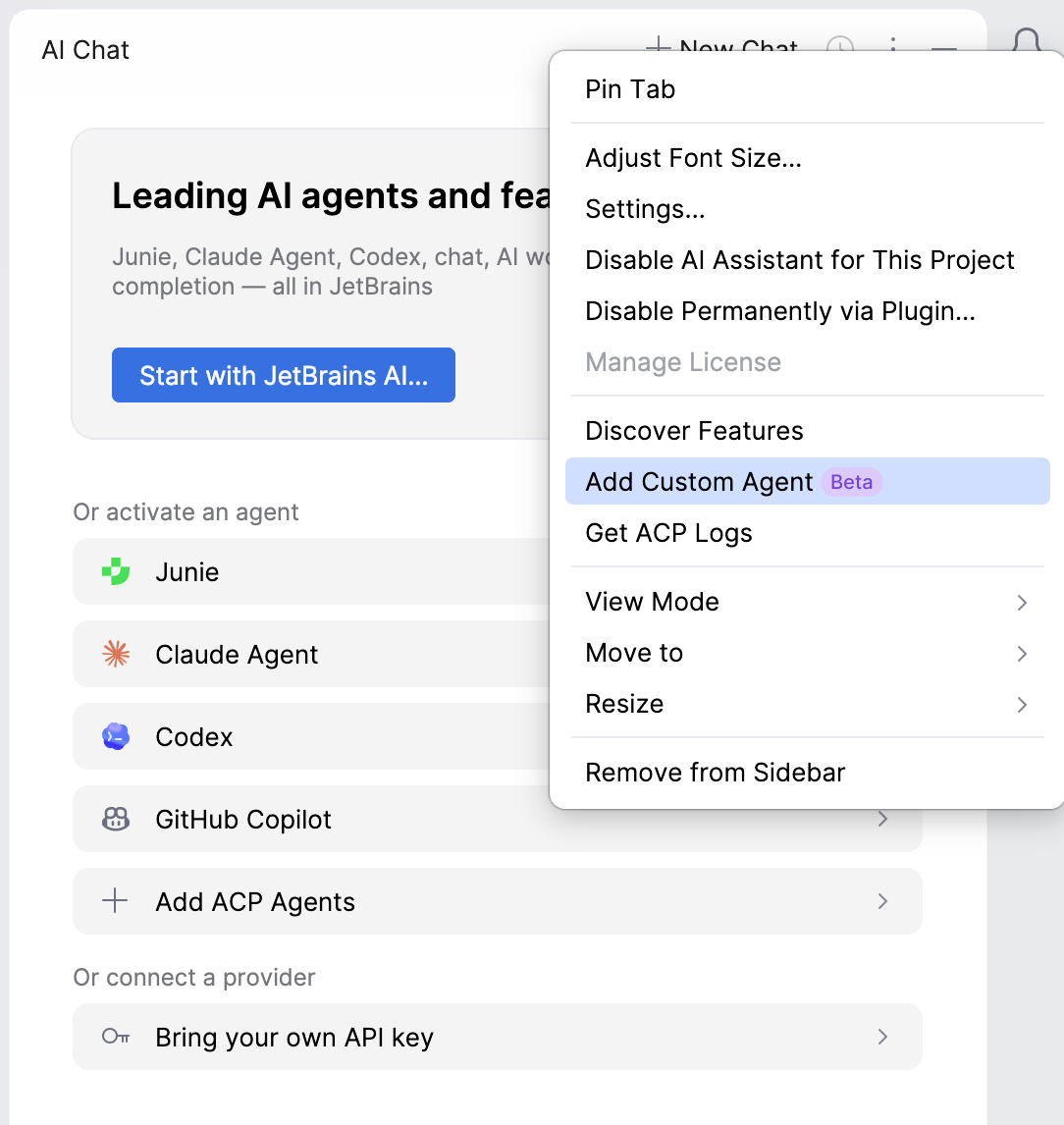
In the acp.json file, provide the agent configuration details.
As a result, the custom agent becomes available in AI Chat.
Revoke the agent's authorization
To use a different authentication method or sign out of the provider account, you need to revoke the agent authorization. To do this:
Navigate to .
In the Agent Authorization section, click Revoke next to the agent whose authorization you want to revoke.
Click OK.
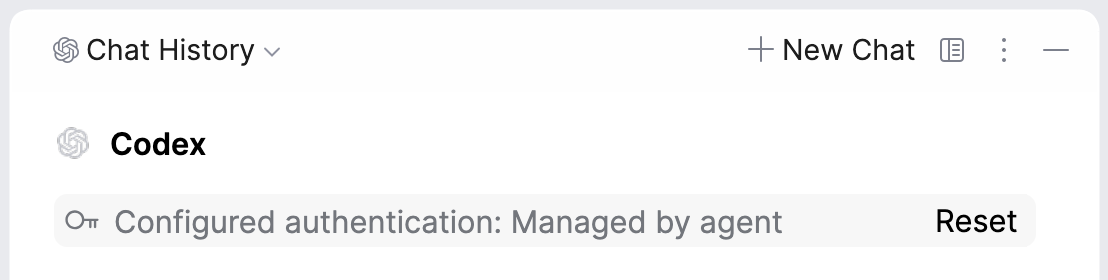
Alternatively, you can reset the authentication directly in AI Chat:
In the chat, navigate to the very beginning of your conversation.
Hover over the Configured authentication item and click Reset.
Start a new chat by clicking the
 New Chat button or pressing Alt+Insert.
Select the authentication method you want to use.
The agent uses the selected method until you reset authentication again.