Quickstart with cloud tasks
Air Teams runs agent tasks in remote cloud environments instead of on your machine. In this quickstart, you connect a repository, run your first task in the cloud, and create a pull request from the result.
Before you start
Make sure the following prerequisites are met:
Your organization is set up for Air Teams. This is done once by an administrator – see Set up Air Teams.
You are signed in to your JetBrains Account.
You have access to the repository you want to work on in the cloud, hosted in GitHub, GitLab, or a self-hosted GitHub Enterprise Server or GitLab Self-Managed instance.
For organization repositories – your organization is set up for cloud tasks, and the JetBrains Air app is installed in your VCS provider for the organization that owns the repositories. Ask your administrator to set it up – see app installation instructions.
For personal repositories – no prerequisites required – the app is installed for your personal account during onboarding.
1. Complete onboarding
The first time you open https://air.jetbrains.cloud, an onboarding wizard guides you through the initial setup: choosing an organization, connecting a VCS provider, authorizing access, and trying your first task.
After onboarding, the repositories you can access in the connected VCS provider become available in Air Teams, and you land on the new task page.
2. Run a task
After onboarding, you can run a task at any time – either from the web or from the Air app.
Run a cloud task from the browser
In the new task form, select a repository.
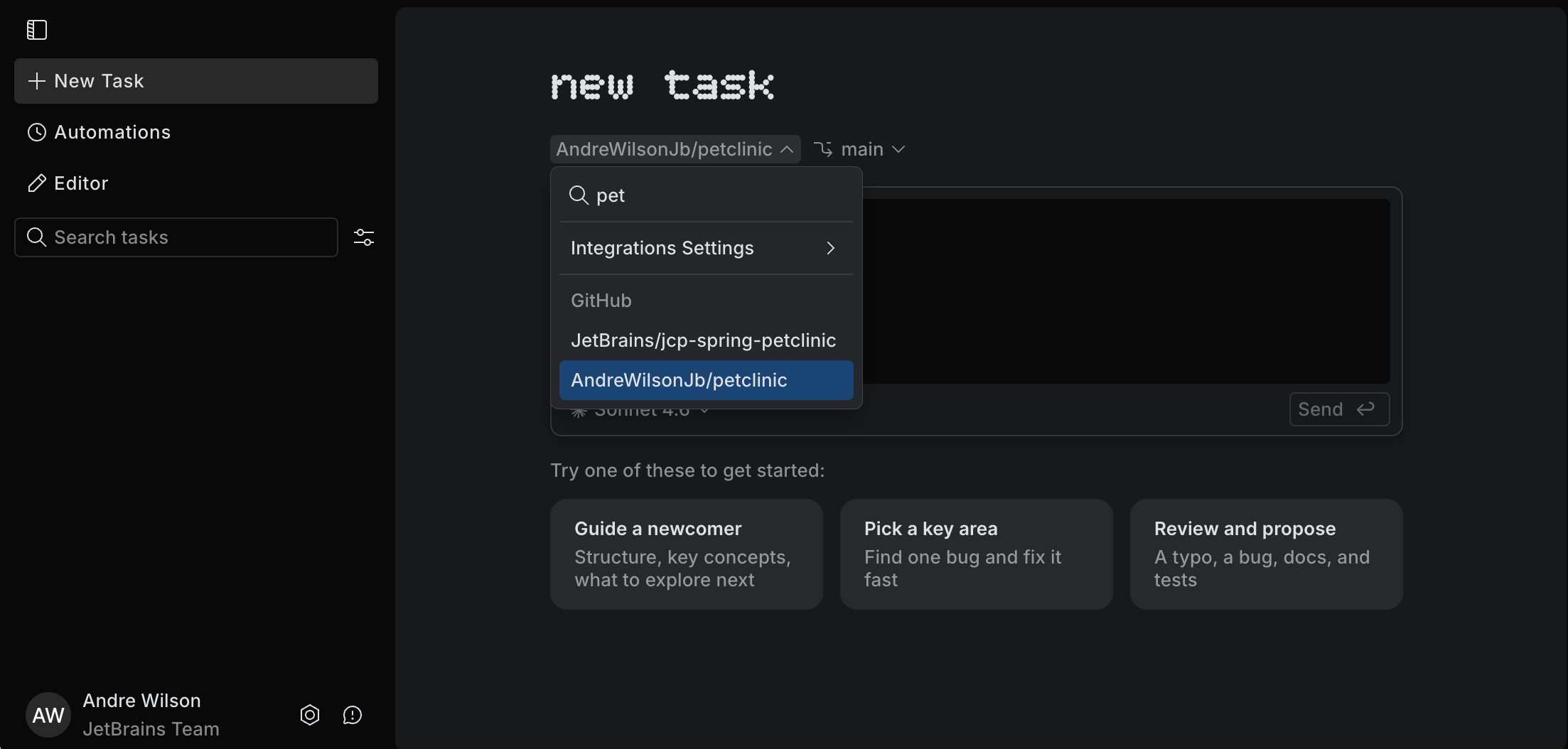
Select a branch.
Enter your task prompt and click Send.
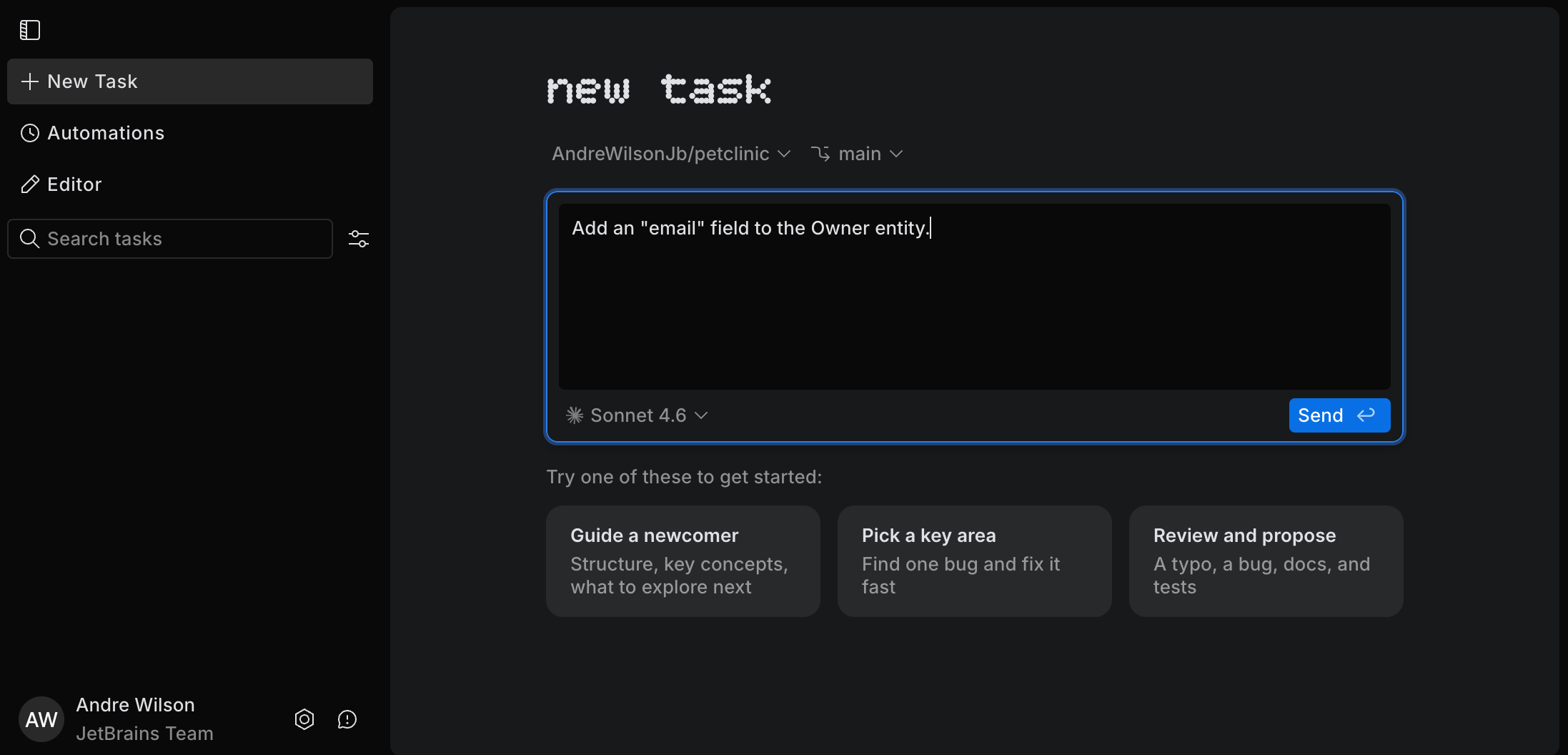
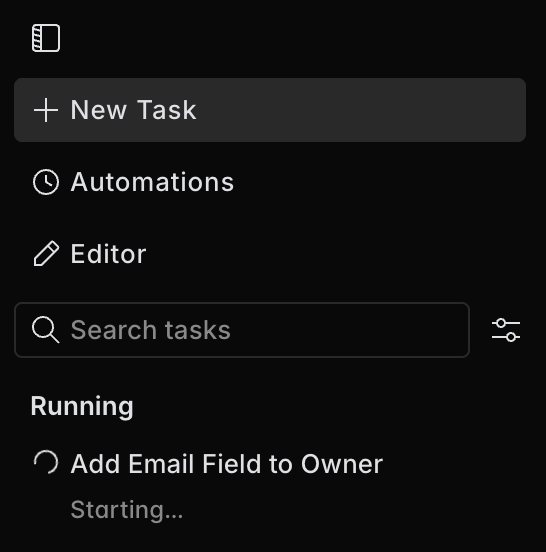
Wait while Air Teams creates the cloud environment and starts the task.
The task appears in the left panel in the Starting state.
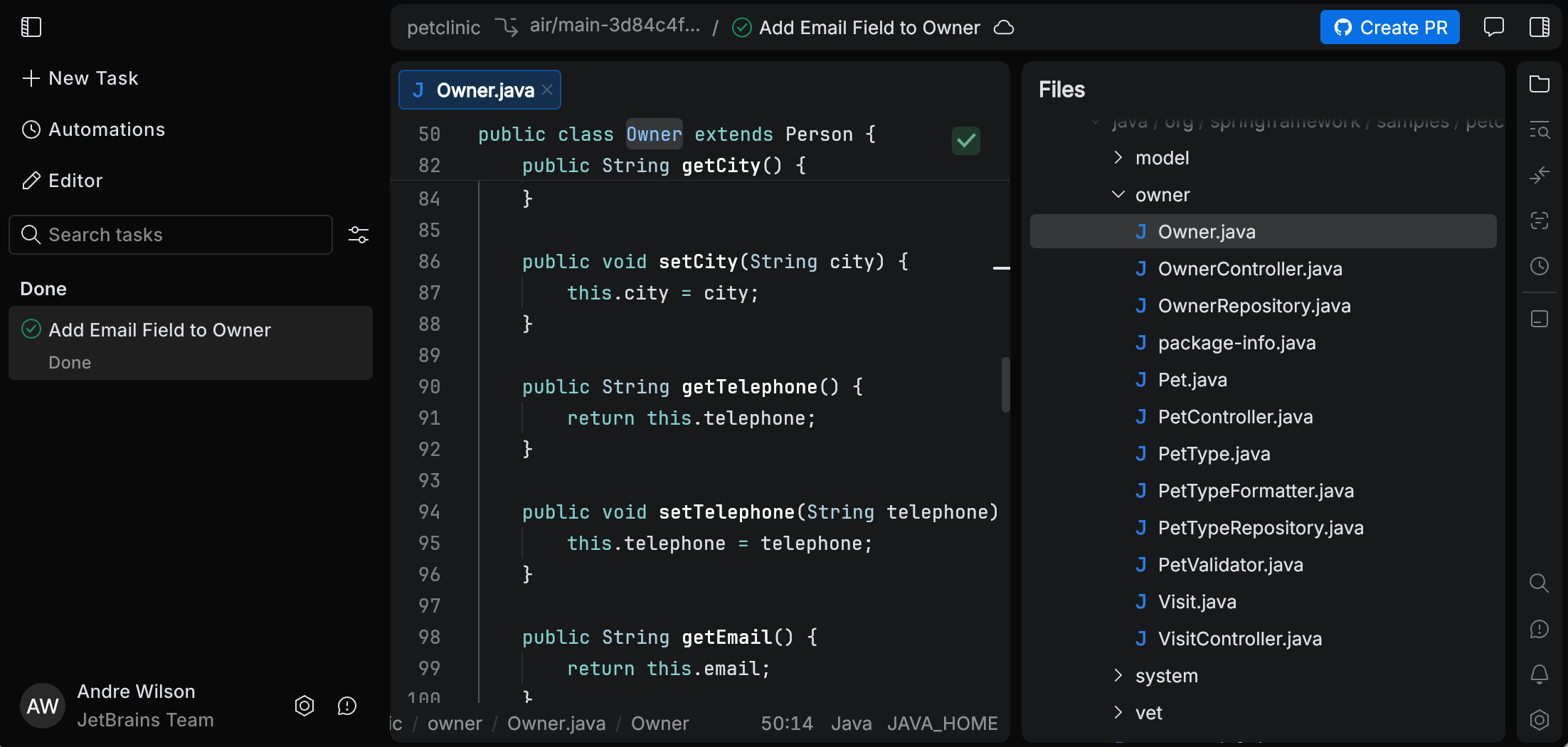
Click the task to open the Air Teams editor right in the browser.
From here you review the changed files, comment on them, and let the agent iterate. Air Teams commits and pushes the agent's work to the task branch as it goes, so when you're happy with the result, you create a pull request from that branch. See Work with a task in the browser.
Run a cloud task from the Air app
Open your project in the Air app.
Start creating a new task.
In the task header, click the run environment selector and choose Cloud.
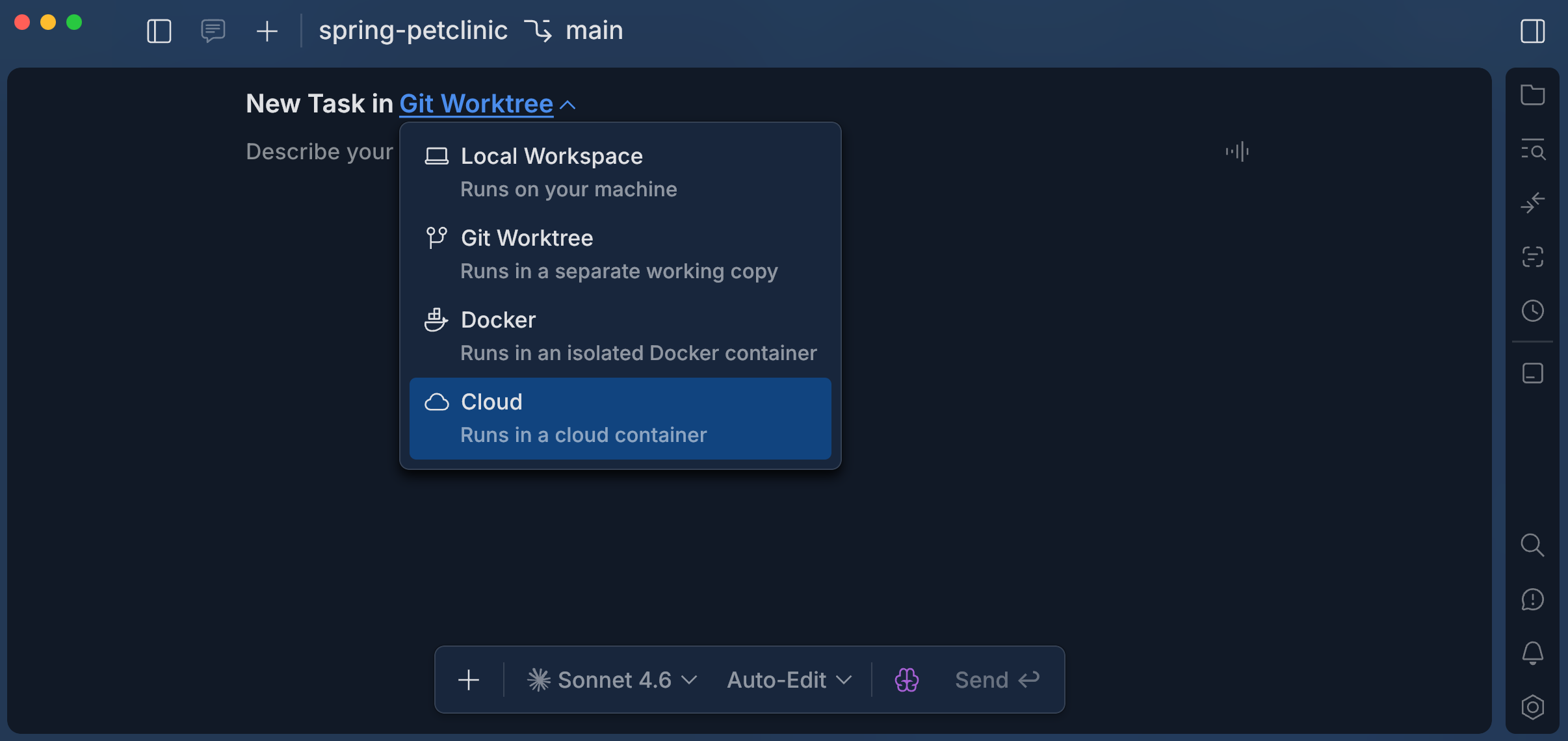
Enter your task prompt and send it.
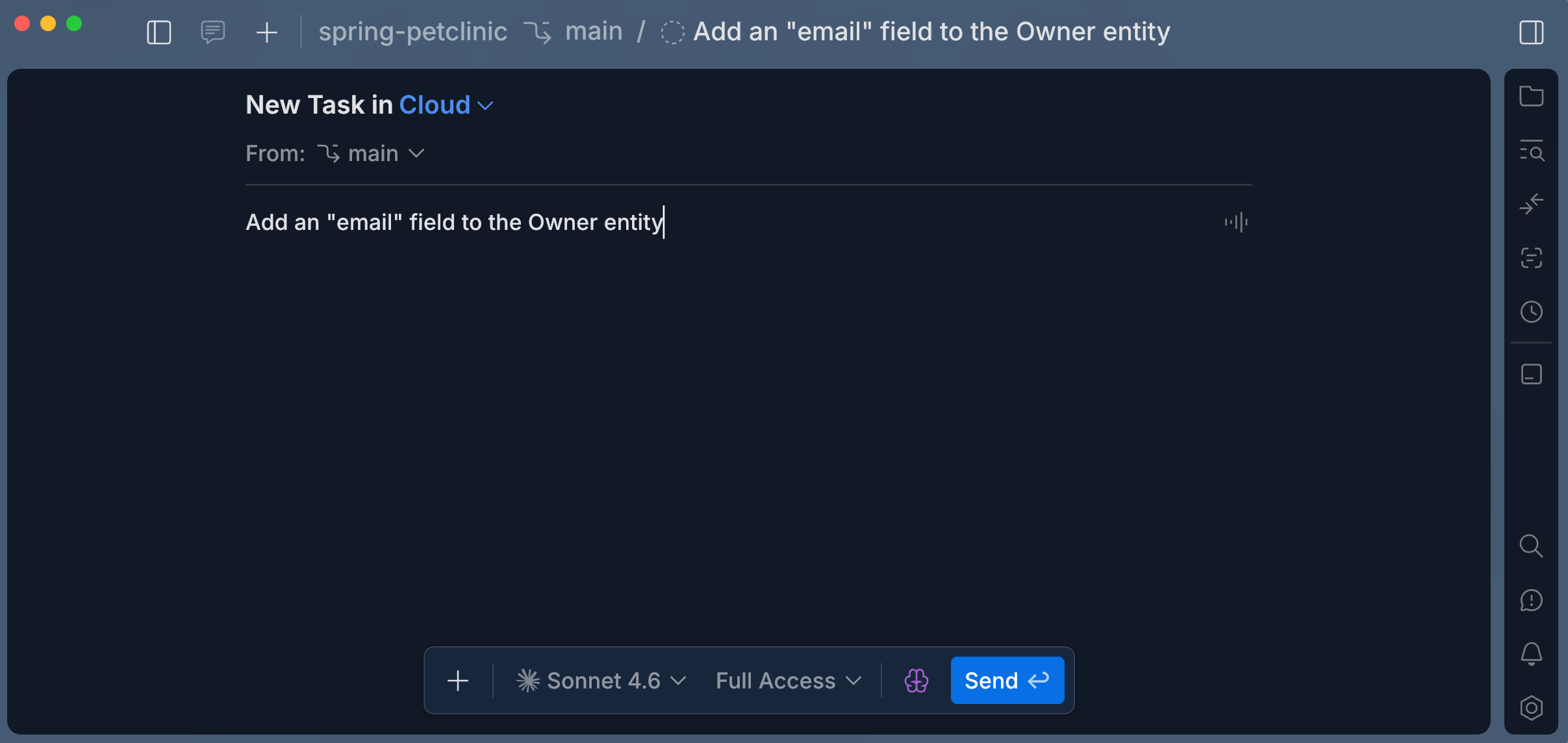
Wait while Air Teams prepares the cloud environment and opens the task session.
Review the task in the Air app as you would a local one. The result is already on the task branch, so when you're happy with it, create a pull request.
3. (Optional) Connect other VCS providers
During onboarding, you connect one VCS provider. To work with repositories hosted in another provider, connect it from .
Connect another VCS provider
In Air Teams, click
 Settings in the left panel, then open the VCS Providers section.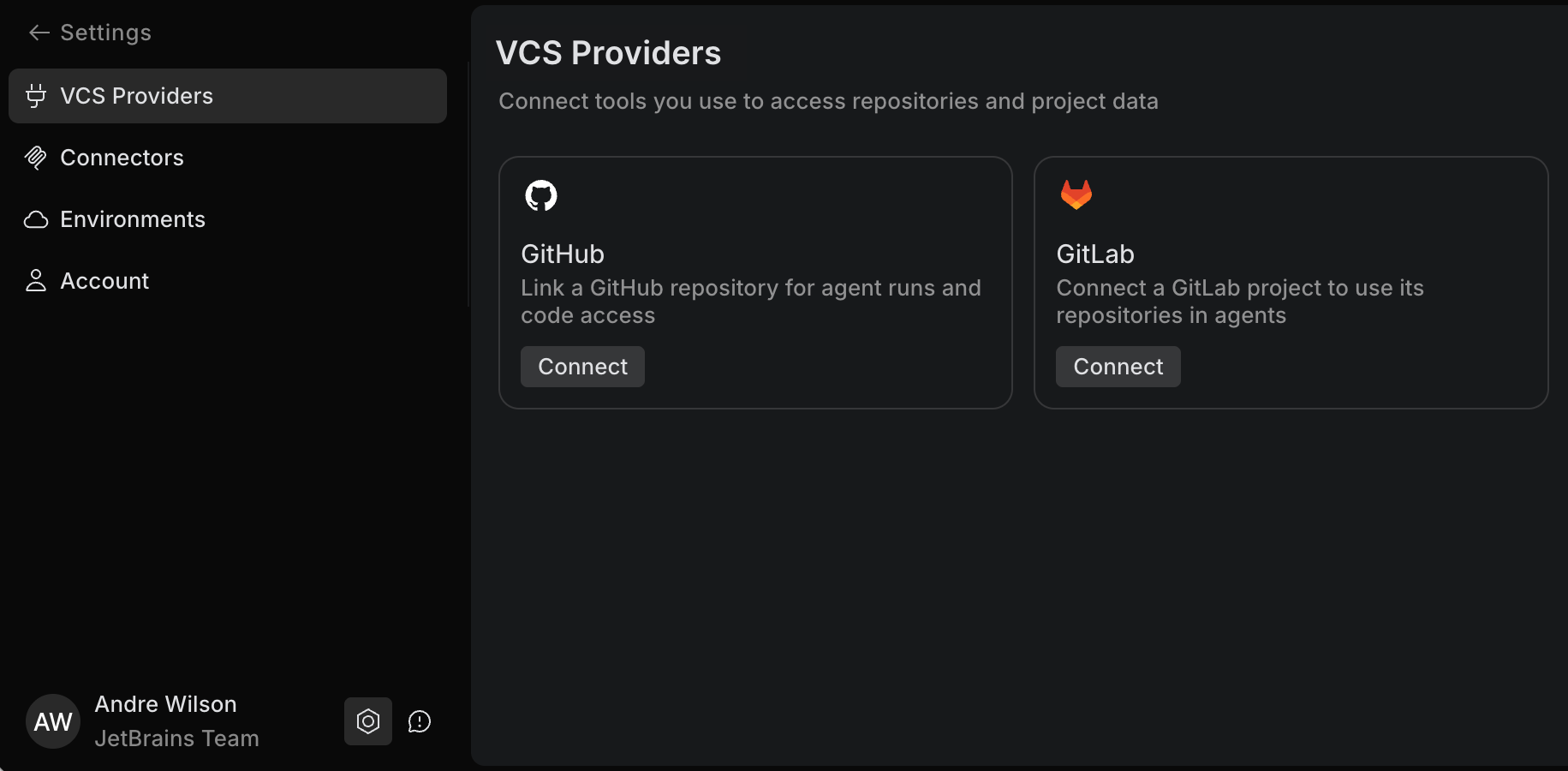
Click Connect next to the VCS provider you want to add.
Complete the authorization flow in the provider UI and grant access to the required repositories (personal or organizational).
Return to Air Teams and verify that the provider is shown as connected.
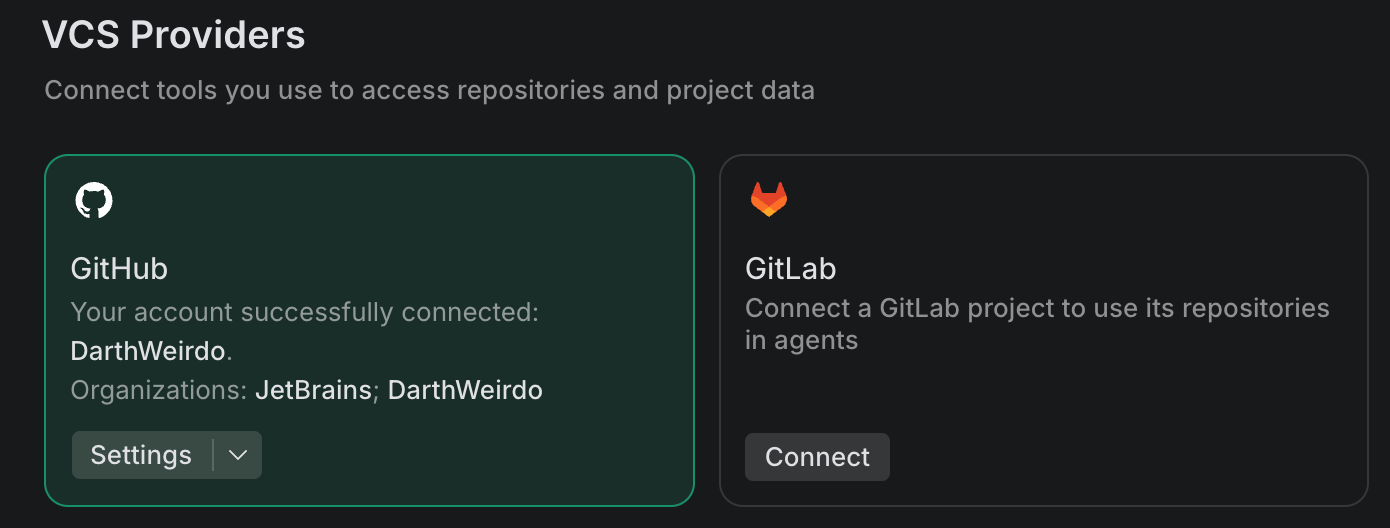
For full details, including how to grant access to organization repositories, see Connect repositories.
4. Create an environment configuration
For many projects, the default cloud environment is enough, and you can skip this step.
Create an environment configuration if your project needs additional setup, for example:
environment variables
secrets such as API tokens, either stored in Air Teams or read from your team's HashiCorp Vault
a specific VM size
restricted or expanded internet access
Environment configurations are created per repository in . If no configuration exists, Air Teams uses the default one.
Create an environment configuration
Open Air Teams at https://air.jetbrains.cloud.
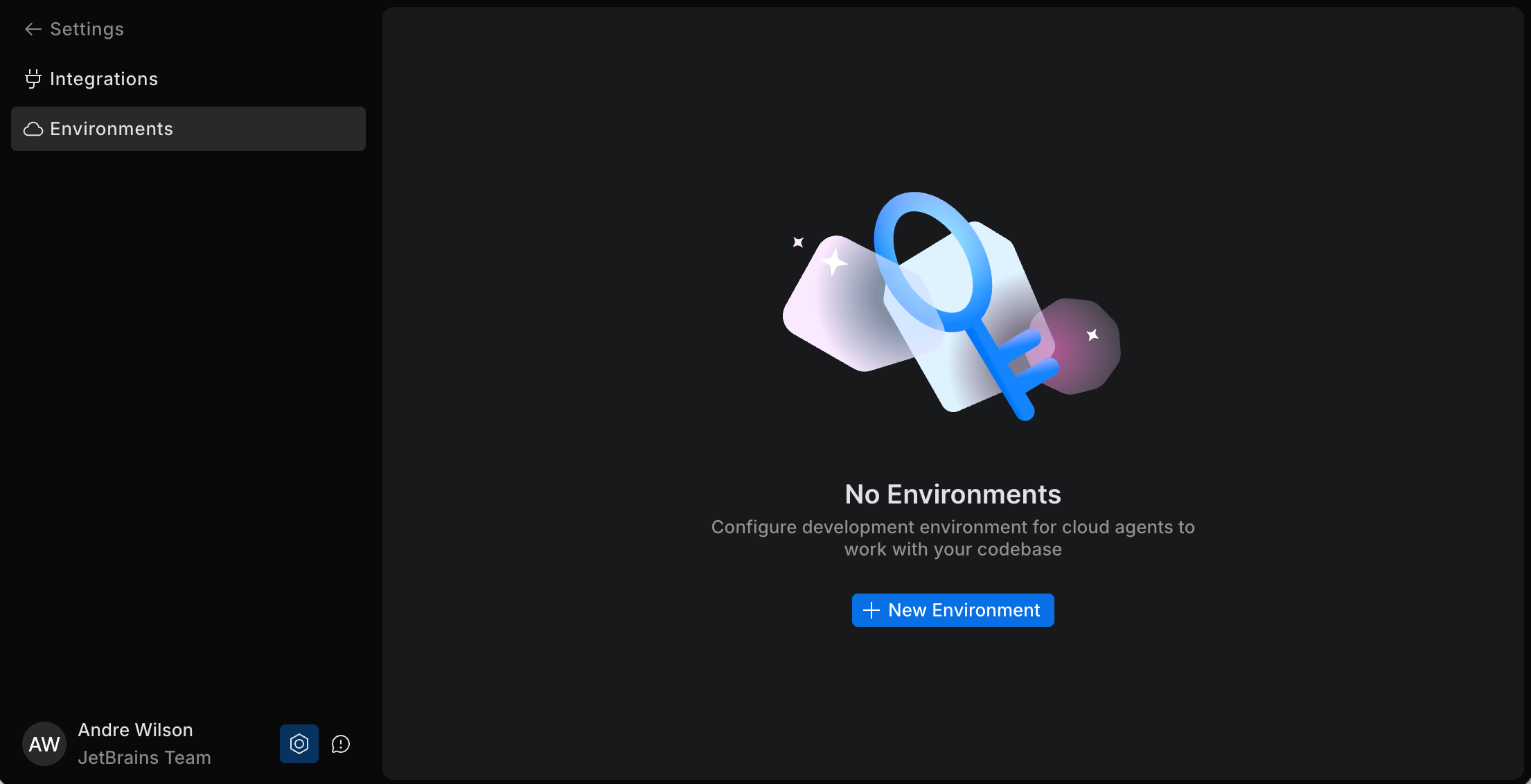
In the left panel, click
Settings. Then open the Environments section.Click New Environment.
Select the project that owns the configuration, the repository to configure, and the agent that runs the setup. You can use any agent and model available to you.
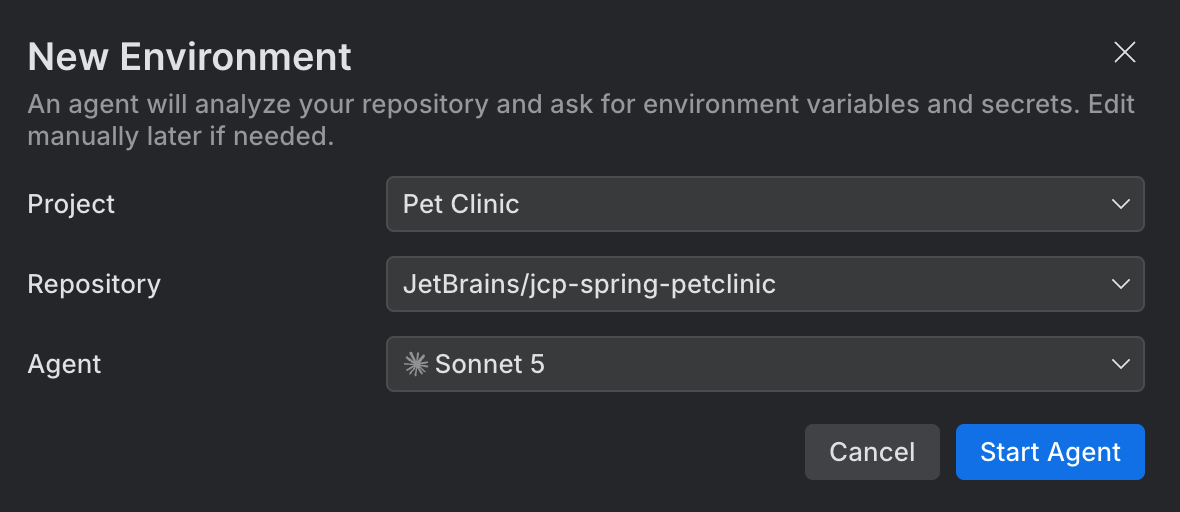
Click Start Agent.
Answer the agent's questions. It asks you for the environment variables and secrets it can't discover from your code.
When the agent finishes, review the parameters it set.
To fill in the parameters yourself instead, open the list next to New Environment and select Configure Manually….
For full details, see Configure environments.