Rust
All Qodana linters are based on JetBrains IDEs designed for particular programming languages and frameworks. To analyze Rust projects, you can use the Qodana for Rust linter with the following characteristics:
Characteristic | Description |
|---|---|
Linter name |
|
Docker image |
|
Based on | RustRover |
Available under licenses | Ultimate and Ultimate Plus licenses |
Shipped as | A Docker image |
Supported languages | Rust |
To see the list of supported technologies and features, you can navigate to the Supported technologies and features chapter of this section.
Before you start
Install project dependencies
In case a project has external dependencies, you can set them up using the bootstrap key of your YAML configuration, for example:
The command will be automatically executed before the analysis.
Qodana Cloud
Because the Qodana for Rust linter requires a Qodana Cloud project token for identifying and verifying a license, follow these steps to get it:
Navigate to Qodana Cloud and create an account there.
In Qodana Cloud, create an organization, a team, and a project.
On the project card, you can find the project token that you will be using further in this section.
Prepare your software
On the tab of the GitHub UI, create the QODANA_TOKEN encrypted secret and save the project token as its value.
In Jenkins, make sure that these plugins are up and running:
Docker and Docker Pipeline are required for running Docker images
Git is required for Git operations in Jenkins projects
Make sure that Docker is installed and accessible to Jenkins.
If applicable, make sure that Docker is accessible to the
jenkinsuser as described in the Manage Docker as a non-root user section of the Docker documentation.In Jenkins, create the
qodana-tokencredential and save the project token as its value.In Jenkins, create a Multibranch Pipeline project as described on the Jenkins documentation portal.
Make sure that your project repository is accessible to GitLab CI/CD.
In GitLab CI/CD, create the
QODANA_TOKENvariable and save the project token as its value.
In TeamCity, Create a project and a build configuration.
Install Docker on the machine you are going to run Qodana.
If you are using Linux, you should be able to run Docker under your current non-root user.
Follow the instructions from the Qodana CLI page on GitHub.
Run this command to pull the Docker image of Qodana:
Run Qodana
You can run Qodana using available Docker images.
To analyze the main branch, release branches and the pull requests coming to your repository in Docker mode, save this workflow configuration to the .github/workflows/code_quality.yml file:
More configuration examples are available in the GitHub Actions section.
Save this configuration to the Jenkinsfile:
More configuration examples are available in the Jenkins section.
This is an example for running Qodana on Linux. Other examples are available in the GitLab CI/CD section.
In the root directory of your project, save this snippet to the .gitlab-ci.yml file:
More configuration examples are available in the GitLab CI/CD section.
In the TeamCity UI, navigate to the configuration page of a build where you would like to run Qodana.
On the page, click the button.
On the page that opens, select the runner.
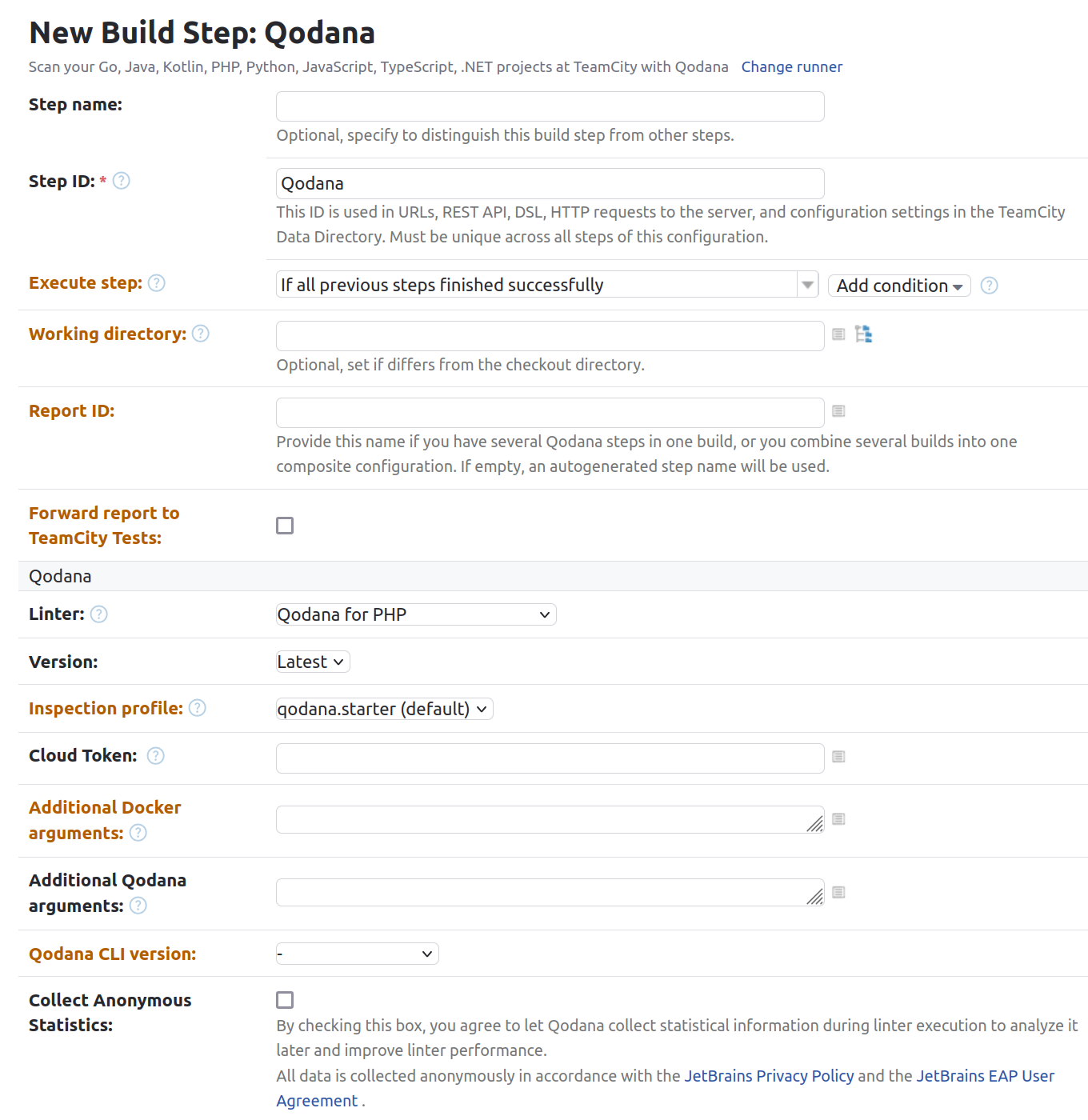
On the page, click and configure the runner:
uniquely identifies this step among other build steps.
uniquely identifies this step among other build steps.
configures the build condition that will trigger this build step.
sets the directory for the build process, see the TeamCity documentation for details. You can leave this field empty if the
Checkout directoryparameter is specified on the tab.uniquely identifies the report to let you distinguish between multiple reports when several analysis steps are configured within a single build.
The checkbox configures Qodana report availability in the Test tab of the TeamCity UI. Using this option, you can view codebase problems along with other problems detected.
configures the Qodana linter.
Here, select the Qodana for Rust linter.
is by default set to
Latest.defines an inspection profile:
qodana.starter (default)is one of the default profiles.Profile namelets you specify a profile, see the Existing Qodana profiles section for details.Profile pathlets you specify the path to your custom profile. To use this option, make sure that you also configure the custom profile in theqodana.yamlfile.
configures a project token generated in Qodana Cloud.
configure the arguments accepted by a Docker image, see the Configuration reference section for details.
let you extend the default Qodana functionality, see the Types of options section for details.
lets you specify the Qodana CLI version that you would like to use.
Click the button.
More configuration examples are available in the TeamCity section.
If you are using another Qodana Cloud instance than https://qodana.cloud/, override it by declaring the QODANA_ENDPOINT environment variable.
In your browser, open Qodana Cloud to examine analysis reports and reconfigure the analysis. See the Analysis reports section of the documentation for full details.
Explore analysis reports
You can view the latest Qodana report from Qodana Cloud in RustRover as explained below.
In RustRover, navigate to .
On the dialog, click .
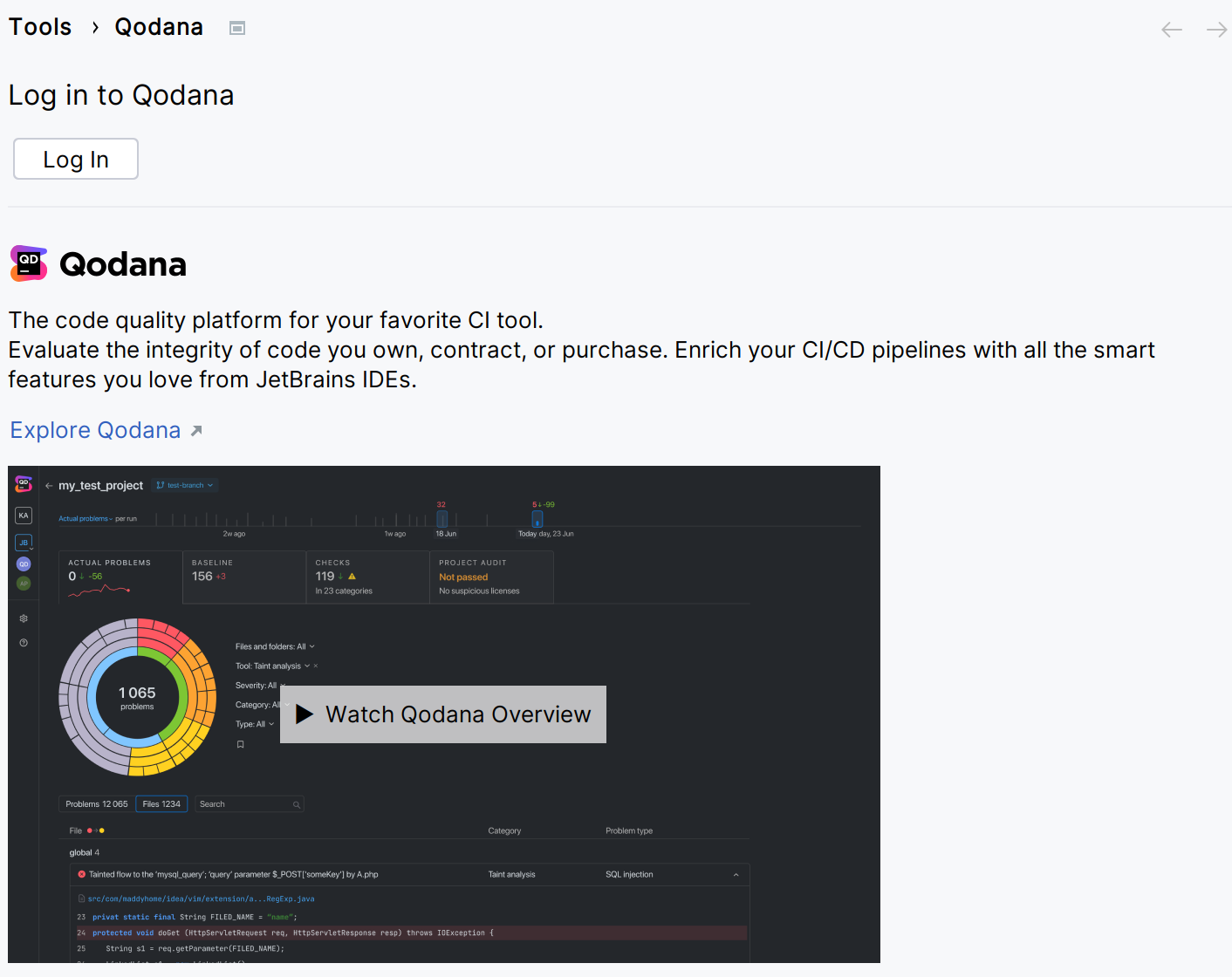
This will redirect you to the authentication page.
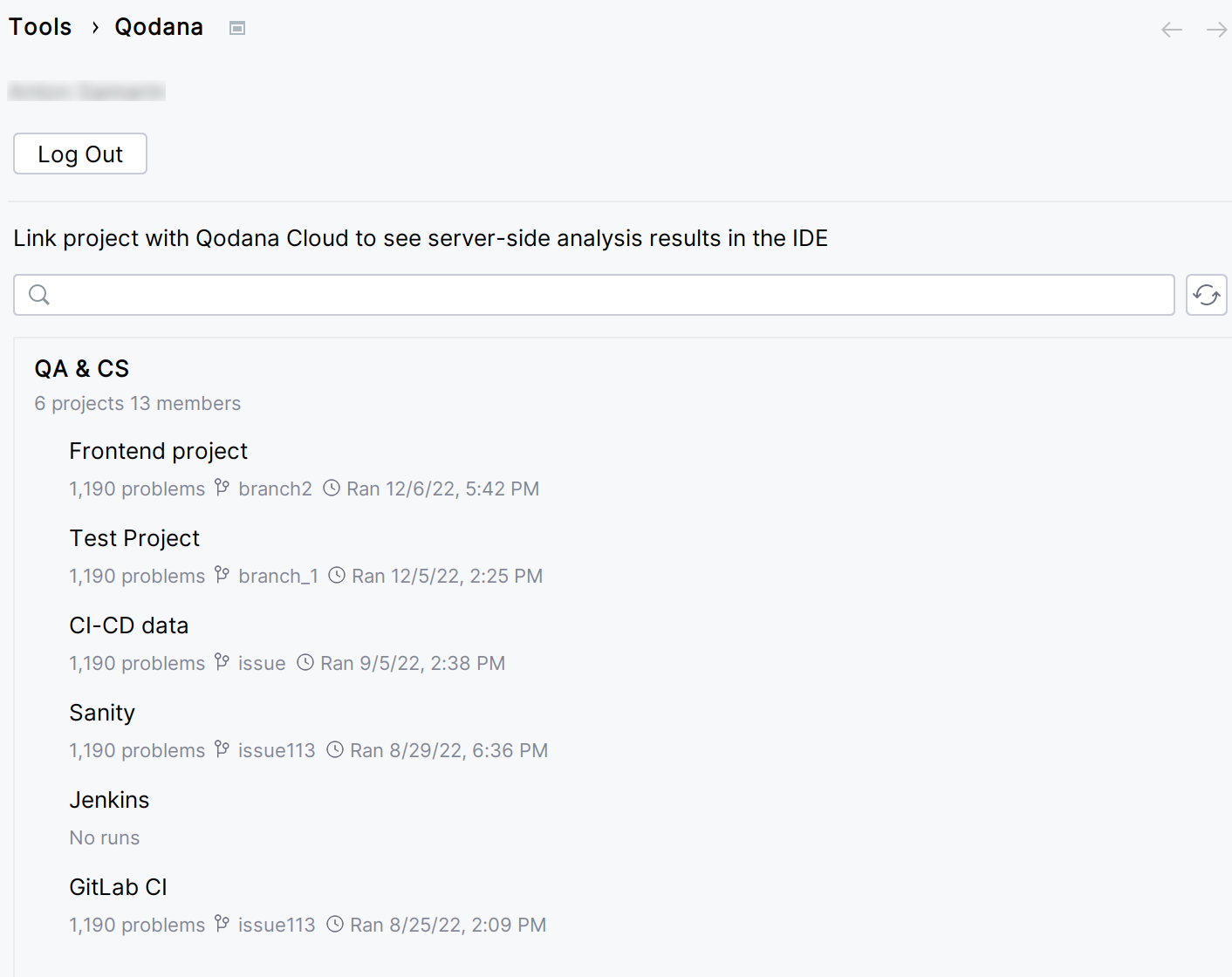
Select the Qodana Cloud project to link your local project with.
If you check the option, you will be able to receive the most actual and relevant reports from Qodana Cloud.
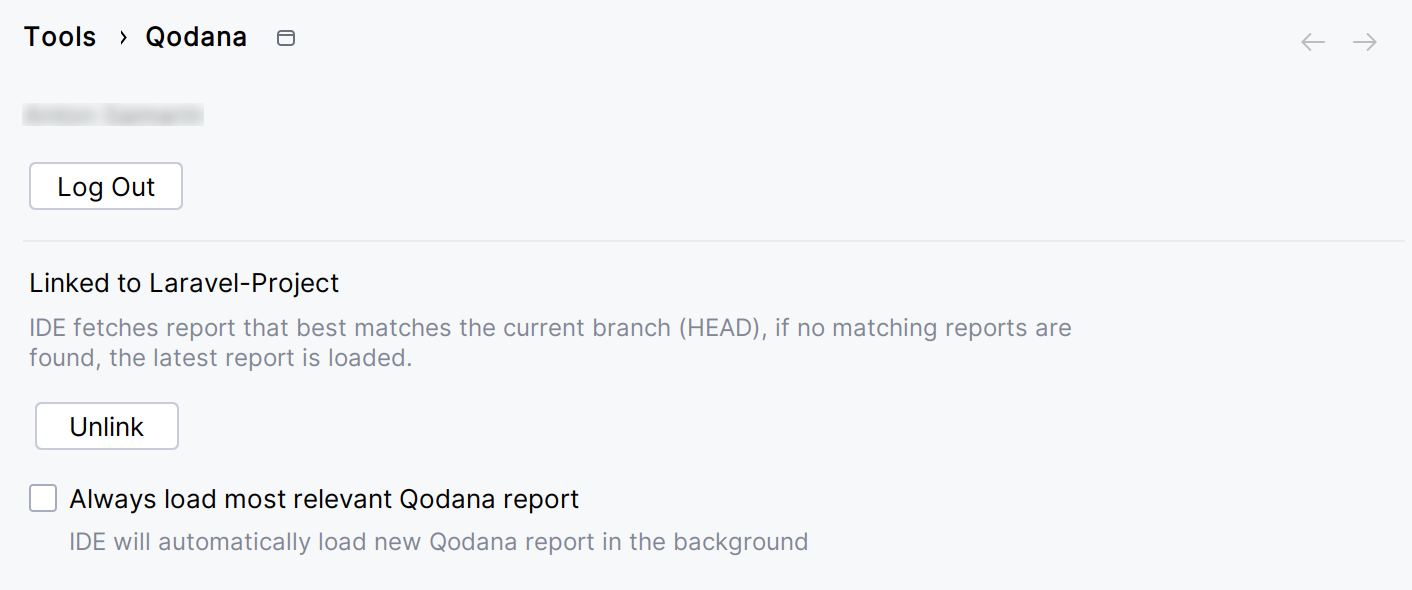
In this case, the IDE will search Qodana Cloud and fetch the report with the revision ID corresponding to the current revision ID (HEAD). If this report is not found, the IDE will select the previous report with the revision ID closest to the current revision ID (HEAD). Otherwise, the IDE retrieves the latest available report from Qodana Cloud.
On the tab of the tool window, see the analysis report.
After Qodana analyzed your project and uploaded the analysis reports to Qodana Cloud, in Qodana Cloud navigate to your project and review analysis reports.
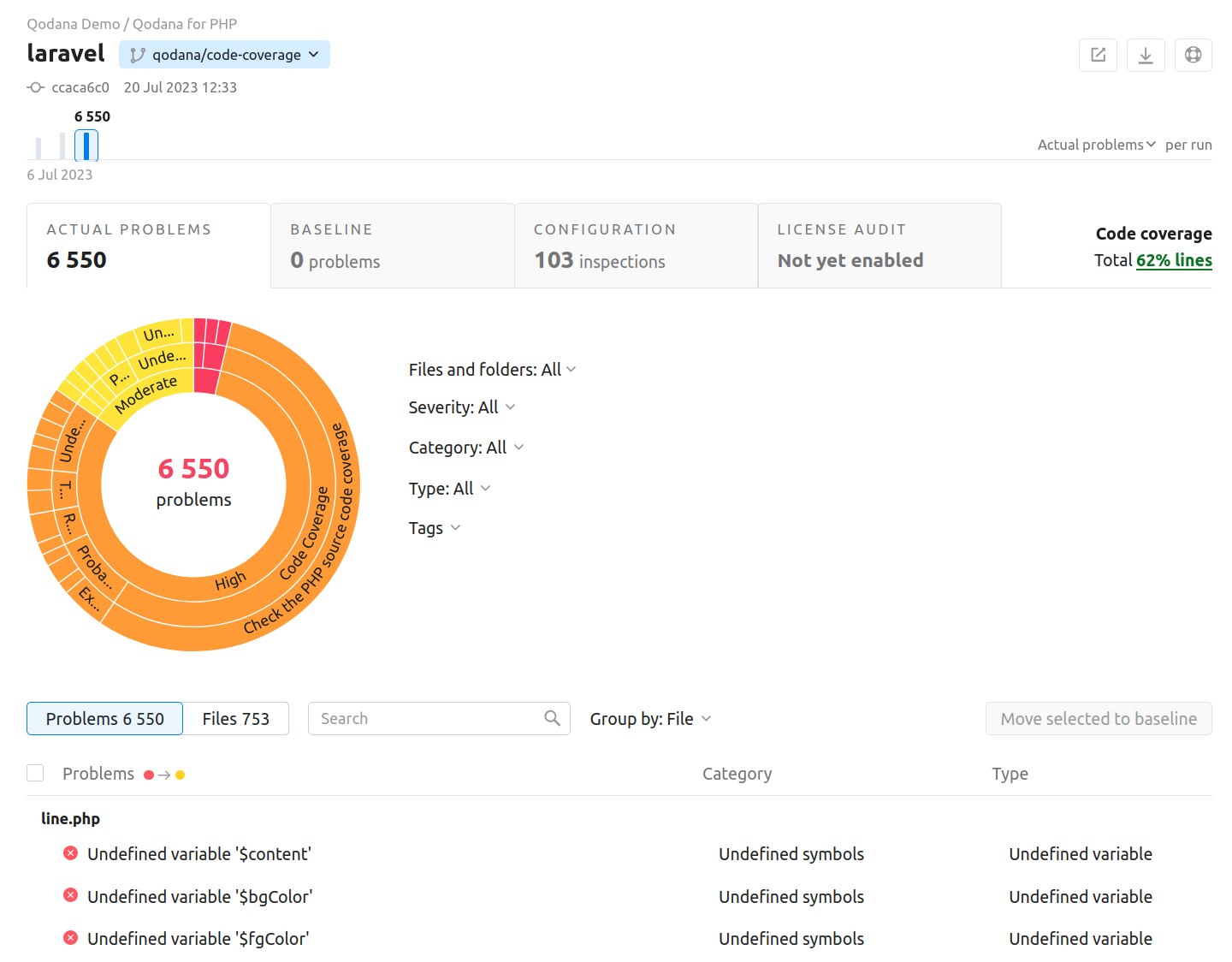
To learn more about Qodana report UI, see the Analysis reports section.
Extend Qodana configuration
Adjusting the scope of analysis
Out of the box, Qodana provides two predefined profiles hosted on GitHub:
qodana.starteris the default profile and a subset of the more comprehensiveqodana.recommendedprofile.qodana.recommendedis suitable for running in CI/CD pipelines and mostly implements the default RustRover profile; see the RustRover documentation for details.
You can customize Qodana profiles using configurations in YAML and XML formats.
Enabling the baseline feature
You can skip analysis for specific problems by using the baseline feature. Information about a baseline is contained in a SARIF-formatted file.
Save this snippet to the .github/workflows/code_quality.yml file containing the args: --baseline qodana.sarif.json option that specifies the path to the SARIF-formatted baseline file:
In the Jenkinsfile, save the configuration containing the --baseline <path/to/qodana.sarif.json> line that specifies the path to the SARIF-formatted baseline file:
This is an example for running Qodana on Linux. Other examples are available in the GitLab CI/CD section.
In the root directory of your project, save this snippet to the .gitlab-ci.yml file:
In the TeamCity UI, navigate to the configuration page of a build where you would like to run Qodana.
On the page, click the button.
On the page that opens, select the runner.
On the page, click and configure the runner:
uniquely identifies this step among other build steps.
uniquely identifies this step among other build steps.
configures the build condition that will trigger this build step.
sets the directory for the build process, see the TeamCity documentation for details. You can leave this field empty if the
Checkout directoryparameter is specified on the tab.uniquely identifies the report to let you distinguish between multiple reports when several analysis steps are configured within a single build.
The checkbox configures Qodana report availability in the Test tab of the TeamCity UI. Using this option, you can view codebase problems along with other problems detected.
configures the Qodana linter.
Here, select the Qodana for Rust linter.
is by default set to
Latest.defines an inspection profile:
qodana.starter (default)is one of the default profiles.Profile namelets you specify a profile, see the Existing Qodana profiles section for details.Profile pathlets you specify the path to your custom profile. To use this option, make sure that you also configure the custom profile in theqodana.yamlfile.
configures a project token generated in Qodana Cloud.
configure the arguments accepted by a Docker image, see the Configuration reference section for details.
let you extend the default Qodana functionality, see the Types of options section for details.
In this field, specify the baseline feature using the
--baseline <path/to/qodana.sarif.json>option.lets you specify the Qodana CLI version that you would like to use.
Click the button.
Choose how you would like to run the baseline feature from the command line:
In RustRover, navigate to the tool window.
In the tool window, click the tab.
On the tab, click the button.
On the dialog that opens, expand the section and specify the path to the baseline file, and then click .
Enabling the quality gate
You can configure quality gates for:
The total number of project problems
Multiple quality gates for problem severities
Code coverage thresholds
Save this snippet to the qodana.yaml file:
Analyzing pull requests
The Qodana Scan GitHub action automatically analyzes all pull requests, so you do not have to provide any additional configuration. Save this configuration to the .github/workflows/code_quality.yml file:
This is an example for running Qodana on Linux. Other examples are available in the GitLab CI/CD section.
In the root directory of your project, save the .gitlab-ci.yml file containing the following snippet:
This snippet enables merge request analysis.
Information about configuring TeamCity for analyzing pull and merge requests is available on the TeamCity documentation portal.
To analyze changes in your code, employ the --diff-start option and specify a hash of the commit that will act as a base for comparison:
Setting up configuration timeout
Using the qd.rust.configuration.timeout.minutes property, you can set up the configuration stage timeout, for example:
This is an example for running Qodana on Linux. Other examples are available in the GitLab CI/CD section.
In the root directory of your project, save the .gitlab-ci.yml file containing the following snippet:
Supported technologies and features
The Qodana for Rust linter provides inspections for the following technologies.
Programming languages | Rust |
Markup languages | CSS HTML JSON JSONPath RELAX NG TOML XML YAML |
Scripting languages | Shell script |
Other | HTTP Client Regular expressions Structural search |
The Qodana for Rust linter provides the following Qodana features:
Feature | Available under the license |
|---|---|
Ultimate and Ultimate Plus | |
Ultimate and Ultimate Plus | |
Ultimate Plus | |
Ultimate Plus |