Troubleshoot cloud tasks
Cloud tasks run in remote cloud environments, so you can't inspect a local process when something goes wrong. This topic explains how to check what happened, what you can fix yourself, and what to collect before you contact support.
Check the task status and error
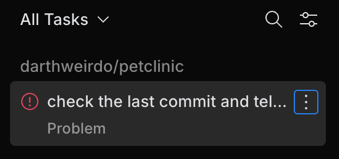
Start with the status. A failed task is marked Problem in the task list, and the task page shows the error at the top. The message often names the cause – for example, a missing AI license.
For the cloud task workflow, see Run a task.
The result isn't what you expected
If a task finishes but the outcome doesn't match what you wanted, the issue is usually in how the agent approached the task, not in the platform. Open the task and review the agent conversation and the changed files to see what the agent did.
From there, keep iterating in the same task: add more context, leave comments in the code, or refine your prompt, and send it again. Each round adds a commit to the task branch. See Review the result and iterate and Add context to a follow-up.
The Git history is missing or incomplete
If git log in a cloud task shows a single commit, or the agent reports that it can't find earlier commits, tags, or blame information, the checkout is still shallow. Air Teams clones only the latest commit when the environment starts, so the history isn't there until someone fetches it.
Ask the agent to run git fetch --unshallow, or fetch the history from the environment's startup script so that it's ready before the agent starts.
The environment is missing dependencies or secrets
A cloud environment doesn't inherit your local setup. If a task fails because a dependency, environment variable, or secret is missing, update the environment configuration for the repository and run the task again.
Start a new task after you save the configuration. The failed task keeps the environment it was created with, so it won't see your change, not even after you resume it. See Edit an environment configuration.
A variable that reads its value from a secrets provider can also fail even though it's in the configuration. Air Teams resolves it when the environment starts, so check that the path is correct, that the provider is still connected to the project, and that the vault is reachable from the cloud. See Read a secret from HashiCorp Vault.
A dependency can also be missing because the startup script ran out of time – Air Teams stops it once the execution timeout expires. Check the logs for where the script stopped, then raise the timeout in the environment configuration.
Learn how to configure environments.
The environment has leftovers from an earlier run
If a task finds outdated files, an old tool version, or a stale build cache, the environment probably started from a snapshot of an earlier run. Everything outside the repository can be preserved, while the repository itself is synced fresh. See Snapshots and preserved state.
Make the startup script refresh what it created rather than skip the work when a file is already there. For example, update an existing checkout instead of cloning only when the directory is missing – see Clone additional repositories.
The task link from the IDE opens the New Task page
When you start a cloud task from AI Assistant, the Open in JetBrains Cloud link appears as soon as the IDE registers the session – which can be before the task itself starts. Until it starts, there is no task page to open, so the link takes you to the New Task page instead.
Go back to the IDE and give the agent what it's waiting for: send your first prompt if you haven't yet, or authorize access to the repository if the agent asked for it. Once the task starts, the link opens it.
If the task still doesn't start, start a new one from the New Task page you landed on.
The task didn't start or ended with an error
Read the error at the top of the task page first. If it names a cause you can act on, fix that and run the task again. Some failures are transient, such as a temporary problem while the environment starts, so a retry often succeeds.
If the task keeps failing and the error doesn't point to anything you can fix, this is usually an infrastructure issue on the JetBrains side. Collect the information below and contact support.
Collect information for support
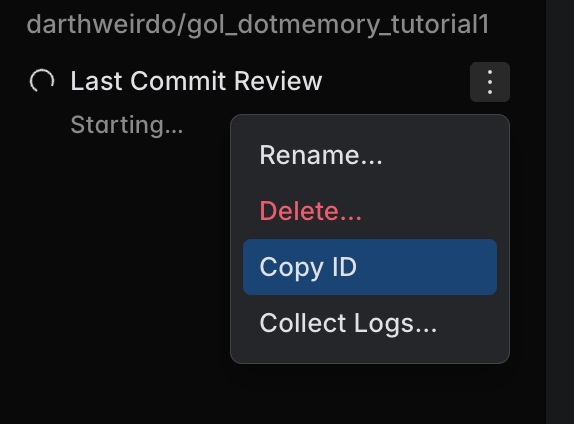
Support uses the task ID to find your task, and the collected logs to trace the failure. You can get both from the task's options menu.
Copy the task ID
Open the task's options menu and select Copy ID. Paste it into your support request when asked.
Collect the task logs
If the task's cloud environment has started, you can collect its logs. Open the task's options menu and select Collect Logs. Air Teams saves a ZIP archive that contains the cloud-side logs for the run.
Attach this archive to your support request. If the environment never started, there are no logs to collect – share the task ID and the error message instead.
Contact support
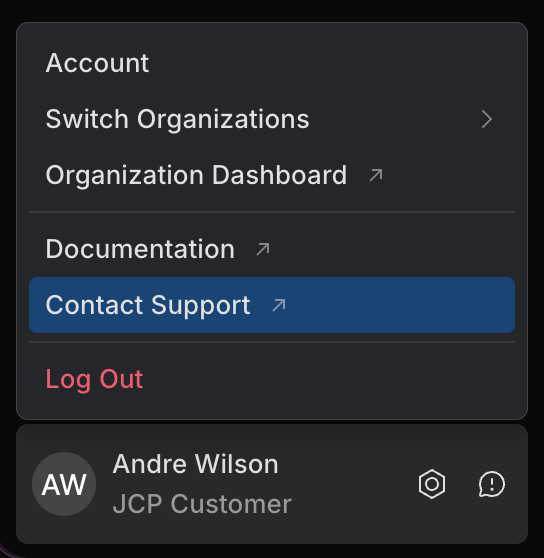
To reach support, open the user menu and select Contact Support.
To help support investigate, include:
the task ID (see Copy the task ID) and the collected logs archive, if available
the error message shown on the task page
what you expected to happen and what happened instead, with the steps to reproduce it