Work with a task in the browser
The browser gives you two different things, and which one you're on decides what you can do. The new task page is an ordinary web page: you choose what to run and send it. Opening a task that already runs loads the Air Teams editor into the page, with the live cloud environment behind it, so the project files, the diff, and the agent's own tools come with it.
This topic is about the browser. For the task workflow end to end, see Run a task.
Set up a task before you send it
The cloud environment doesn't exist until the task starts, so the new task page can't offer anything that reads the repository: no @ context, no / commands or skills, no editor. What you set here is the task text and how the agent runs it.
Repository and branch – what the agent works on and where it starts. Selecting a repository runs the task in the default cloud environment. Select an environment configuration instead to run with that configuration's image, variables, secrets, and network access.
There is no run environment to choose: a task you start in the browser always runs in the cloud. Running against the project on your own machine is the Air app – see Run environments.
Agent – one of the agents your organization enabled. This is the only point where you choose one: after the task starts you can switch the model, but not the agent. Agents you add yourself through
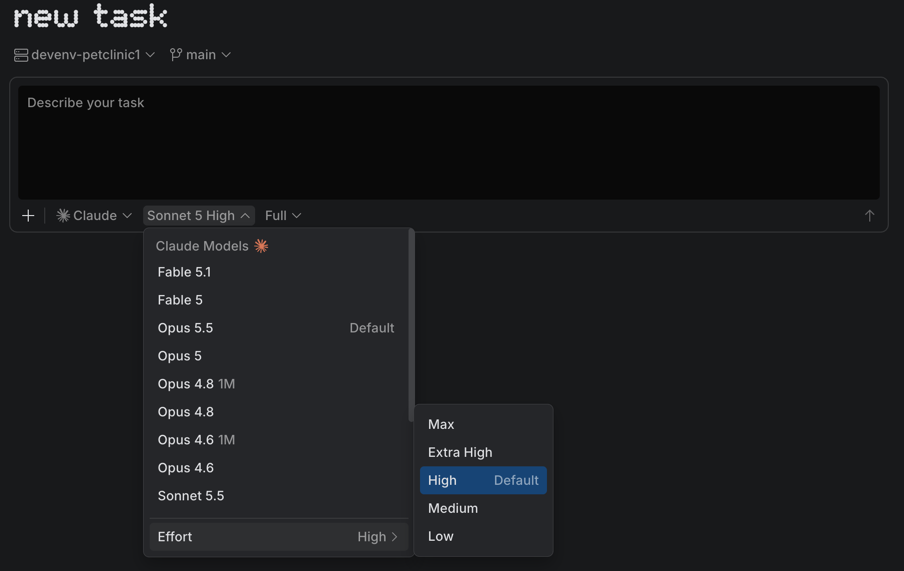
acp.jsonrun in the Air app only – see Add your own agent.Model and effort – the model selector shows both at once, for example Sonnet 5 High. Open it to pick another model from that agent's list, and set Effort at the bottom of the same menu. Effort controls how much reasoning the model spends: higher levels reason more carefully but take longer and cost more AI credits.
Permission mode – how freely the agent can act. The browser shows the selected agent's own modes, so the list changes with the agent.
Work on a running task
Open a task from the task list and the Air Teams editor loads in the page: the project file tree, the editor with code navigation, the changed files, the comments, and a task input that now talks to a real environment.
Commands and skills – type
/for the agent's own commands and the skills in the repository, which the environment can read now that it has the checkout. This is also how you reach a review command such as/review, if your agent provides one.Model and permission mode – both selectors stay in the task input, so you can move to a stronger model or loosen permissions partway through. The agent is fixed for the life of the task.
Context window – an indicator next to the task input tracks how much of the window the task has used. See Context window.
Add context to a follow-up
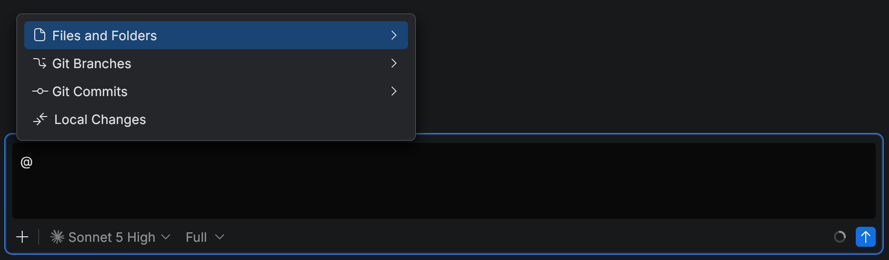
Type @ in the task input to attach context. The environment has the repository checked out, so you can reference Files and Folders, Git Branches, Git Commits, and Local Changes.
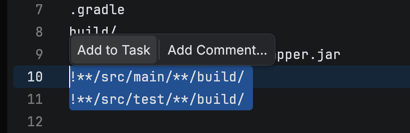
You can also point the agent at code you're already looking at: select it in the editor and click Add to Task.
Review the changes and comment on them
Review the diff in the editor and reply where the problem is: select the code and click Add Comment for Selection.
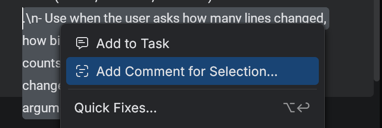
Remember that you're commenting on code that already landed. Sending comments starts the next iteration, and the agent commits its answer to the task branch like any other turn – see What happens to your changes.
What the browser doesn't have
Several things you may know from the Air app aren't part of the editor in the browser.
Settings – the editor has no settings screen, so there's nothing to configure per machine or per workspace: no voice input, no keymap, no project AI settings. Instruction files such as
CLAUDE.mdandAGENTS.mdstill apply, because the agent reads them from the repository. What Air Teams itself is configured with – repositories, environments, projects, connectors – lives on the Settings pages at https://air.jetbrains.cloud, outside a task.Review with agent – there's no built-in review pass and no review prompt to edit. Review by hand, or run whatever review command or skill your agent brings. The built-in version is the Air app – see Review with agent.
Prompt queue – you can't stack prompts while the agent works. Wait for it to finish, or stop it and send the next one. See Prompt queue.
Accepting changes locally – there's nothing to apply. The result is already committed and pushed, so you finish by opening a pull request.
Your own agents and provider accounts – browser tasks run the agents your organization enabled, on JetBrains AI credits. A subscription or API key of your own works in the Air app only. See Supported agents.