Quickstart with Air
The Air app runs AI agents against the project on your own machine. In this quickstart, you install it, sign in to an agent provider, open a project, run your first task, and review the result.
1. Install Air
macOS – download the Air app for macOS from the official page at air.dev or install it through JetBrains Toolbox
Linux – run the install script:
curl -fsSL https://jb.gg/air-install.sh | shYou can also install the Air app for Linux through JetBrains Toolbox
Windows – install the Air app for Windows through JetBrains Toolbox
2. Sign in to an agent provider
To run tasks, the Air app needs at least one connected agent provider. On the first launch, you are prompted to sign in.
If you have a JetBrains AI subscription, connect JetBrains AI. It works as a universal provider and gives you access to Claude Agent, OpenAI Codex, Gemini CLI, and Junie under a single subscription.
If you prefer to use a specific provider account – Anthropic, OpenAI, or Google – sign in to that account directly with a subscription you already pay for, such as Claude Pro, Max, or Team. You can also bring your own API key (BYOK).
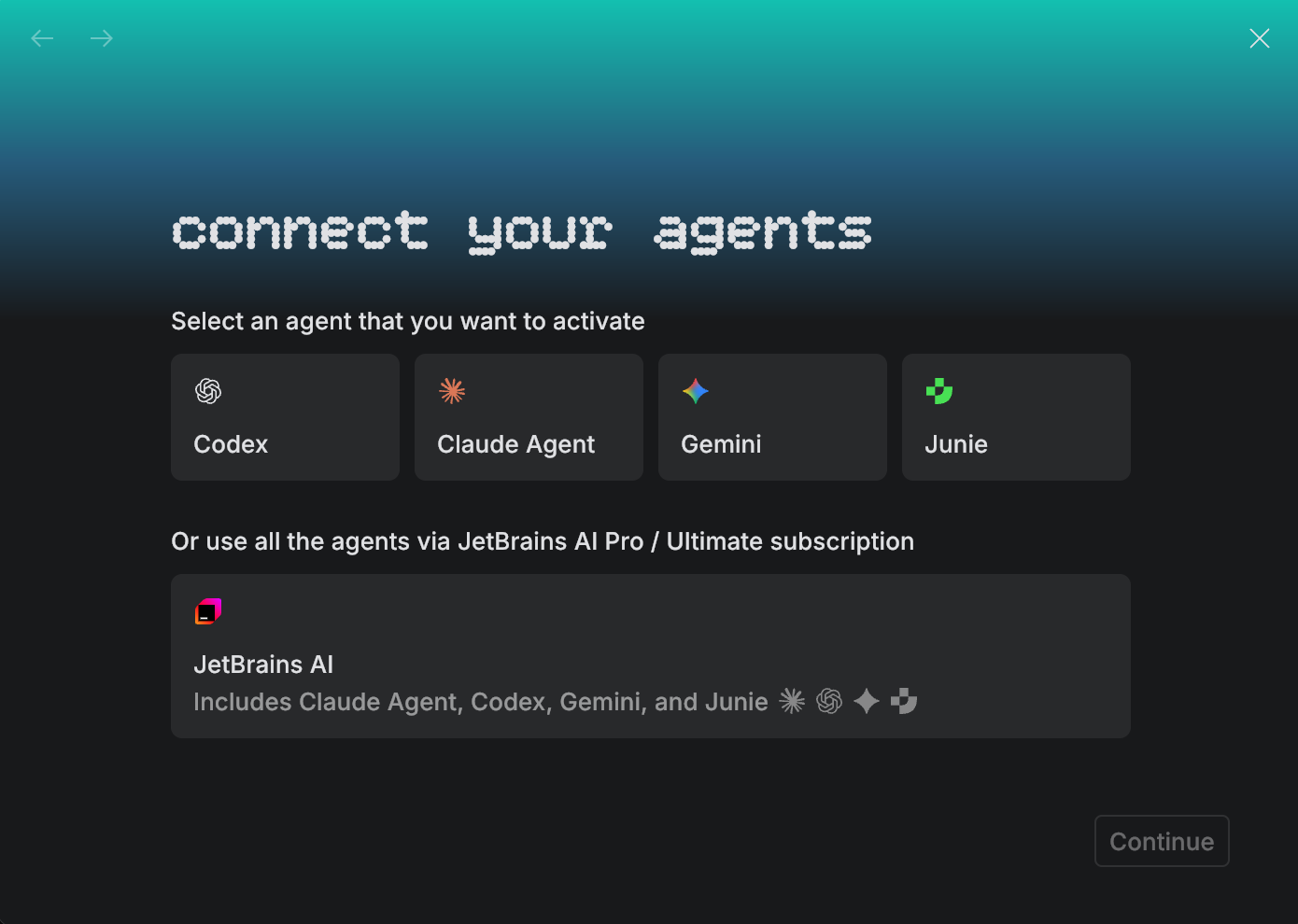
To connect additional providers later, open . For details, see Set up Air app.
3. Open a project
After you sign in, open the project you want to work on – the folder that holds your code. Opening it creates a workspace around the project: the container that keeps its agent sessions, Git state, and tools together. Workspaces share one window, so you can open as many projects as you need and switch between them in the Tasks tool.
Open a project
To open a local project, select and select the project folder on your computer.
To clone a project from Git, select , enter the repository URL in the Source URL field, and choose a location on your computer.
When the workspace opens, the Air app asks whether you trust the code in the folder. Click Trust only if you trust the authors of the project – opening the project may run scripts or import code, which can execute anything in the project. If you want to look around first, click Preview: app functionality will be limited but safer.
4. Run your first task
In the Air app, you work with the agent through the Chat tool. You describe the goal, add the context the agent needs, and send the task.
Run your first task
Open the Chat tool and describe the goal in the task input.
State what you want to achieve and what done means – expected behavior, constraints, and known failures or error messages. The clearer the goal, the better the result.
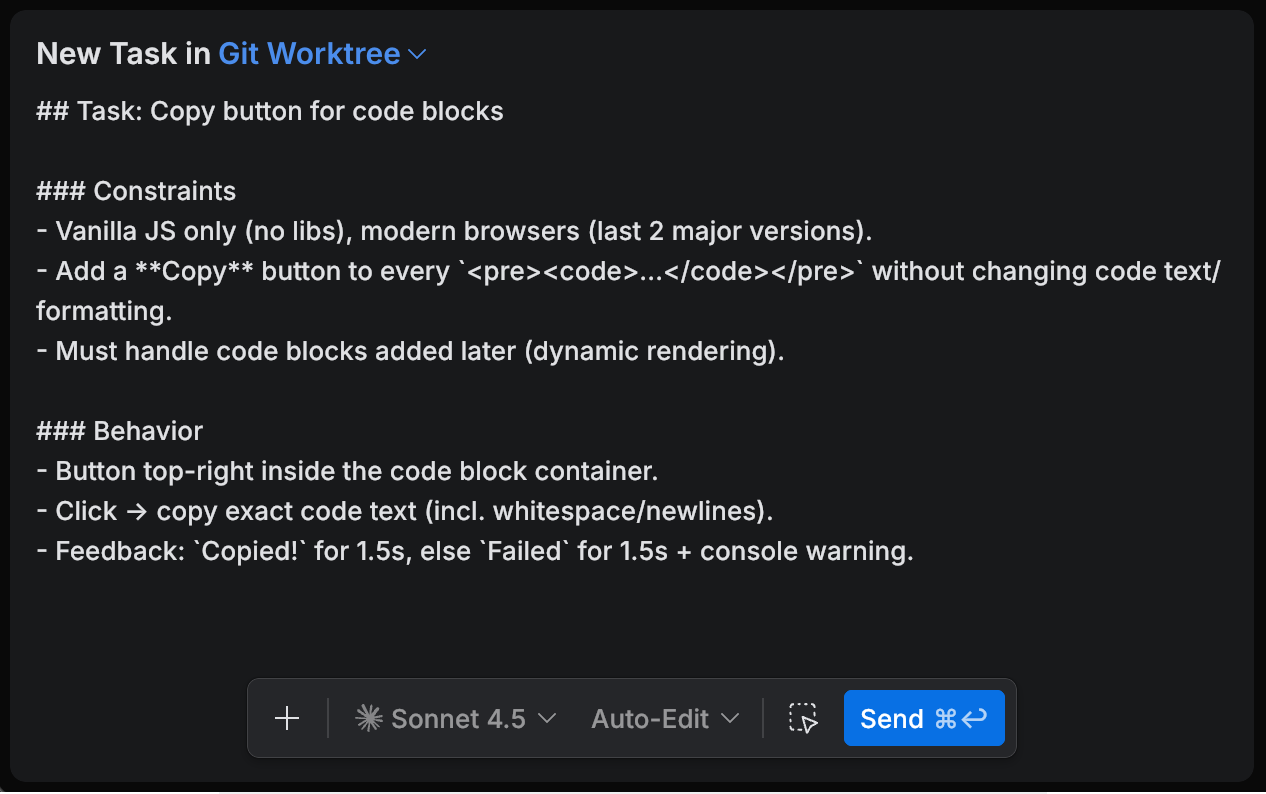
Add context for the task.
Attach the files, symbols, or code the agent needs so it does not have to guess:
Type
@or click (Add context) to attach files, folders, Git items, terminal output, or mention symbols such as classes, functions, or methods.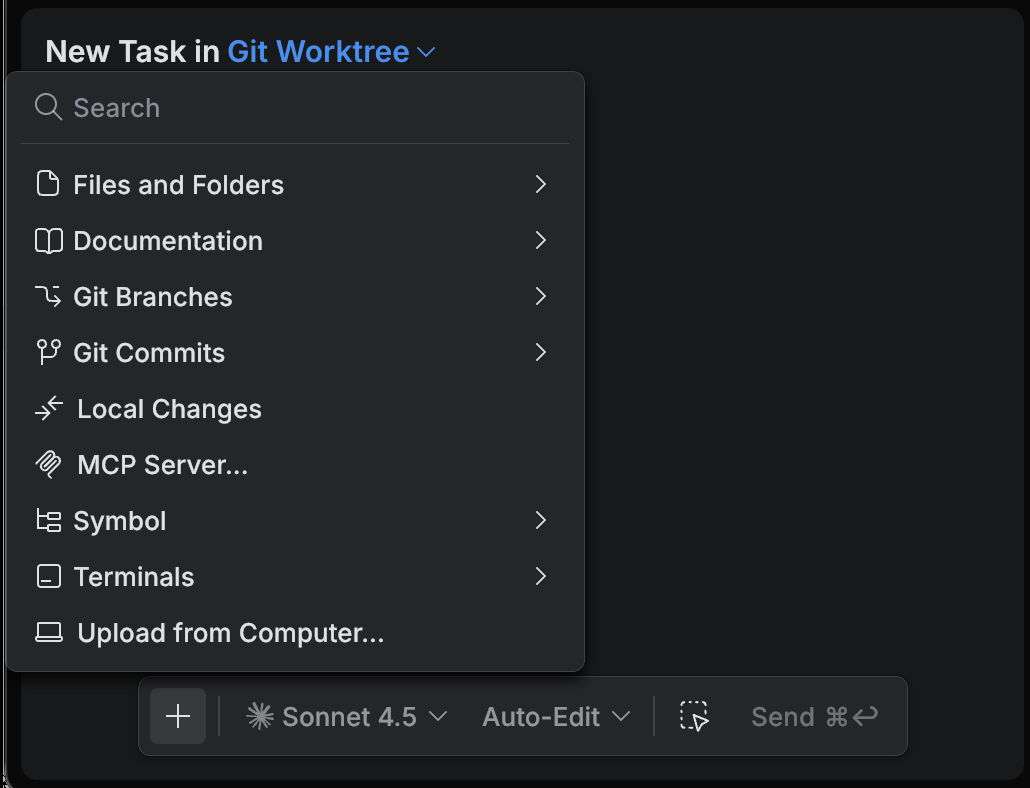
Select code in the editor and click Add to Task to attach the selection.

For the full list of ways to add context, see Task context.
Adjust how the agent runs. In the task toolbar, you can:
Pick a different agent and model, a permission mode that controls how freely the agent acts.
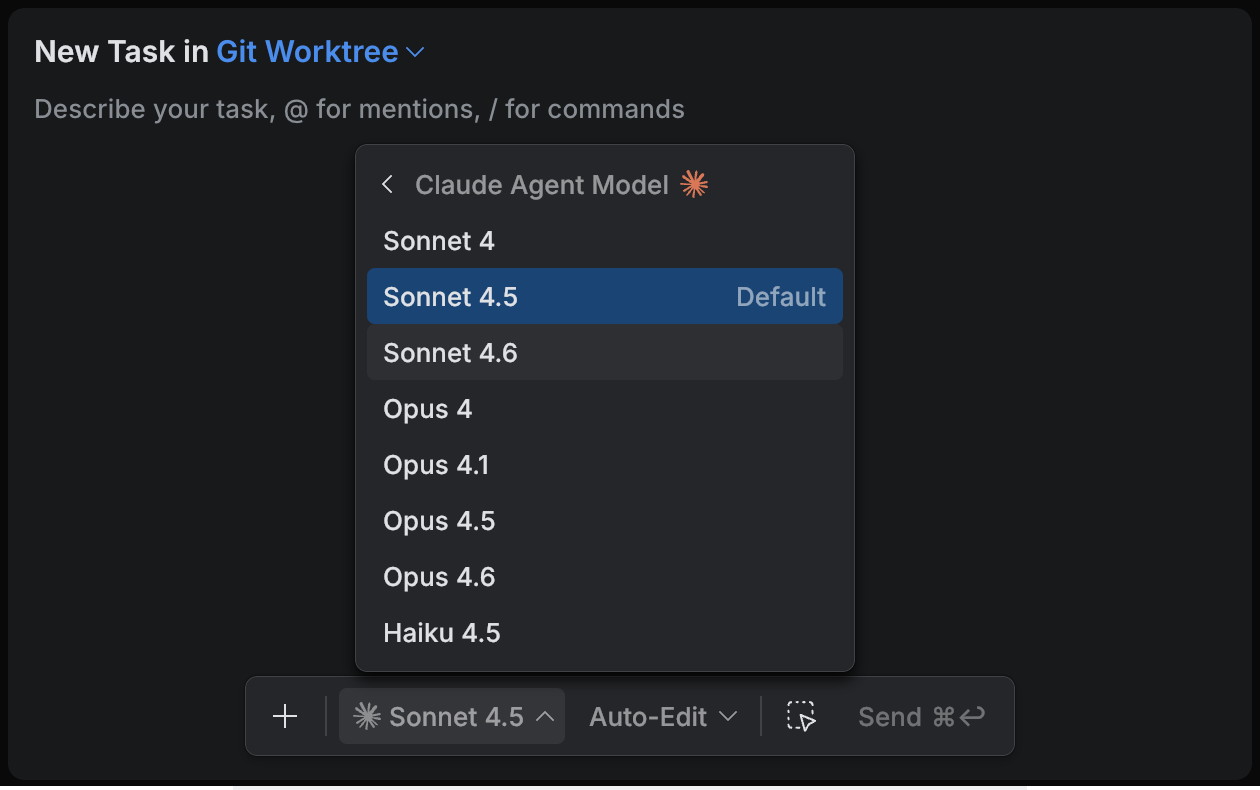
If you want the agent to draft an implementation plan before it changes code, select the Plan permission mode. See Plan mode.
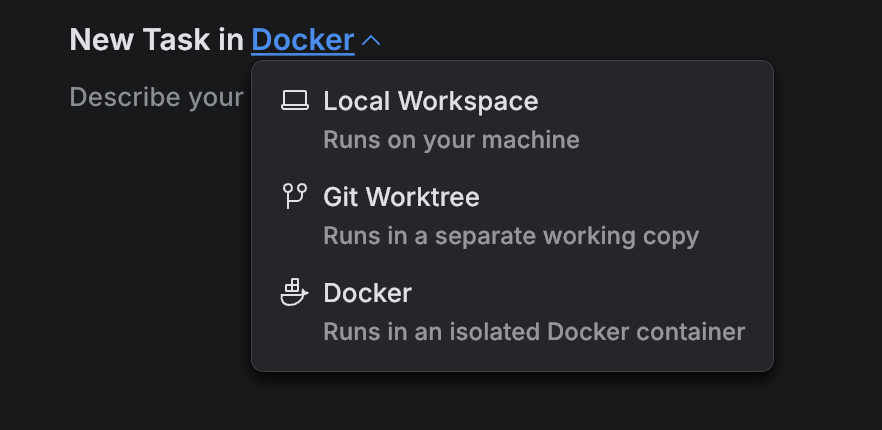
Choose a run environment:
Local Workspace – the agent runs on your machine and writes directly to your working copy.
Git Worktree – the agent works in a separate Git worktree on a dedicated branch, so your main working copy stays untouched until you apply the result.
Docker – the agent runs in an isolated container with its own filesystem, useful for running untrusted code or keeping the environment clean.
Send the task.
Press Enter or click Send. The agent works on the task while you keep editing or start another task in parallel.
Learn more about running and managing tasks in Cloud tasks.
5. Review the changes
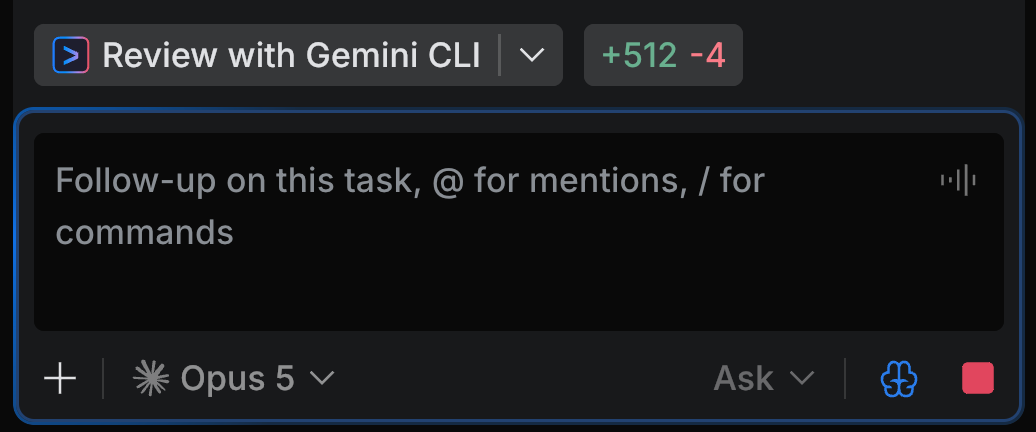
When the task is done, the Chat tool shows how many lines the task added and deleted, for example, +512 -4. Click the statistics to open the diff in the Task Changes tab and decide what to do next.
Review with an agent
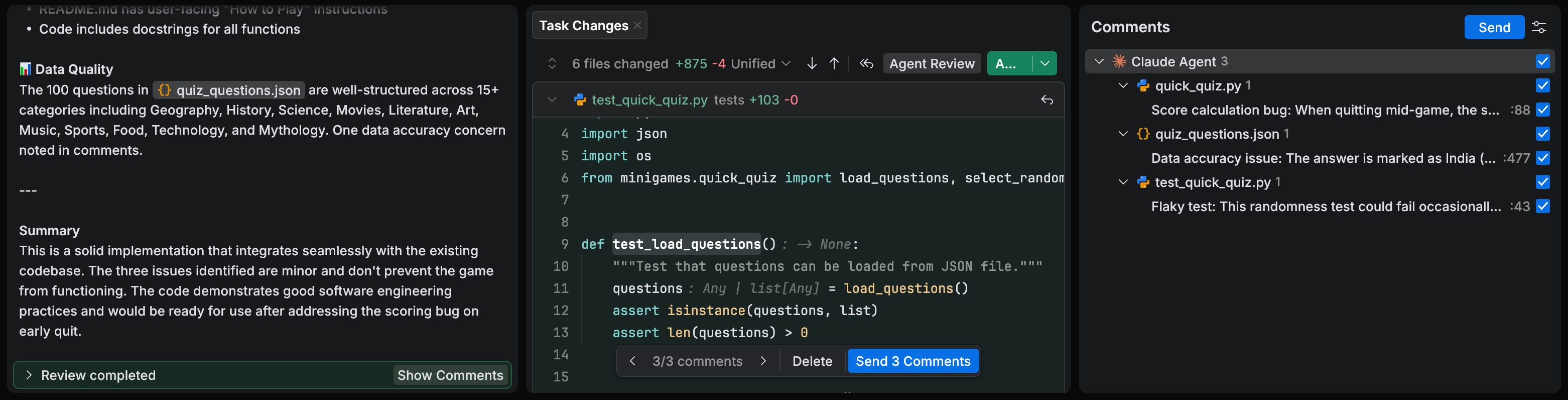
For a fast first pass, use Review with <agent>. The Air app runs a separate review task with a fresh agent session that checks the diff against your review focus areas and leaves comments on specific lines. Accept the comments you agree with and send them back to the main task – the main agent uses them as follow-up instructions and updates the code.
To review with another agent, click the arrow next to the button and select the agent and model you want – a second opinion from a different agent often catches what the agent that wrote the code missed.
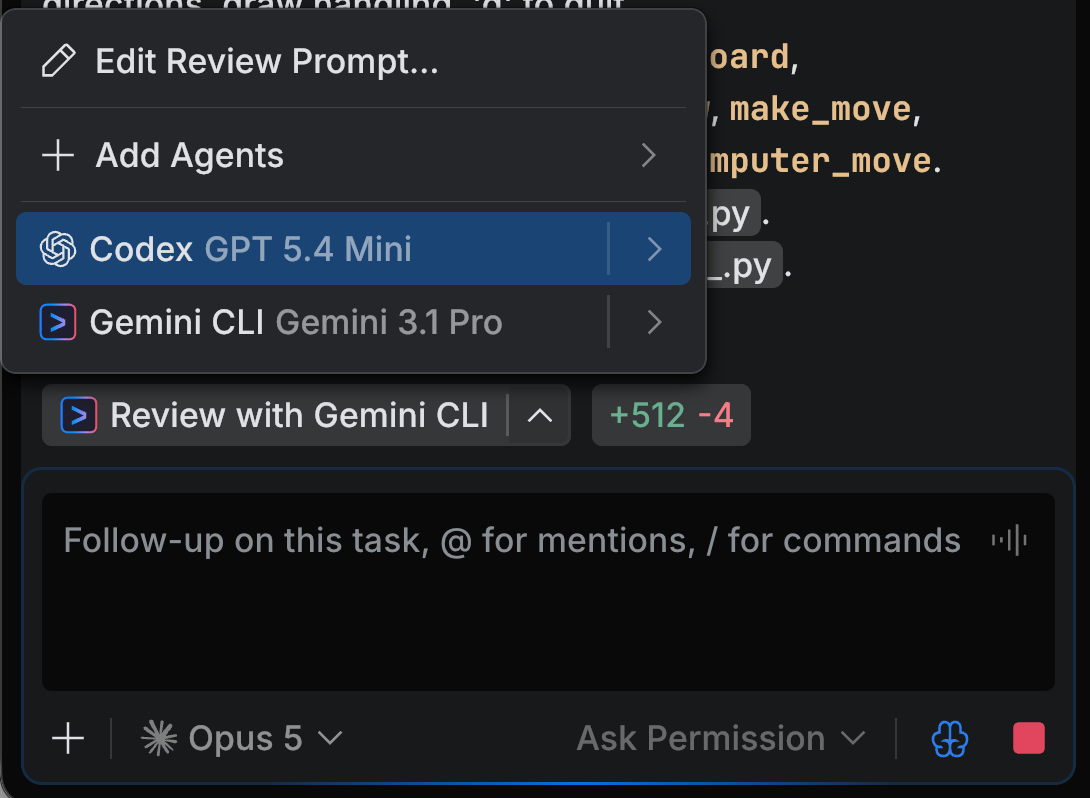
For the full workflow, including how to review another scope or change the review prompt, see Review with agent.
Review the diff yourself
You can also review the diff manually. In Task Changes, you can:
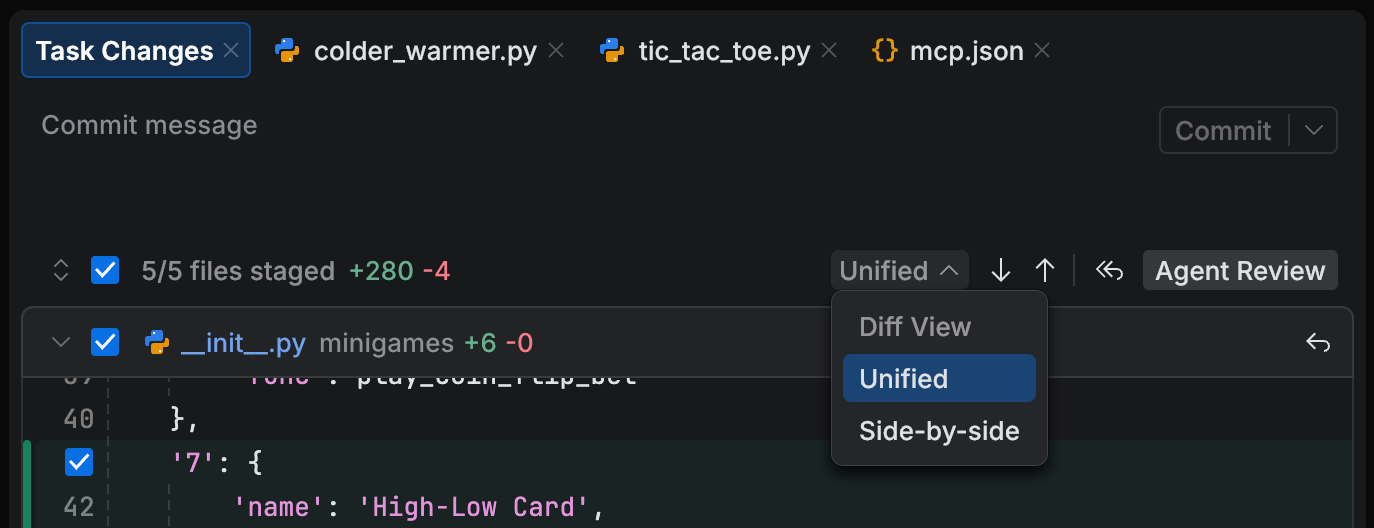
switch between Unified and Side-by-side views and navigate between hunks
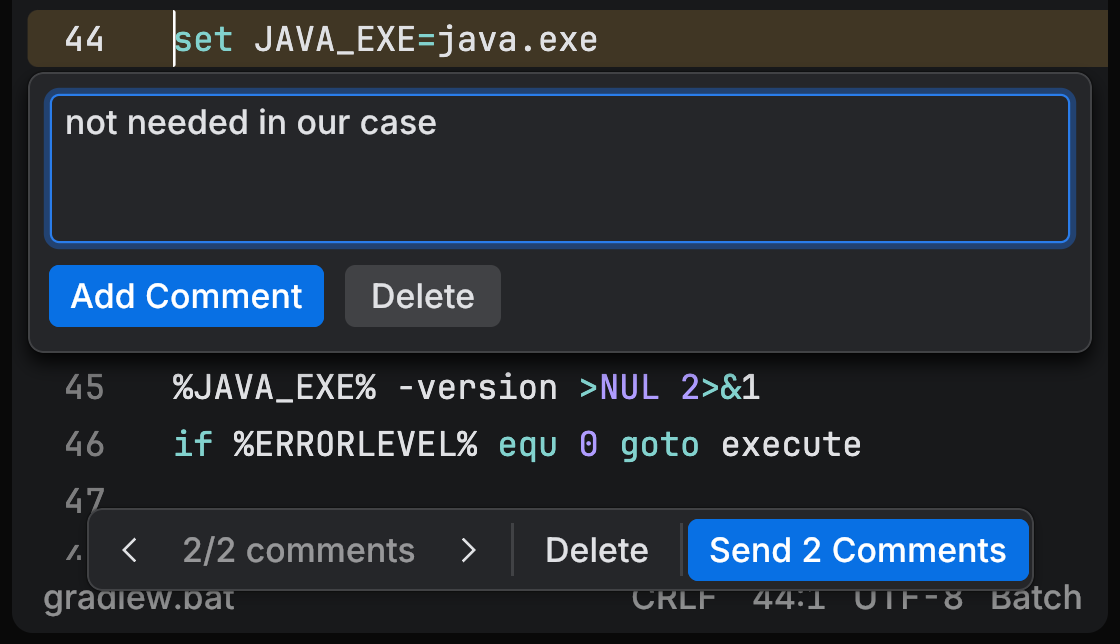
comment on specific lines and send the comments back to the task as review feedback
select code in the diff and click Add to Task to attach it to a follow-up instruction
For details, see Review changes.
6. Apply the changes
When you are satisfied with the result, apply the changes to your local workspace and integrate them into your normal workflow. How you do this depends on the run environment you picked for the task.
From the local workspace
If you ran the task in Local Workspace, the agent already wrote the changes to your working copy. Open Task Changes, enter a commit message, and click Commit (to auto-generate the message, click Generate Commit Message  next to Commit). Then push the commit to the remote repository.
From an isolated environment
If you ran the task in Git Worktree or Docker, the agent worked outside your local working copy. Bring the result back to your local workspace in one of two ways:
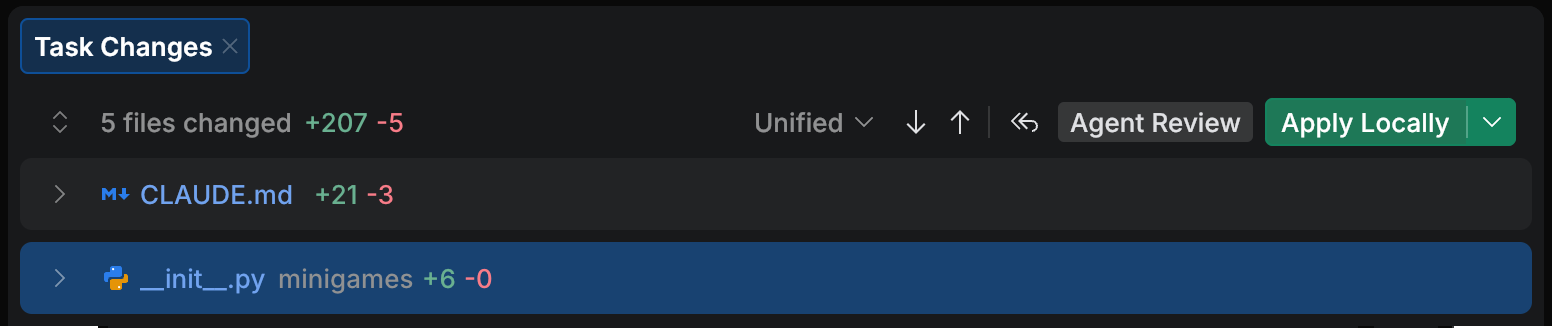
Click Apply Locally to copy the changes into your current working copy as uncommitted changes. Then commit and push as usual.
From the Apply Locally drop-down, select Check Out Branch Locally to check out the task branch in your working copy. Push the branch or open a pull request as usual.
For the full workflow – including how to revert changes or roll back to a previous commit – see Accept changes.
Where to go next
The Air app offers more features that you can layer on as you grow into the agentic workflow.
Plan mode – let the agent draft an implementation plan before it changes code, and approve it before execution.
Permission modes – control when the agent can edit files or run commands without asking.
Project instructions – commit project-level rules (
CLAUDE.md,AGENTS.md) that shape how agents work in your repository.MCP servers – connect external tools and data sources to the agent through the Model Context Protocol.
Skills and Commands – reuse and compose instructions and shortcuts for recurring task patterns.
Multitasking – run several tasks in parallel and switch between them.