Open projects
A project is the folder that holds your code, the same as in any other JetBrains IDE. Opening one creates a workspace around it: the container that keeps that project's tasks, Git state, and tools together.
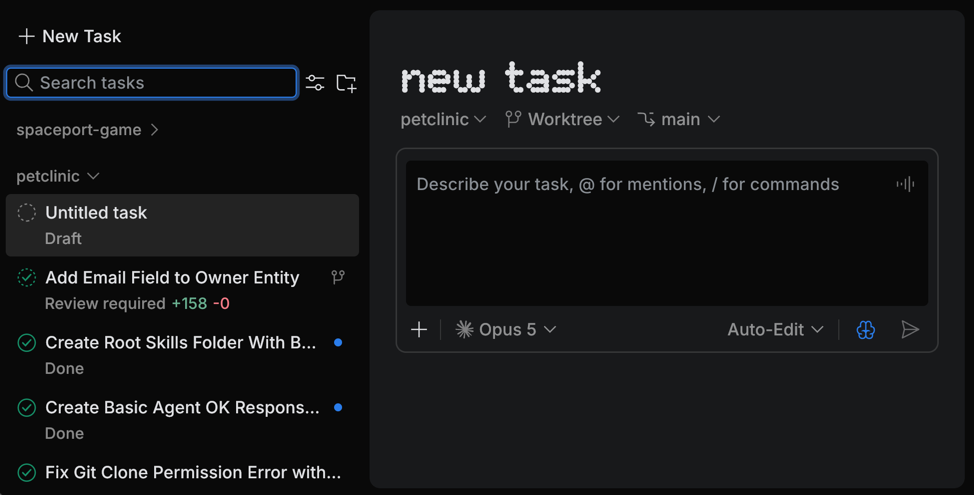
Workspaces share one window, so you never open a second one. The Tasks tool lists your workspaces by project name, so you can work in one project while agents keep working in another.
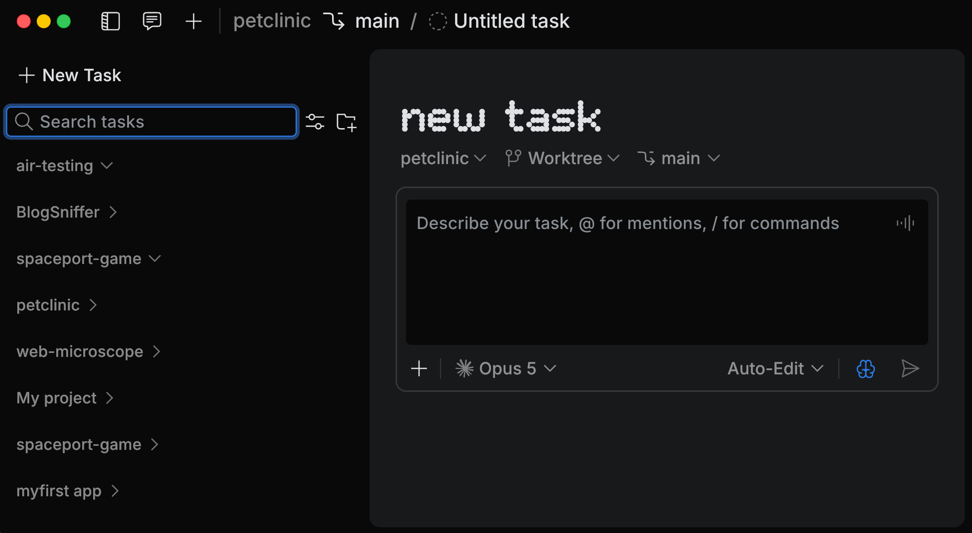
Open a project from disk
Select , or for a project you worked on before.
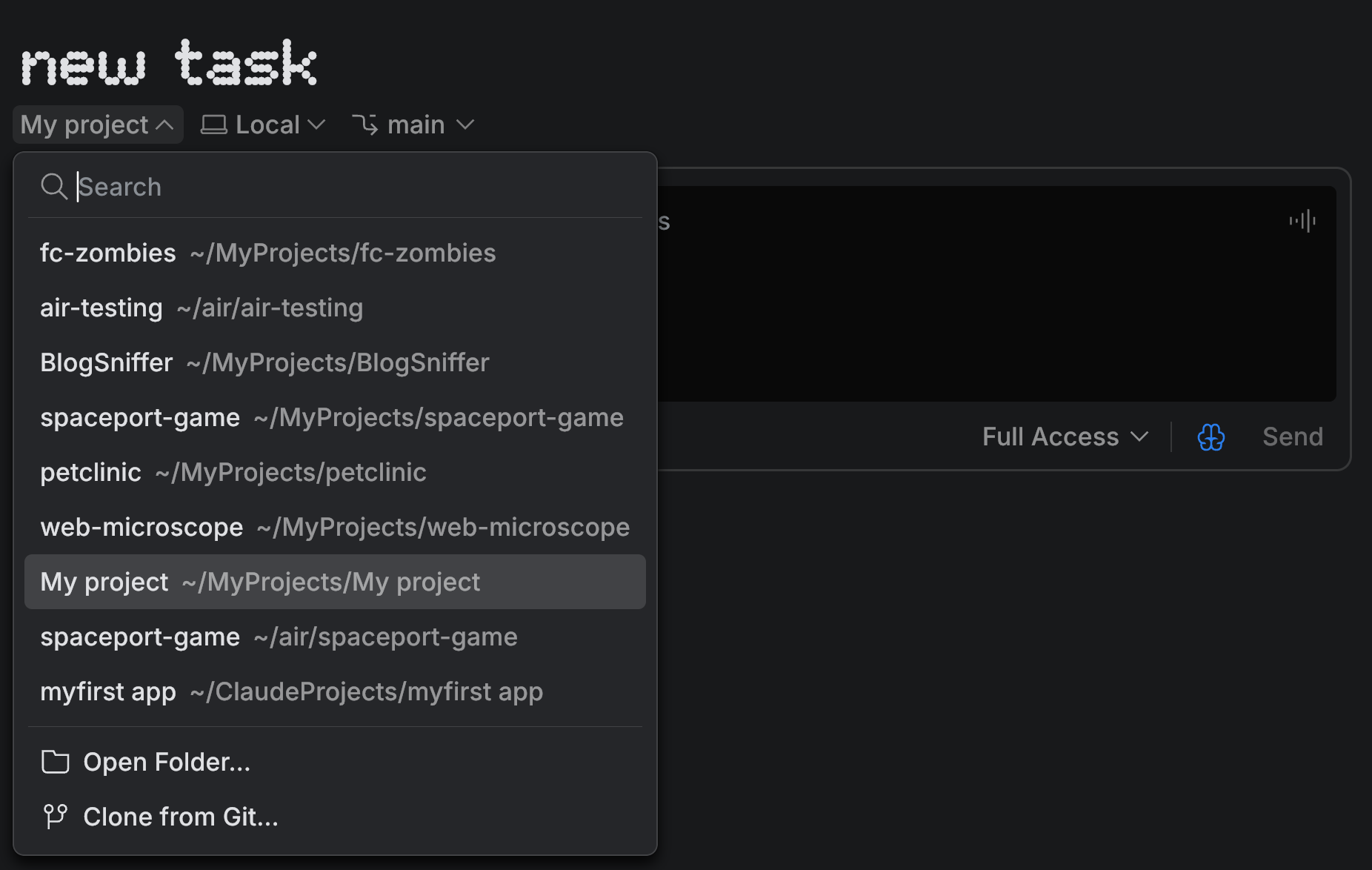
Alternatively, open the workspace selector in the task header and select Open Folder.
Select the project folder.
When the project opens, the Air app asks whether you trust the code in the folder. Click Trust only if you trust the authors of the project – opening it may run scripts or import code, which can execute anything in the project. To look around first, click Preview: app functionality will be limited but safer.
Clone a project from Git
In the main menu, select . Alternatively, open the workspace selector in the task header and select Clone from Git.
In Source URL and Location, specify the repository URL and where to store the cloned repository.
Click Clone.
Switch to another workspace
Do one of the following:
In the task header, open the workspace selector and select a workspace.
Select in the main menu, or press Alt+1. Then expand the workspace and select the task you want to work on.
Remove a workspace from the list
In the Tasks tool, point to the workspace and click ….
Select Remove and confirm. This clears the workspace from the list and leaves the project on disk untouched.
To open the project again, select and pick it from the list, or select and choose the project folder. lists only the projects that don't have a workspace in the Tasks tool.