Web preview
The preview feature in the Air app lets you instantly preview your web application.
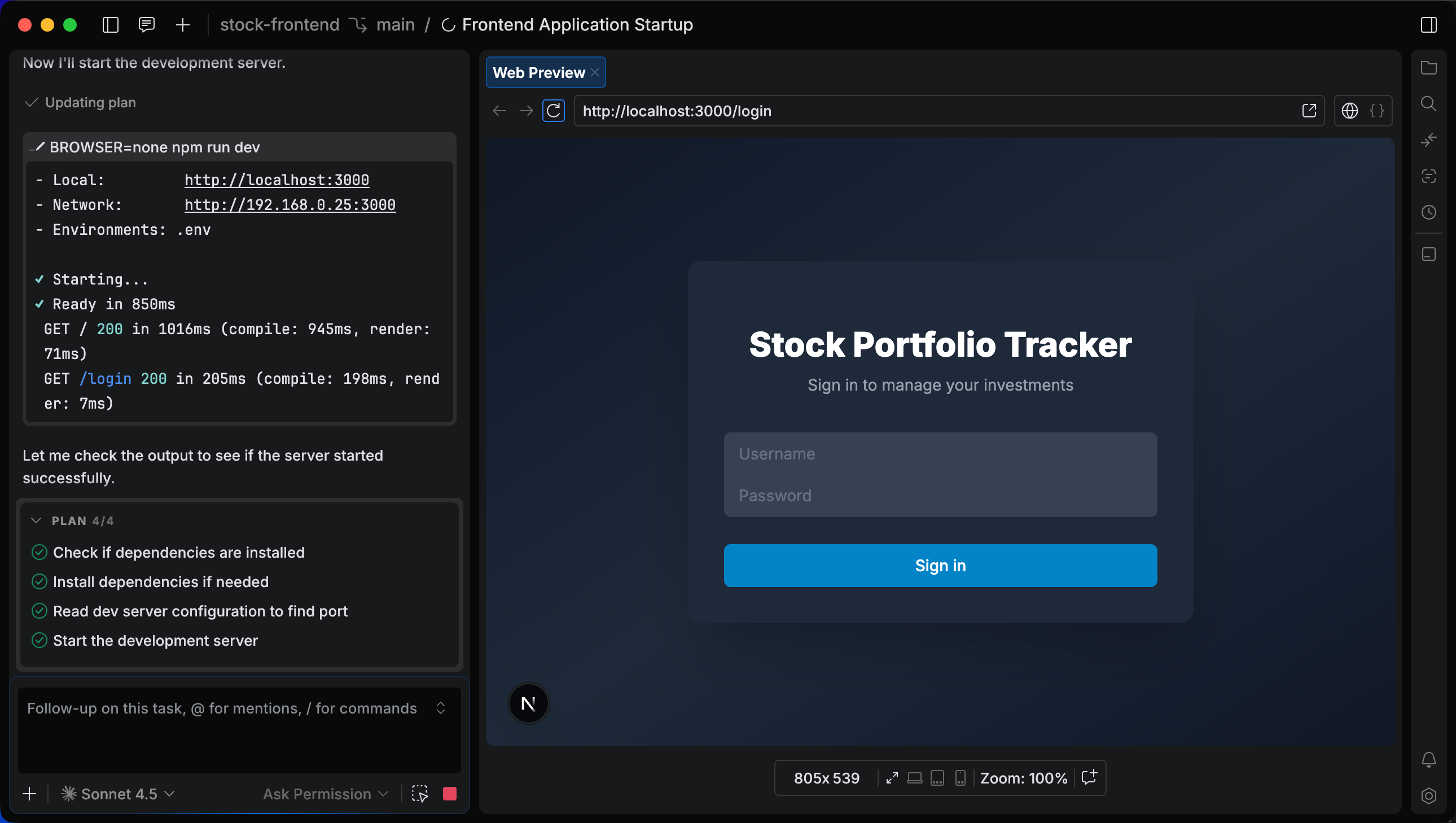
The web preview opens automatically for web-based projects when your server starts, or for static projects that contain an HTML file. By default, the preview pane opens in preview mode, indicated by the toolbar in the upper-right corner.
If the preview does not appear, try running it manually.
Run the preview manually
Press Ctrl+Shift+K and start typing New Preview Tool. Select New Preview Tool.
You can switch from the preview to the source code view to inspect the underlying HTML source. The code is read-only, indicated by a lock icon. You cannot edit the code in this mode.
Switch between preview and source code modes
Click the web or code mode icon in the upper-right corner of the Preview tool.
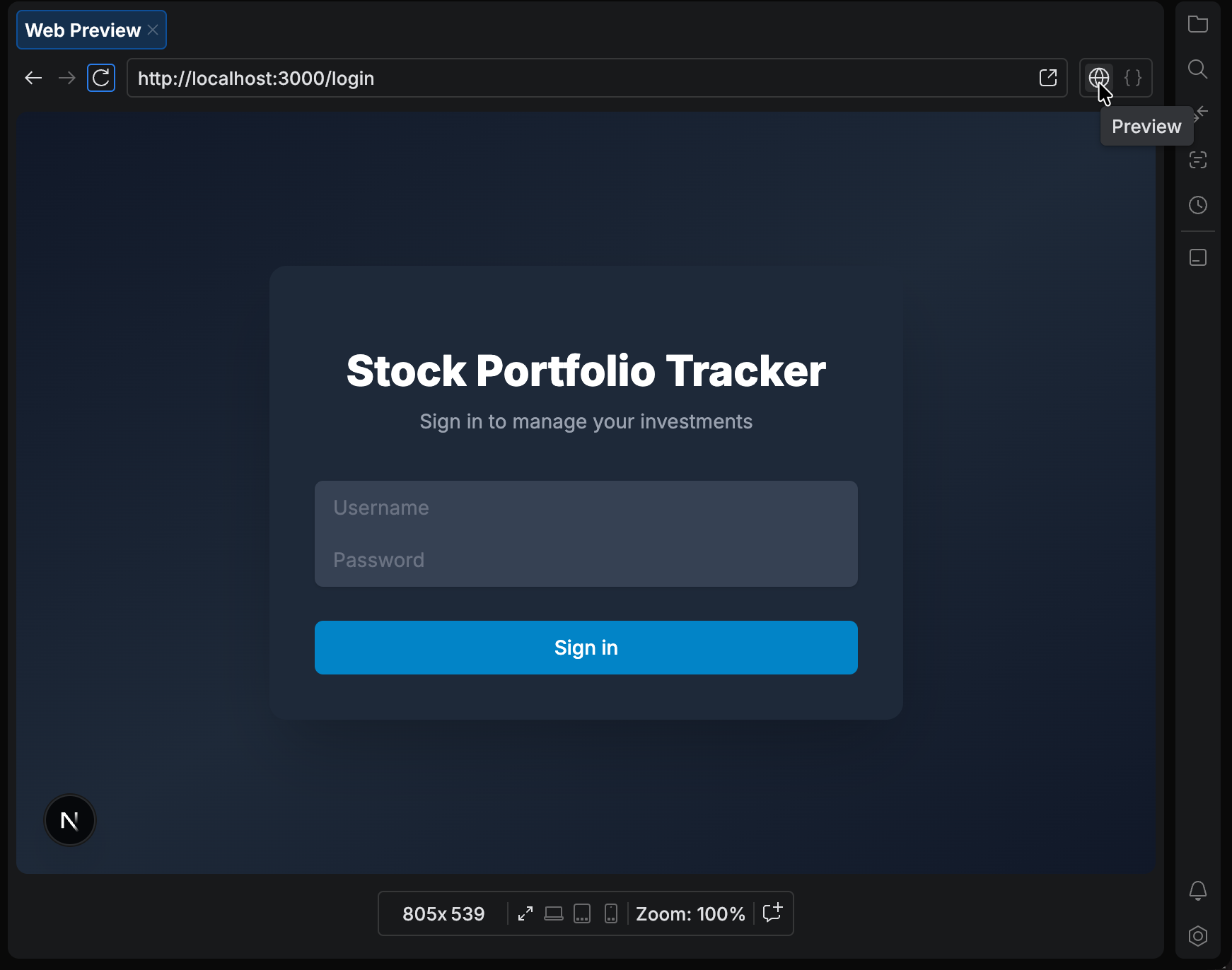
If the page does not open or shows an error, you can ask the chat to summarize the problem and suggest possible fixes. You can also use the Reload Page button in the toolbar to refresh the preview and load the latest changes.
By default, the preview is in responsive mode, shown by the Expand icon in the Devices toolbar. Responsive mode uses the full width and height of the editor and adjusts automatically as you resize the window.